---
title: Pages
description: The pages area allows you to make changes to the page hierarchy of the website or page settings.
---
[Skip to content](https://support.tributetech.com/frontrunner/pages#main-content)
English
Show submenu for translations
[Register For The Customer Support Portal](https://support.tributetech.com/portal?hsLang=en)

Open main navigation
Close main navigation
- English
Show submenu for translations
- [Register For The Customer Support Portal](https://support.tributetech.com/portal)
- [Contact us](https://share.hsforms.com/1iDvar3xJSF2g-vDGycwdFAtkn7c)
[Contact us](https://share.hsforms.com/1iDvar3xJSF2g-vDGycwdFAtkn7c)
How can we help?
- There are no suggestions because the search field is empty.
1. [Frontrunner](https://support.tributetech.com/frontrunner?hsLang=en)
2. [Website Tab (Wireframe)](https://support.tributetech.com/frontrunner/website-tab-wireframe?hsLang=en)
# Pages
## The pages area allows you to make changes to the page hierarchy of the website or page settings.
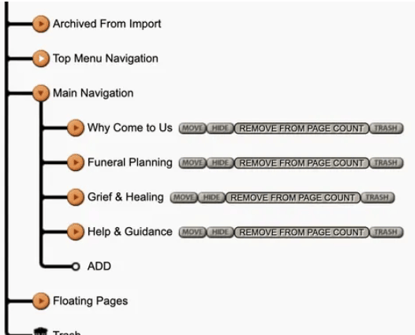
To access this area of your website, click Manage from the left menu \> Site Map. The Site Map is presented in a tree style layout. All pages contained within the menus across the top or left side of the site are arranged in the order they appear.
\*\* Note, if you do not see this you may have the menu collapsed. Click Expand Menu with the arrow on the far left of system.
Here you will find a list of pages within your website.
- At the bottom of each listing will be an ADD link which allows you to **add a new page**.
- There are arrows beside each page. Orange indicates there are more sub-pages. White indicates there are no sub-pages.
- There is an undo and redo button at the top.
- See section below to learn more about Floating Pages.
Beside each page you will find:
- Move: allows you to **move a page**. When you click that, a "move here" button will be beside each page.
- Hide: allows you to **hide a page**. When you click that, an "unhide" button will be beside the page.
- Trash: allows you to **delete a page**. When this is clicked, you page will move to the Trash section at bottom. If you have note saved your page and change your mind, you can always remove from the trash.
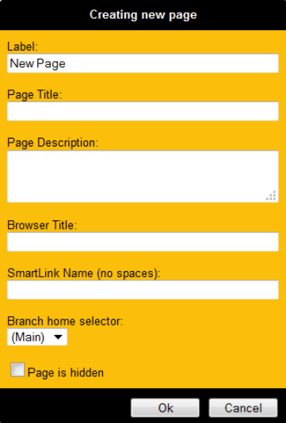
When you click on a page, a pop-up will appear. We suggest filling in the following fields to improve your website’s search engine performance.
- Label – is the page name that will appear in the navigation.
- Page Title – is that title that will appear on your page.
- It’s recommended that the title is different than the label name and uses keywords. This will help with your Search Engine Optimization. Example: a page Label is ‘Directions’, the Page Title could be ‘Directions to ‘Funeral Home Name’.
- Browser Title – is displayed along the top left of the web browser. It can describe the page content and include important keywords to help with the website’s Search Engine Optimization. The Browser Title is also indexed by FrontRunner Professional.
Click Ok.
#### **Floating Pages**
Floating pages are not contained within the regular navigation. For visitors to access a floating page, it must be linked from an element, such as a photo or text, on another page. To learn how, refer to the [Linking](https://www.frontrunnermanual.com/linking) page.
#### **Password Protected Pages**
By setting up security users, specific web pages can be made visible only to those who have the login information.
To access this area of your website, click Manage from the left menu \> Security Users.
\*\* Note, if you do not see this you may have the menu collapsed. Click Expand Menu with the arrow on the far left of system.
**Add Security User**
1. Enter a User Name and Password.
2. Groups are used if there will be a series of users to have access to certain page.
1. Choose the group is this user is to be a part of one. If there are no groups in the drop down, type a New Group in the field below.
3. Click Save.
**Assign a User/Group to a Page**
1. Go to the page on your website.
2. Click Edit Security.
3. Uncheck Public.
4. Check the User or Group.
5. Click Save.
#### **Page Settings**
Whether it's a newly created page or an existing page, it is important to understand the settings available.
Navigate to your website \> Edit Details. There are 3 sections that should be checked and corrected if required:
- **Page Settings**
- Visibility - you can hide/unhide a page
- Text to place on menu: is the page name which will show in your navigation.
- Page title: is the page name which shows at the top of your page.
- Browser title: is displayed along the top left of the web browser. It can describe the page content and include important keywords to help with the website’s Search Engine Optimization. The Browser Title is also indexed by FrontRunner Professional.
- **Child Browser Settings:** this is used if your page is going to be a sub-page and you want to display an image, title and description on the main page which will link into your page. [Click here](https://www.frontrunnermanual.com/child-browser) to learn more.
- Child Browser Title: is the title to appear.
- Child Browser Description: is the description to appear which gives a brief intro about this page.
- Child Browser Image: Browse and upload a photo that reflects this page.
- **Optional Settings** – you only need to worry about the following:
- Search Keywords: enter a series of keywords pertaining to this page. Separate each with a comma.
- Search Descriptions: enter a description, using keywords, pertaining to this page.
- **Page Action** – shows all the modules available for your web pages. To learn about each, [click here](https://www.frontrunnermanual.com/editing-features#modules).
Click Save if any changes are made.
- [Dashboard](https://support.tributetech.com/frontrunner/dashboard?hsLang=en)
- [Records](https://support.tributetech.com/frontrunner/records?hsLang=en#main-content)
- [Management Records](https://support.tributetech.com/frontrunner/records?hsLang=en#management-records)
- [Book of Memories](https://support.tributetech.com/frontrunner/book-of-memories?hsLang=en)
- [Website Editor (Duda)](https://support.tributetech.com/frontrunner/website-editor-duda?hsLang=en#main-content)
- [List of Widgets](https://support.tributetech.com/frontrunner/website-editor-duda?hsLang=en#list-of-widgets)
- [Editing Features](https://support.tributetech.com/frontrunner/website-editor-duda?hsLang=en#editing-features)
- [Editor Overview](https://support.tributetech.com/frontrunner/website-editor-duda?hsLang=en#editor-overview)
- [Website Tab (Wireframe)](https://support.tributetech.com/frontrunner/website-tab-wireframe?hsLang=en#main-content)
- [Website Modules](https://support.tributetech.com/frontrunner/website-tab-wireframe?hsLang=en#website-modules)
- [Stationery Printing](https://support.tributetech.com/frontrunner/stationery-printing?hsLang=en)
- [Memorial FX Videos](https://support.tributetech.com/frontrunner/memorial-fx-videos?hsLang=en)
- [Arranging Director](https://support.tributetech.com/frontrunner/arranging-director?hsLang=en)
- [Marketing Center](https://support.tributetech.com/frontrunner/marketing-center?hsLang=en)
- [System Features](https://support.tributetech.com/frontrunner/system-features?hsLang=en)
- [Partner Integrations](https://support.tributetech.com/frontrunner/partner-integrations?hsLang=en)
- [General Settings](https://support.tributetech.com/frontrunner/general-settings?hsLang=en)
- [Management System Settings](https://support.tributetech.com/frontrunner/management-system-settings?hsLang=en)
- [FAQ](https://support.tributetech.com/frontrunner/faq?hsLang=en)
[](https://www.tributetech.com/)
Copyright © 2026, Tribute Technology