
Adding Verses
Adding verses to the system is a fairly simple process.
- Choose the type of stationary item you want to add a verse to.
- A blank stationary document will load.
- Type in the prayer and make any desired changes to the appearance.
**For stationery items of 2 or more prayers, type the prayer into the first place only and when finished click the “Copy Prayer” button. - Once you are done entering in your prayer and getting everything to look the way you want, “Save” your Word document.
- You will be asked to give a name for the new document. After you type in the name you want hit the “Save” button and then close the document and you are done.
**When choosing a name for the new prayer DO NOT save over any prayer that we provide with the system. Make sure to also save a second copy of the prayer you have added to some other location as a backup for the prayer in case something happens to the original.
Creating New Stationary Libraries
This selection allows you to create your own custom library of cards that you offer to families.
- This Feature is located under the Add New Stationary item of the Utilities Menu.
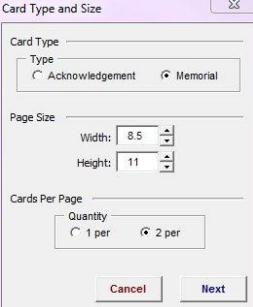
- On the next screen, select the type of library you want to create (Acknowledgement or Memorial), the specific width and height of the card (use either the up or down arrows to the right of the width/height boxes or type in the sizes), and whether there are 1 or 2 cards per printed page. Click Next.
- Memorial Folders:
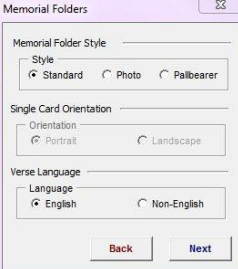
- Select Style of memorial folder, either standard (Verse, Service Info and Funeral Home Name), photo (Place for photo, Verse, Service Information, and Funeral Home Name), or Pallbearer (Verse, Service Information with Pallbearer names, and Funeral Home Name).
- For one card per page: select if the orientation is Portrait or Landscape.
- Select English or Non-English Verses. Click Next.
- Acknowledgement Cards:
- Select where the verse should be printed on the card (one card per printed page, select with Right or Left side of the card. For two cards per page, select Right, Left, Top or Bottom. Default is Right.). Click Next.
- Select Style of the card, either Standard (opens left to right) or Invitation (opens top to bottom).
- If there is one card per page, pick Landscape or Portrait mode.
- If you are using Invitation style, you can select an amount to off set the verse from the center. Click Next.

- Memorial Folders:
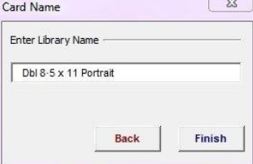
- Enter a Name for the Library. Click Next.
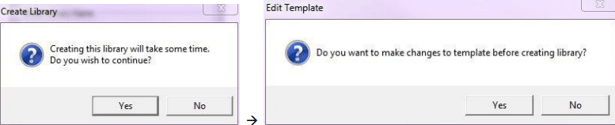
- A Warning message will display stating that creating the library may take some time, do you wish to continue? Clicking Yes, then a second prompt will appear asking if you wish to edit the template or not. Once you have answered this question either way the system will start the process of creating the library. (Acknowledgement cards take less time than Memorial Folders.) Clicking No will close the utility
- Once the library is created, exit Word and exit MiMS.
- Start MiMS again and the new library will be located under the Stationary Menu, the type of library you created, and Custom. You can also Add New Verse to your library and Edit it from the menu items under Utilities and Add New Stationary and Edit Documents.