
**Backing up your MiMS data is very important and should be done on a regular basis.
The Backup and Restore functions of MiMS are located under the Database Side Menu within the File Menu.
Backing Up Data
- To Backup Data click on the “Backup Data” button.
- The “Backup Database” window will appear.
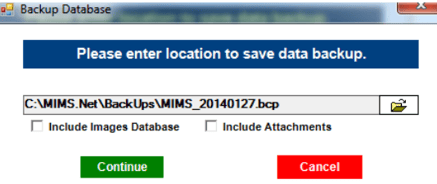
- In this window, make sure the path that MiMS is looking to backup to is correct. If it is not correct then you can either manually correct the path or use the Folder button to the right to choose the correct location.
**MiMS will default to the last location it was told to backup to. - If either check box for “Include Images Database” or “Include Attachments” is available to check make sure you do so.
- Click Continue and your MiMS data will be backed up.
**You can store your backed up data to a CD-R if you first back up your data to your hard drive (C:/) and then use your CD burning software to transfer the data file to the CD-R. The MiMS program is not designed to burn the data file directly to a CD-R; you must take the extra step of using your CD-R software to transfer the program to disc.
Restoring Data
WARNING: Restoring a data file completely replaces the existing data file. This means that any data already in MiMS will be completely lost so proceed with restoration of data with caution.
- To restore your MiMS Data click on the “Restore Data” button.
- The “Restore Database” window appears.
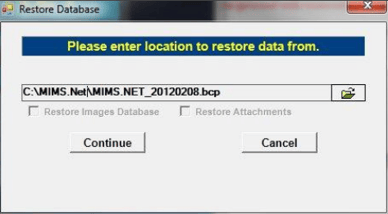
- In the Restore Database window make sure that the path listed is pointing at the exact backup file you are looking to restore. If it is not you can either manually correct the path or use the Folder button to the right to manually navigate and choose the backup file you wish to restore.
**MiMS will default to the last location it was told to restore from. - After the correct file is chosen if either check box for “Restore Images Database” or Restore Attachments” is available to check do so.
- Click Continue and the system will proceed with restoring the MiMS data.