
The death records section is where all records added to the system will be listed out with options to add new records, change settings for obituary pages and manage various components of obituary pages.

Adding New Records
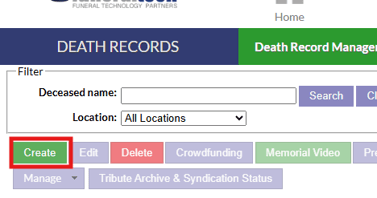
From the Death Record tab, click the create button to begin the creation of a new record. You will be brought to the “Death Record” editing screen.
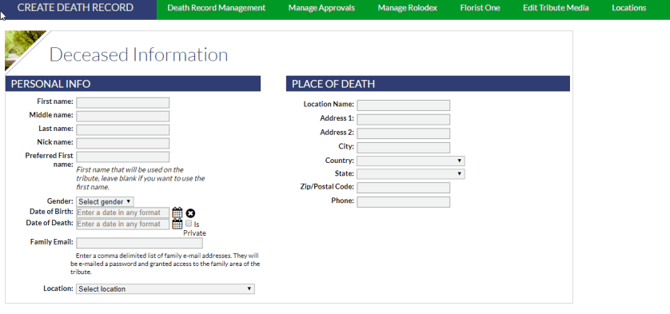
Here, you will have a wide variety of spaces to fill out, including:
- Personal Information
- Place of Death
- Obituary
- Tribute Type & Theme
- Photos & Media
- Service, Visitation, and Burial Event Details
Please note that most fields are not necessary for the creation of a record. The only fields that are mandatory to proceed with Saving a record are: First & Last Name, Gender, and Date of Death.
Editing Existing Records
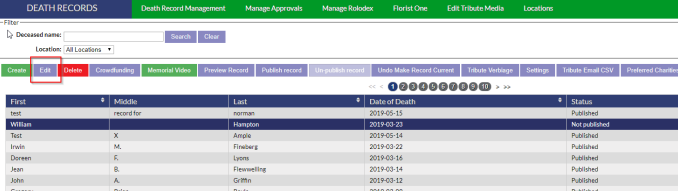
If you need to change, add, or remove information that is on an existing record, click on the record from the record list on the death records page, then click the edit button. This will take you into the record editing page.
Deleting Records
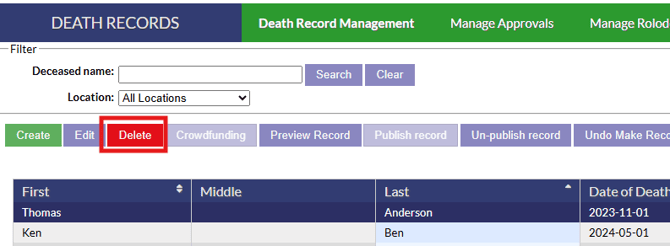
To delete a record, select the record from the record list on the death records page, then simply click the red delete button. Deleted records can be recovered by Funeral Tech support, if you need to recover a deleted record reach out to support at support@funeraltech.com
Selecting a Serving Location
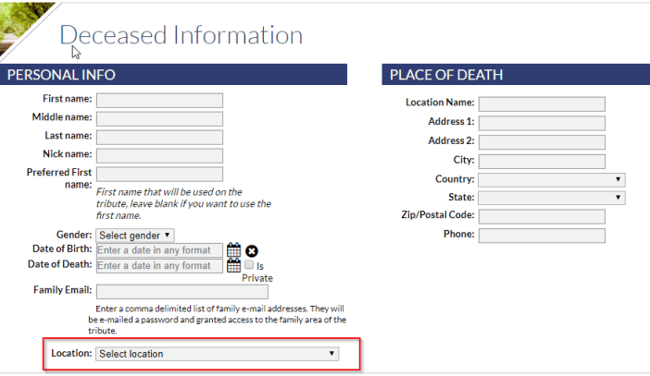
If you have a multi-location funeral home (not necessarily a multi-site) system, you will have the ability to Select a Location. This will appear as an option just below the Family Email section in the Deceased Info box. Clicking on it will allow you to make sure that it is assigned correctly for the benefit of your users. It is important to do so as it will be showcased on the “View All Tributes” section of your website, as well as in thank-you notices for features like Donations.
Family E-Mail
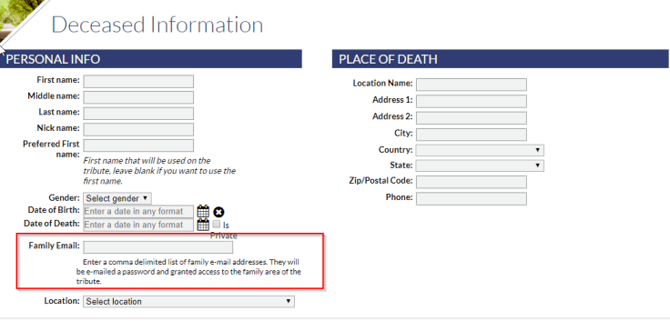
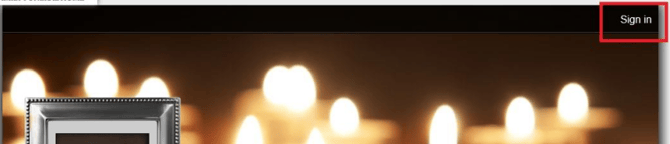
In your Deceased Info box you will have the ability to add a Family E-mail. Any e-mail address(es) added to this section will receive a password inviting them to log-in to their loved one’s tribute page. Though it appears different on each Tribute Type, the sign-in link is typically located in the top-right section of the page. Granting this access will allow the family to change the theme, view private condolences and photos, and treasure the page for the future.
Assigned Sites
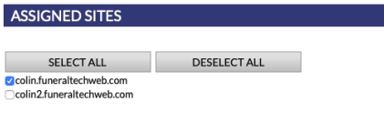
If you have multiple websites, you will be required to select at least one Site to which the obituary will be assigned. You may also select multiple sites, should it be important for the obituary to display in multiple places.
Tribute Themes and Types
Funeral Tech is pleased to offer a wide variety of Tribute themes to our users. Simply click on the dropdowns to the right of the Obituary section to choose from our selection. Themes can be changed at any time. A preview of the theme will show in the image next to it.
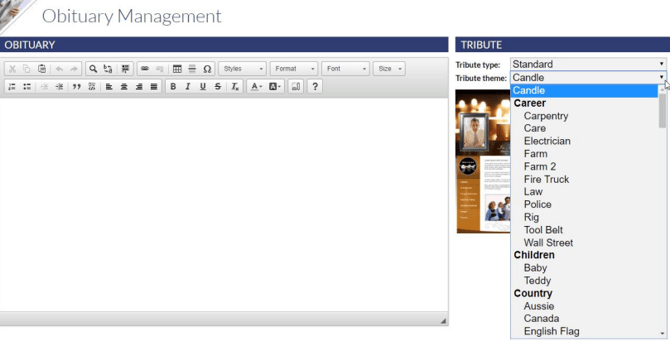
Obituary Section
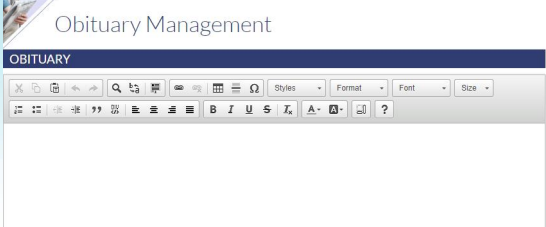
The Obituary section allows for either typing or obituary pasting. Note that most browsers will require the use of CTRL + V or CMD + V to paste the obituary into the field. Text editing options are available in the text editor to format text, change font sizes, align and add links.
Photos
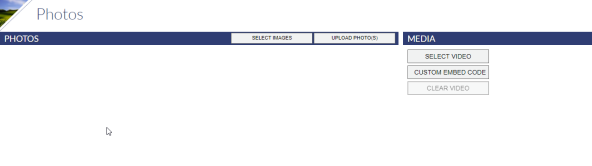
Selecting Photos for the record works just as it does in the Media Files in the Site Editor. There are a few slight differences however. You have the ability to select multiple photos at once, to re-order them on the tribute slide-show by clicking and dragging, and to re-crop them by clicking on the icon in the top-left of the photo.
NOTE: A maximum of six photos will appear in the slideshow for the tribute. If you wish for a photo to be displayed, re-organized the section until it is in the first six.
Videos
To the right of the photo section, you can add Videos to a record. Multiple options are available for adding memorial videos or live streaming links.
The Create/Edit Tribute Video option will open up the Tribute Video editor so that you can create or edit your Tribute Video for the record you are on. Completed videos will automatically be added to the obituary page once they are rendered.

The Create/Edit Memorial Video option will allow you to open the Tukios video editor to create or edit a video via the Tukios integration. Completed videos will automatically be added to the obituary page once they are rendered.

The Select Video option allows you to add a Youtube video from your media files.

The Custom Embed Code option allows you to add a video using an embed code. This is particularly useful for adding videos that are hosted on video sites other then Youtube.

The Clear Video option will erase any videos that are currently added to the record.

Events
There are 3 default service areas for you to enter service information if needed:
- Service Details
- Visitations
- Interment Details
If you needed to add another service, you can click on “Add Service” in any of these sections. You can also remove a service by clicking “Remove”; however, it will not show up if it remains empty.
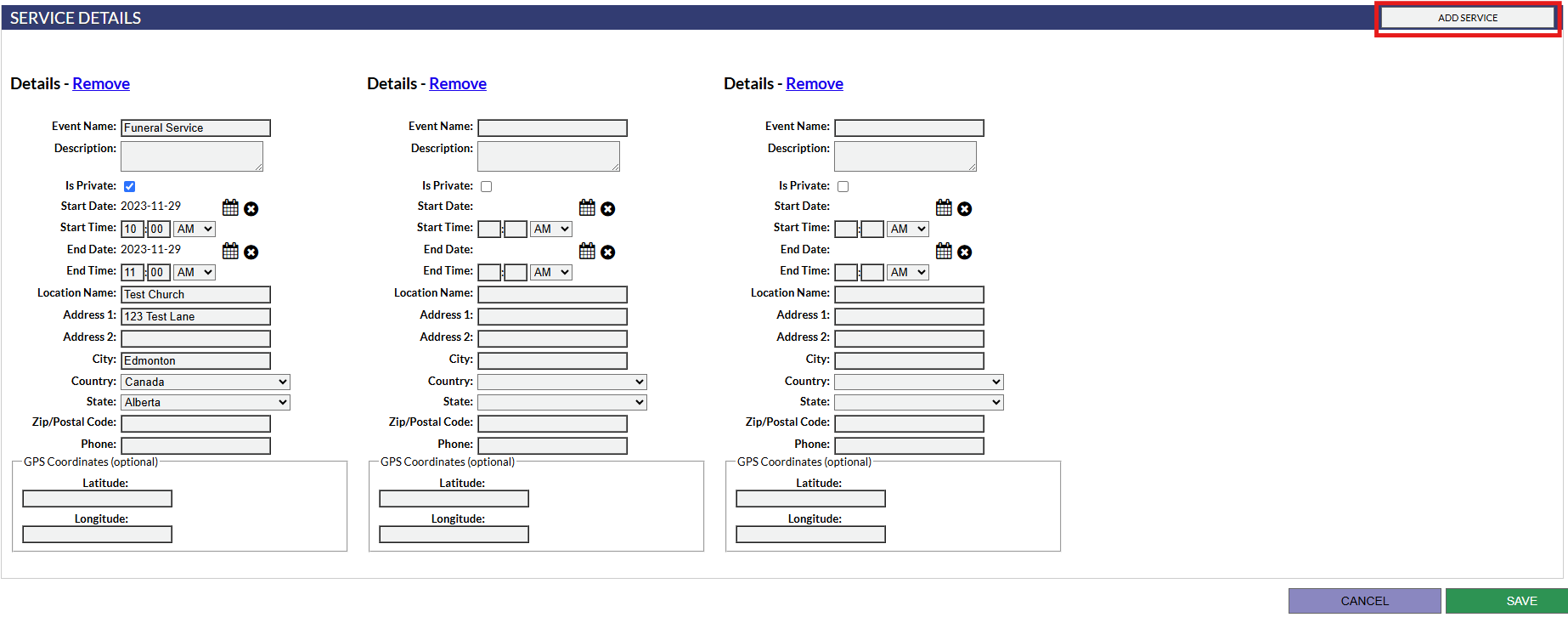
TIP: You will need to enter an event name (Example: Service.) Remember to use the calendar icons for the date. Your Locations will save to your Rolodex as you start entering them. If your location does not have a formal address, you can use GPS Coordinates to populate the map
instead (as seen above in the Map & Directions section).
NOTE: If you have a multi-part event (like a visitation from 11-1, then 3-5), these will need to be added as two separate events.
NOTE: The section in which you enter the event affects the section in which it will appear on the tribute.
NOTE: There is an Additional Event section to allow for custom events that either do not fit the listed Event Types or might demand information best kept private (i.e. a reception at somebody’s house where you would not want to list the address publicly).
Saving and Errors When Saving
Hit “Save” in the bottom right corner to save your record. If there are no errors that need to be corrected, you will be taken to the Death Records section where you will see all of your records listed. If you cannot save your record, you will see the error below.

You will notice there are red boxes throughout the record detailing where your errors are. Correct them and then save again to resolve the issue.