
The “CASE INFO” (Vital Statistics) screen is where you initially enter information (for a death call for which you have no pre-need information) or where you check, correct, update and save information regarding a former preneed case that is now an At-need case.
Once you have left the Case Info (Vital Statistics) screen, you may return at any time to edit or add information to any case that has already been entered. When you return to Case Info, the last case you entered will appear in the Case ID field. The Vital Statistics for that case will be displayed.
Assuming that the user will most likely be working on the last case entered, the default case is set on the last date of death.
Selecting an Existing Case
There are two ways to select an existing case:
- From the Main Menu screen, click on Case Info. A new window will open, asking if you want to "Find a Case" or "Add a Case".
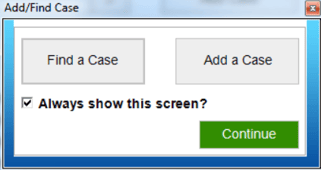
Click on “Find a Case”. A list of all cases will appear in the Find Case window. Type in the last name or any field of information, and the case list will narrow down based on the criteria you select. When the name appears at the top of the list or is highlighted, click Select and you will return to the Vital Statistics window, with the case you have selected on your screen. You may also place your mouse pointer on the desired case and double-click to return to the Vital Statistics window.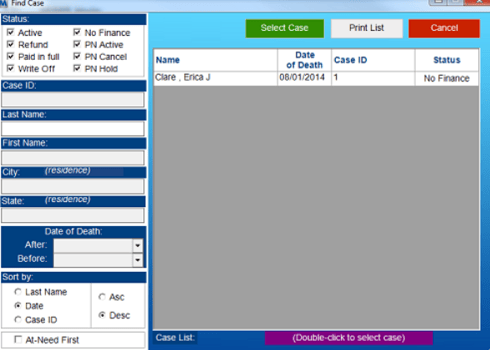
- The Second way to find a case is when the Add/Find Case Window is disabled. Next to the Case ID box is a button called “Find” which will also launch the Find Case window to find the case that you want to work with.
Adding a Case
There are two ways to add a new case, depending on the circumstances of the case.
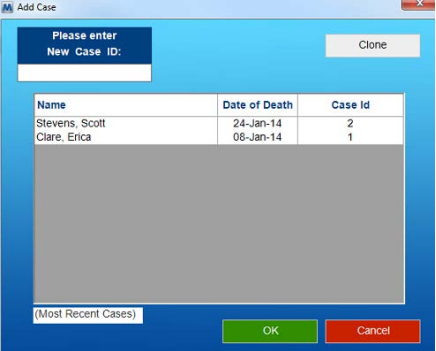
- If you want to enter a brand new case that has no relation to any previous case, go to the Main Menu, click the Case Info button, then click the Add a Case button from the pop-up window or button next to the Case ID box. You will be asked to enter a new Case ID if you do have Auto-Numbering enabled the next available number will be already entered.
- If you are entering a new case that has some relation to a previous case that has been entered into MiMS, use the “Clone” button located in the Add Case box. Add in the new Case ID number for the case. Once you click on OK the relevant information will be copied into the current case, then all you need to do is add the personal and current service information.
Deceased Tab
The first tab showing when you reach the case information screen is the deceased tab.

You will be able to fill out all applicable fields. In addition, when you reach the "City, St/Pro., Zip/Postal" field and the "If No, Specify" field, you will be able to utilize the information you entered in the Setup Options screen under "City/Town Setup".
If you right click in any text field you can assign a question to be asked any time someone starts to enter text into that field. This feature is very useful for making sure certain tasks are accomplished during the processing of a case.
Add Photo Button
The "Add Photo" button will allow you to search your computer for a pre-existing photograph and associate it with the case you are working on.
After adding a picture to a case a new button will appear on the menu bar called Image that will allow you to delete the photo or save it outside of MiMS again.
In the event that you want to change the photo you already added to a case, remove the existing photo first before adding in the new photo.

Place of Death Tab
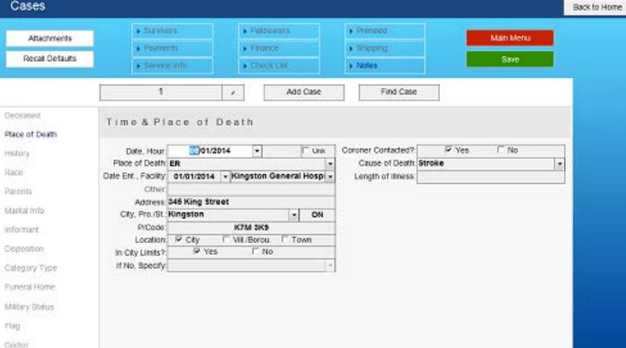
Gives you space to record the details of the time and place of death. Again, there are drop-down boxes you can utilize if you have previously entered in the information in the Setup Options screen. The actual layout of this tab will vary based on the state\province differences in regulations.
History Tab
History, lets you input information regarding the age, race, and education/occupation of the
subject.
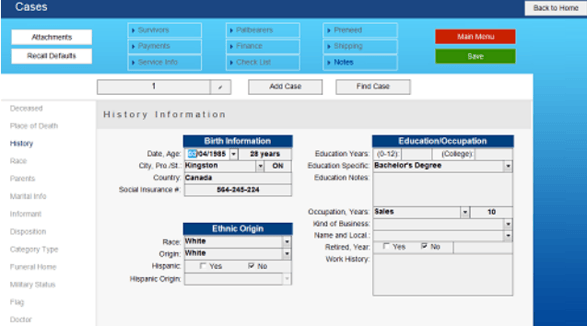
As before, information entered in the Setup Information Screen reappears here in the form of drop-down menus for "City, State" and "Race" and "Origin". Drop-down menus that store previous entries for use with subsequent cases include the "Occupation", "Kind of Business" and "Name and Local" menus.
**The "Education Notes" field is a perfect place to write yourself reminders for the obituary you
prepare for the subject, especially in the situation where the subject had a notable educational career. You can also use this area for accomplishments in the world of business, as well.
Race Tab
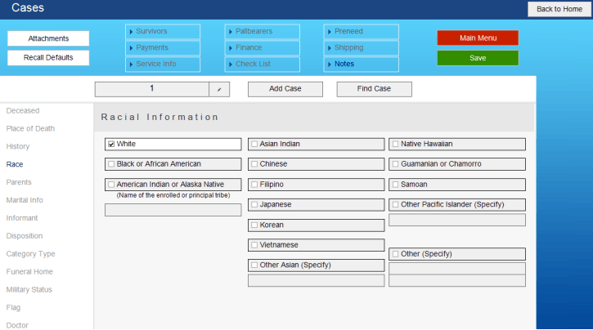
Race is where you can more accurately specify the decedent's ethnicity than in the History section.
Parents Tab
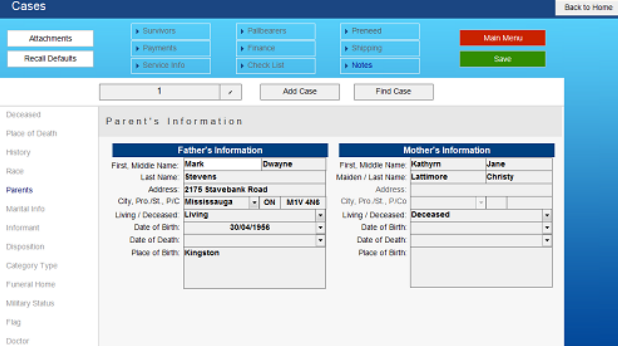
The parents tab lets you enter in information regarding the subject's mother and father.
Marital Info Tab
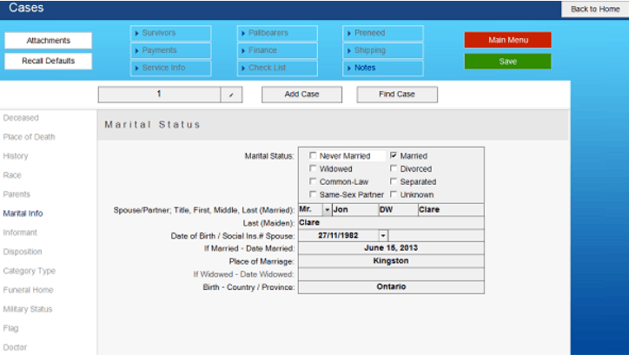
The Marital Info tab provides a section for information on the subject's spouse, if applicable.
Informant Tab
The Informant tab holds the information about whom you are to contact with any questions about the funeral arrangements.
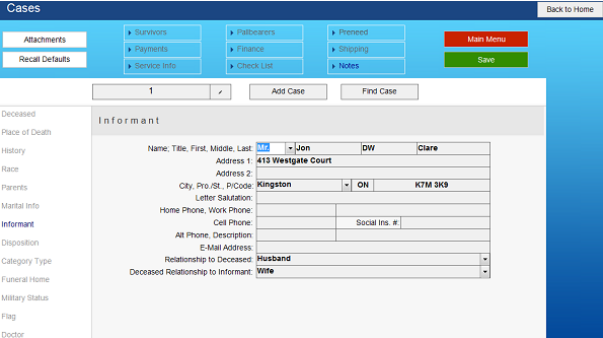
The Deceased Relationship to Informant field is used to further personalize form letters.
Disposition Tab
The Disposition tab records the date, place, and manner of the subject's disposition.

Category Type Tab
Category Type is the place to make notations on the type of service you will provide, religion, reason for choosing your funeral home, or any other standard information you choose.
This information is used in Types of Service reports so you can more accurately track your funeral home's business.
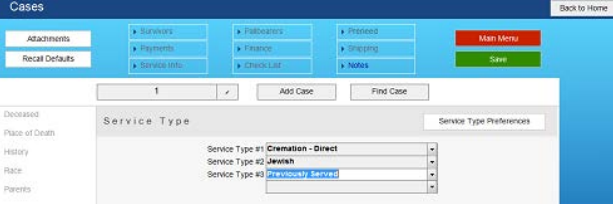
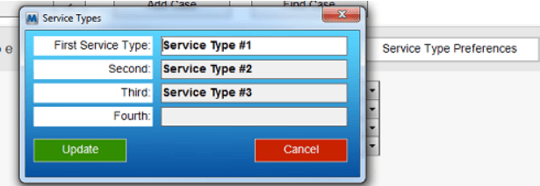
The designations for these fields can be modified by clicking on the Service Type Preferences button.
Funeral Home Tab
Funeral Home allows those facilities with more than one location to designate which location will be handling the case. In addition, it lets you designate which directors are assigned to the case.
**By default, you can only pick from the drop-down menu in the Funeral Home Name section. This is to prevent accidental duplication of Funeral Home names, where the only difference is a misspelling or abbreviation. This will ensure your Reports will always reflect accurate information.
**Please make sure that the Funeral Home section under the Setup menu has been filled out with your funeral home's information before entering a case.
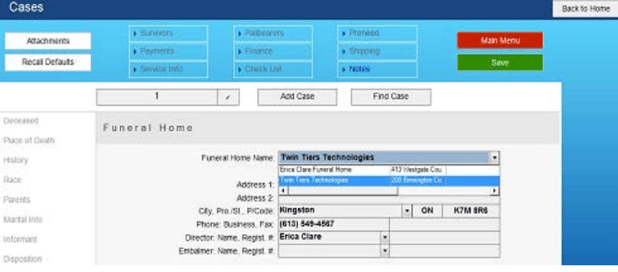
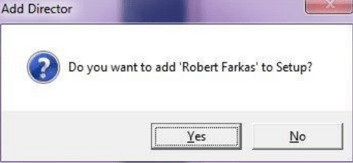
You can use the drop-down to select Directors you have already entered. If you click in the Director or Embalmer drop-down menu field, you are able to type in additional names. However, you will be given this message:
Military Status Tab
Military Status holds the information regarding the service history of the deceased and the
veteran’s marker information.
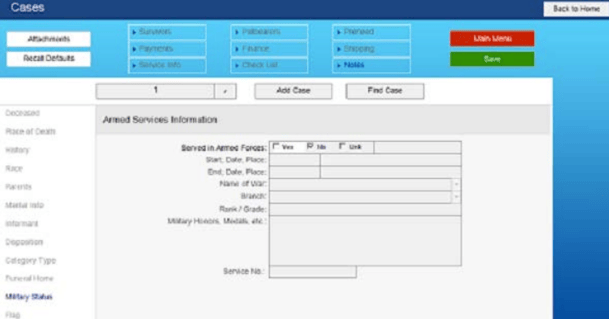
**If you do not fill this section out, you will not be allowed to fill out the Flag Tab.
The Veteran's Marker button (U.S. ONLY) will open up a pop-up Window where you can fill out
information regarding the Veteran's grave marker for the case.
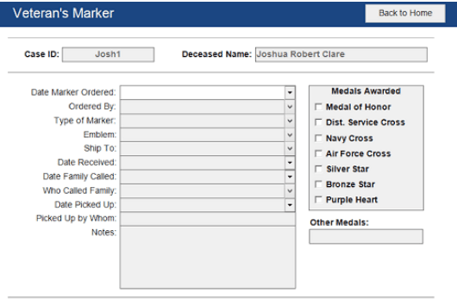
Information entered into this section can be reviewed using the new Veteran's Marker report under the Reports menu.
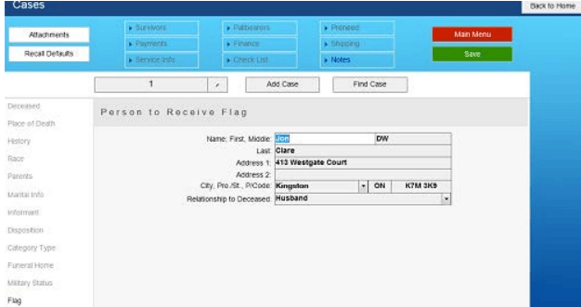
Flag Tab
The flag tab will pertain to cases where the individual served in the armed forces/military and will receive a flag at the funeral ceremony.
Doctor Tab
Certifier/Doctor contains the information for the attending physician or coroner on the case. You can enter additional physicians' information from this screen, as well as choose from a list of previously entered physicians. You will notice you can add 2 different individuals to this case by using the 1 and 2 buttons above the Certifier/Doctor type.

Survivors
From the CASE INFO screen, click “Survivors”. If you have filled out the Spouse and/or the Informant information in the Vital Statistics window, a message will pop up asking you if you want to enter the spouse and/or the informant as a survivor. After answering the prompt(s) the system will take you to the Survivor Information window. Fill in only information you will use or want to track. To fill in the information, click on the field and type in information, or select items from drop-down boxes. Be sure to select the relationship, as it will be used for the obituary. If the relationship doesn't appear in the dropdown list, you can just type it in.

If you have additional Survivors to enter click the Save-Next button and the data will be saved and a new blank form will appear to enter in the next survivor. When you are finished entering in survivors click the Save-Exit button. After clicking Save-Exit you will be taken to the survivor list window which shows a list of all survivors entered at a glance and the order in which they are in. This survivor list window will also be the default window you are taken to any time in the future you go back into the survivor area.
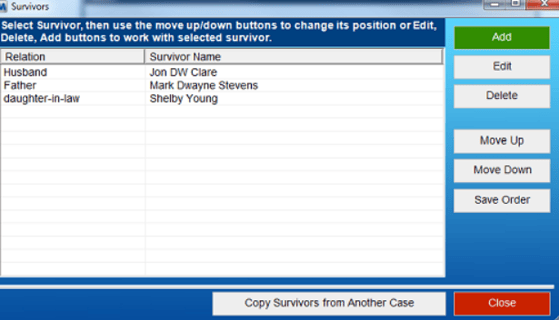
The survivors list window gives you the ability to change the order the survivors display in and gives you the ability to copy survivors from another case.
Using Follow-up Activities
- From the list in the Follow-Up Activities drop-down box, select those items you wish to follow up with the survivor. Double-click in the first date field or click on the arrow and a calendar will appear.
- Click the date you wish the activity to be done and it will appear on the date field. It will also go directly to your Hot List. You may add up to eight activities for each survivor. Remember to enter the correct addresses if you intend to send any mail to these survivors. You can also assign activities to a specific director.
Changing the Order of the Survivors
Changing the order of the survivors is simple
- Go to the Survivor List Window.
- Click on the survivor you wish to move.
- Click on the “Move Up” or “Move Down” until survivor is in desired position.
- Repeat steps 2 and 3 as needed for any other survivors until all survivors are in desired positions.
- Click on “Save Order” when finished.
Service Information
From the CASE INFO window, click “Service Info” to add service and visitation information. Click on each tab and fill in the requested information. See below for a description of a few of the available tabs.
Main Service Tab
At the Main Service Information section, click Select. A window showing your list of Funeral Homes, Churches and Cemeteries will appear. These and other drop-down lists are based on the information you entered in the initial setup information.
Click the appropriate place of the main funeral service and click the Select button. If the service will be at a church, click the Church button and your list of churches will appear. Select the appropriate church, click the Select button and the information will appear in your Main Service Information windows.
Double-click your mouse in the date box or use the arrow and a calendar will appear to select the date of the main service. Click the correct date and then type in the time of the service in the next field.

Second Service Tab
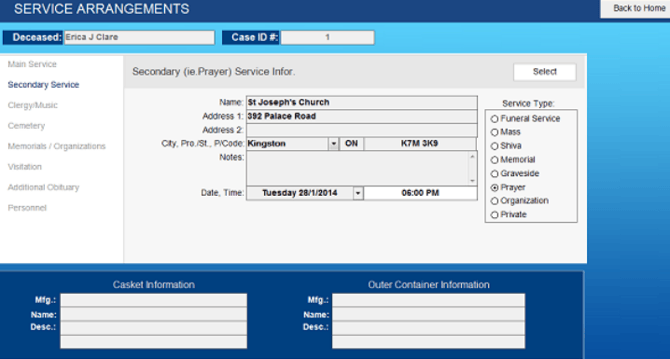
If you have a secondary service, such as a prayer service at your funeral home before going to the church, click on the Secondary Service tab, then follow same steps as the Main Service tab above. For Jewish funeral home systems, you can enter Shiva information here.
Clergy/Music Tab
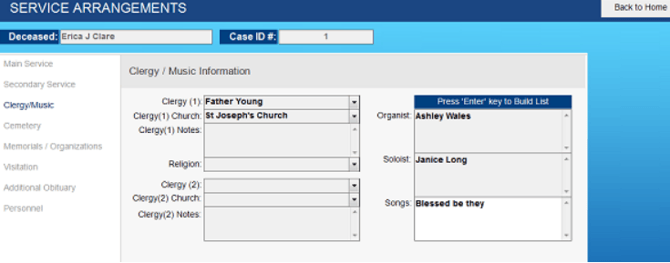
Select clergy from the drop-down lists, or type in the clergy name(s). Type in the requested music information.
Final Disposition Tab
Use the “Select” to open a window and choose the place of final disposition.
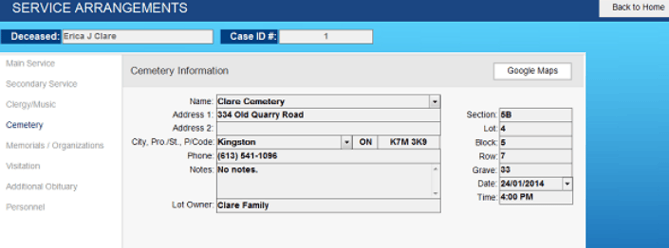
Once the place has been chosen select the method of final disposition from the drop-down.
Enter in a Lot owner and enter / choose the location of the grave if applicable.
Enter in the Date and Time of the final disposition.
Use the Google Maps button to link the entered cemetery / crypt space to a Google Map of the cemetery/crypt.
In the event that the Cemetery Module is active you can use the Reserve More Spaces and Cemetery Paces Setup buttons to jump to the given area of the Cemetery module.
Memorials/Organizations Tab
The Memorials/Organizations fields will accept multiple churches and/or organizations. Use the Select button to select from the list you made under Standard Setup Information.

Visitation Tab
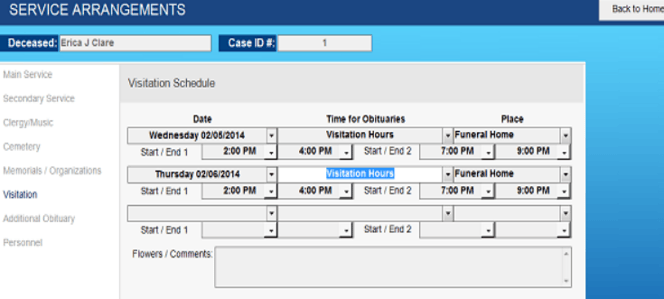
In the Visitation section, you will enter all the visitation dates and times. Double-click your mouse in the date box or use the arrow and a calendar will appear to select the date of the visitation(s). In the Time field, type in the visitation time exactly as you would like it to appear in obituary and death notices. In the Place field choose the location of the Place of the Visitation. Finally, for integration with other software programs like MS Outlook, Google Calendar, FuneralTech website, etc. fill in the Start / End boxes with the specific start and end times of the visitation(s).
Additional Obituary
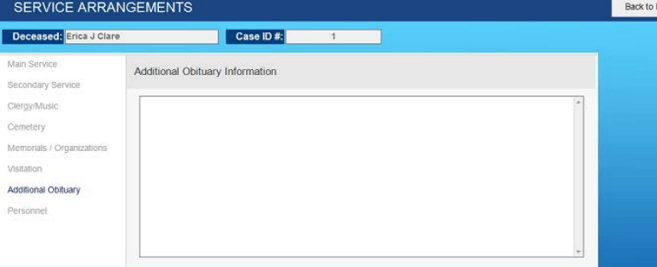
Additional Obituary is for typing additional information that you wish to appear in your obituaries or death notices.
Personnel Tab
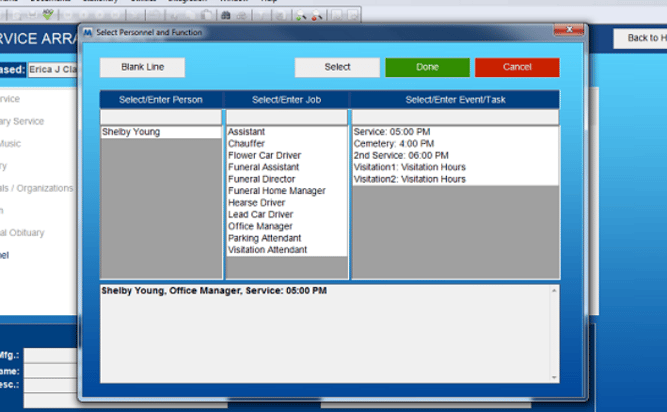
The Personnel tab can be used to schedule personnel for funeral, visitation, service, cemetery or other activities that you have entered in Setup. Click on the Select button. In the first column, you will see the names of your staff; in the second column, a list of jobs from Misc. Lists (such as funeral director, chauffeur, and visitation assistant); and in the third column, any scheduled events (such as service and visitation) for which you have entered a time and date. Just click on the personnel, click the job or function associated with that person, and then click the Select button. Your choices will be added to the Schedule of Personnel. The schedule can later be printed by choosing Documents from the MiMS Taskbar, and clicking on the Basic Service Schedule button.
Future Service Tab
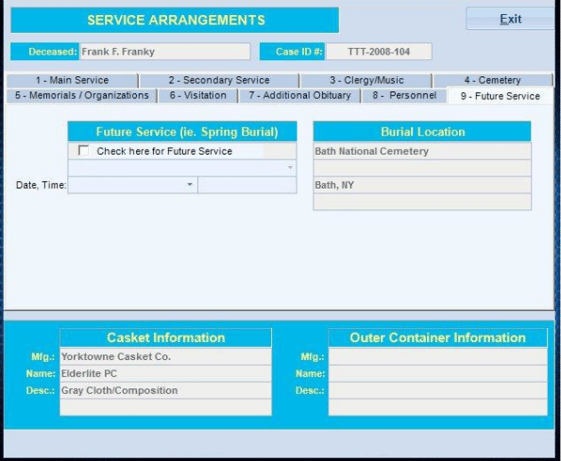
If there is to be an additional service in the future, such as a spring burial, fill in this section. Choose the appropriate item from the drop-down list, or type in custom information.
**(This tab is not available in all states / provinces.)
Pallbearers Tab
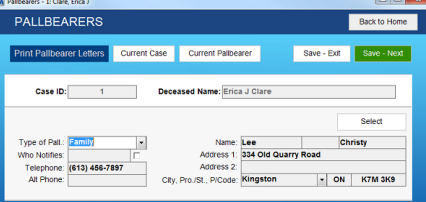
From the CASE INFO window, click “Pallbearers” to add pallbearers. For each pallbearer, enter the name, address and any other pertinent information you wish. Enter information for one pallbearer, and then click Save- Next to enter the next. Click Save-Exit when done. From the information used in this window you can print your choice of several Thank You letters to all of the pallbearers, or any one pallbearer.
Notes Tab
The “Notes” section of CASE INFO is a great place to keep ideas, conversation statements, or any material that may aid in the service to this particular case.

- Click “Notes”.
- Highlight the date and change manually if necessary.
- Click in the Notes area and type information.
- Click “Save-Next” if there are additional notes to enter or click Back to Home when done entering notes.
- You will be taken to the Notes List window to view a brief summary of all entered notes.
- When finished click “Close”
**You can also open Notes for the current case by right-clicking in the MiMS window, and selecting Notes from the pop-up menu.
**Another way to remind yourself or your staff to perform certain tasks or ask specific questions during the case information process is to use the Case Questions feature.
Financial Information
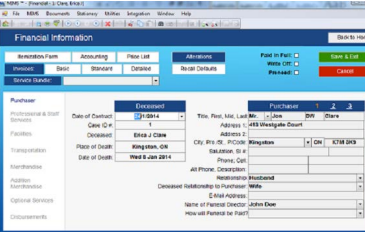
- From the CASE INFO window, click “Finance” to go to the Financial Information window. A pop-up window will ask if you want to use the informant as purchaser. If you select "No", you will need to fill in the purchaser information at this time.
- Enter the Date of Contract by double-clicking or pressing Shift + Enter to auto-fill in the current date, or using the arrow box to display a calendar, then clicking on the appropriate date. If you prefer, you can enter in the date by typing it in MM/DD/YYYY format.
- Under the Purchaser, there is a field for the Director. It is automatically filled with the director you entered in CASE INFO under Tab 9 – Funeral Home. You may change it if required.
- Select each tab (Professional Services, Merchandise, etc.) filling in the appropriate charges. Double-clicking in the dollar amount field will auto-load the Price List value for that line item. You can also click in the field, then press and hold Shift and Enter, to automatically fill in a field with the Price List value.
**You may overwrite any dollar amount in any financial field.
Extra fields are available for services that may not be listed on your general price list. Fill them in and enter the correct price.

Transportation
The rule of thumb is that if the price is on your general price list; double-click the Total Cost field of each item. MiMS makes some assumptions; such as you will only use one hearse. Any field can be overwritten or hand typed in instead of loading the price list value.
Merchandise
To select items, such as caskets, vaults, urns and alternative containers (they must already have been entered in your inventory), click the Select button and your list will appear. Select the appropriate item and all information will appear on the form. After choosing the merchandise item the system will by default ask you if you want to order the merchandise now. If you select yes, a form will display so you can add information on when you need the merchandise and then you can print out the fax to order the item.
Cash Advances
There are many fields in which to enter Cash Advance items. The first field is pre-set to the disposition location (click on the drop-down arrow to see the choices available.)
The pre-set for the second cash advance line can be changed to a normal text box and default text can be saved for all other cash advance fields by choosing Setup Options from the File menu. In the Set Options window, click on the Financial tab, then click the Default Cash Advances button. Fill in the Cash Advance Fields.
Late Fees
MiMS gives you several options for handling interest. You may have already set the defaults, while working in the Setup Options part of the system setup. If not, you may do it now by choosing Setup Options from the File menu, then clicking the Financial tab. Set the “Charge Late Fees” to Yes, and set the default for the “Grace Period” (number of days before interest starts) to the number of days you want. Last, set the default “Yearly Late Fee Rate”, and set “Computer Late Fee” to Daily or Monthly for how often late fees are to be charged. Late Fees will be shown on your monthly statements. It may be removed at any time by going to the specific case and changing the settings for that case.
Explanation of Charges
If appropriate, select one or more explanations of charges that will be printed on your Statement of Itemized Goods and Services form.
The first explanation line is normally used for the reason / explanation for embalming on the Goods and Services form.
**If you find you did not enter in one of the explanations you need or want to use, then you can directly type in the explanation into any of the four lines and the system will ask you if you want to add it to setup.
Price List
This area is used to select price lists to associate with a case.
Alterations
To access the Alterations screen, click the button in the top right-center of the screen that says "Alterations". This section is used for adding and subtracting items after the family has received and signed the original statement of goods and services.
Statement of Itemized Goods and Services
To print a Statement of Itemized Goods and Services, click Itemization Form on the top left of your screen.
In MS Word, highlight the file Goods and Services.doc and click Open. Review the form using the arrows on the right of the screen to scroll. Click the Print icon. From the File menu, choose Exit. Click "No" (you do not want to save changes). Close MS Word when done.
Printing Invoices
There are three ways to print invoices in MiMS:
- From the Financial Information window, click Basic, Standard or Detailed Invoice.
- From the Documents drop-down at the top of MiMS go to Invoices, Statements, & Price Lists, and click Basic, Standard or Detailed Invoice.
- Press the right mouse button anywhere in MiMS (not in a text field). Click Print, then Basic, Standard or Detailed Invoice. This option will print an invoice for the last selected case.
Entering Payments
Payments may be entered from either the MAIN MENU or the CASE INFO (Vital Statistics) window.
Please Note: Financial Information must be entered before payments can be entered!
From the Vital Statistics window, select the case you wish to enter a payment for, and then click Payments.
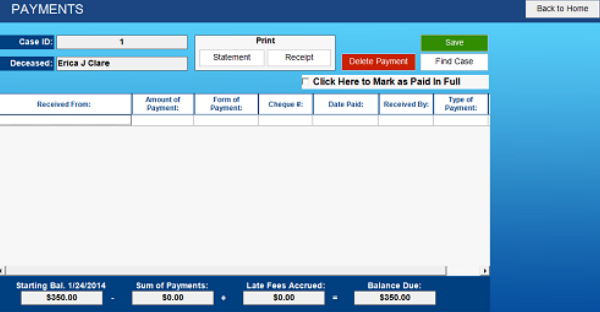
- In the Payment window (see Figure 3.7), enter the name of the person or company the payment came from, or any general description about the payment desired in the “Received From” field (double click or Shift Enter to enter the purchasers name automatically for you), the amount paid, form of payment (use the dropdown box), and the name/initials of the person receiving payment (use the drop-down box).
- Click “Save” and the screen will update the balances for this account.
- Click “Print Statement” to print a statement. Type any additional comments in the comment box and click “OK”, or click “Ignore Comment” to continue. After printing the statement choose Exit from the File menu to exit. Click Yes or No to print an envelope or not.
- When done in the payments window, click “Exit”.
Payment Categories for At-need Payments
- When entering an At-need Payment, you can specify a Type of Payment. When you print out the Payments Received Report, you can now select a specific Payment Type Category to base the report on.
- When printing the List of Payments made on Account after the Amount of Payment a letter will print denoting the type of payment. (P-Payment, R-Refund, O-Other, B-Write off Balance, I-Write off Interest, Write off Collections, or A-System Adjustment.)
Note -- The default Payment Type for all payments is “P – payment”, if this type of payment is ever not correct simply choose the correct Payment Type from the drop-down.
Entering Checklist Information
Click “Check List” to check off the various tasks related to the case you have been working on.
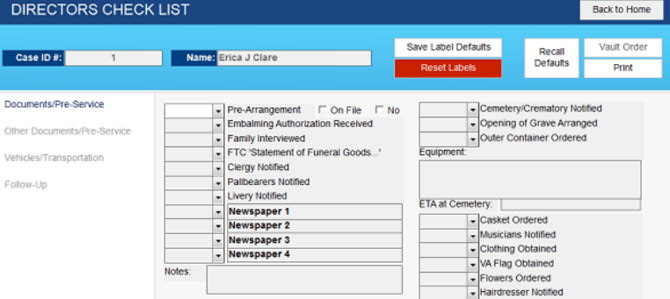
Any grayed-out areas on the form can be double-clicked on so you may enter case-specific tasks.
Any description on any tab can be changed and saved as a default allowing for you to completely customize this entire area for your specific needs.
When a task has been completed, choose the appropriate initials from the drop-down menus to indicate who completed the task.
When done, click Back to Home.
Entering Shipping Information
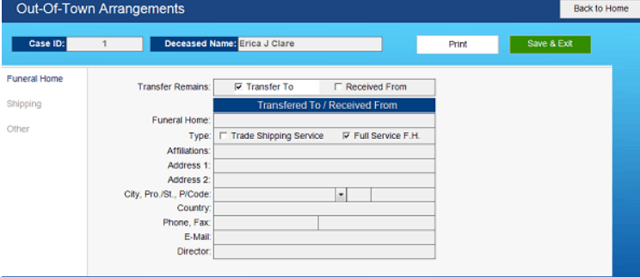
The Shipping area is for noting all shipping related information for bodies that must be transported to or from your funeral home.
This area will let you store information about the other funeral home, what type of call this is, shipping information, and general information on quoted cost, container being shipped in, who is escorting the body, etc.
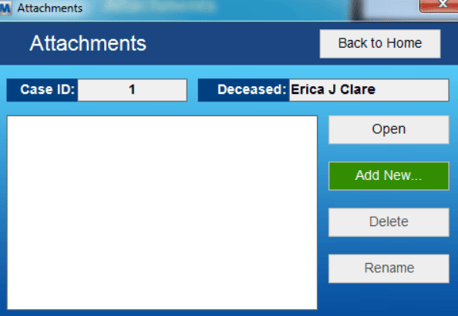
Attachments
The Attachments is where you can attach any kind of file from outside of MiMS to your MiMS case for future reference.
Adding Attachments
- To add an attachment to the case click on the “Add New” button.
- A “Select File” window will appear.
- Navigate and find the file you would like to attach to the case
**This window by default only will display .pdf, .doc, .docx, .xls, .xlsx, and .txt. If you are looking to add a file, like an image, that does not match one of the default file types you will need to change the file type from “Documents” to “All Files”.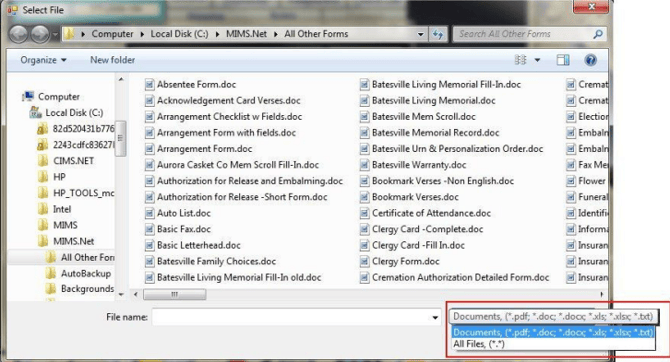
- Choose the file, click “Open”, and the file will appear in the Attachments window.
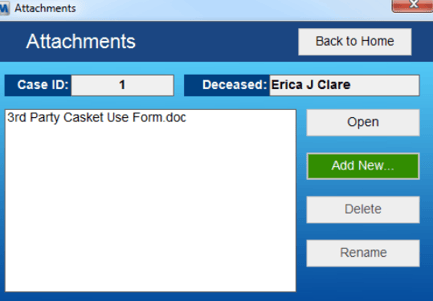
Opening Attachments
- Click on the file you wish to open in the Attachments window.
- Click the “Open button and the file will be opened.
Deleting Attachments
- Click on the File you wish to delete in the Attachments window.
- Click the “Delete” button.
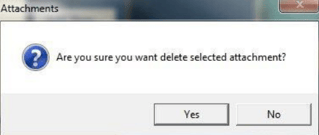
- Confirm the warning box prompt and the file will be deleted.
Entering Case Questions
Case Questions are a feature that allows you to set reminders/questions at any point in the data entry process in MiMS.
You can set a question to be triggered in a pop-up window when anyone clicks/tabs into a specific text field.
For our example, let's say you want to remind your staff to find out if the family wants the decedent's nickname used, as opposed to their given name.
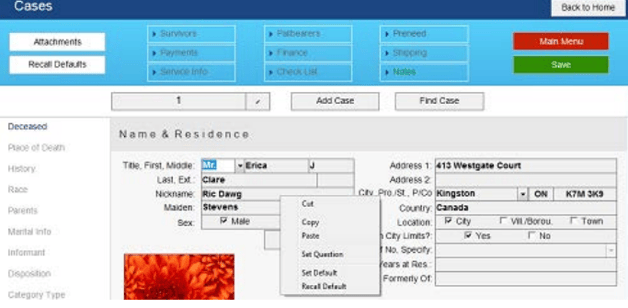
- Right click the text field where you want the question to be asked. In this case, we are setting the question to pop up whenever someone tabs into the "Nickname" text field in Case Information.
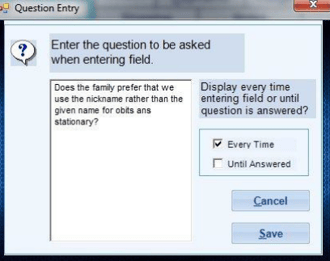
- In the Question Entry pop-up window, type in the question exactly as you would like it to be asked. Make sure you check the appropriate variable box to the right. In this example, we will choose to ask the question every time anyone tabs into or clicks into the Nickname text field. This way, both the question and the answer will be shown every time that field is entered, making it a great way to remind the staff of which name the family prefers is used. (If we chose the option "Until Answered", the question would only be asked until someone typed in an answer, and it would not be displayed again for that case.)
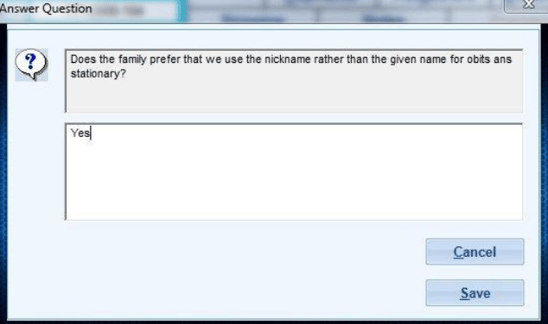
- The question will be displayed with a space to answer the question if the field is being entered for the first time in a new case.
- To delete a question from a text field, simply right click and choose "Set Question". Delete the question text and hit save. You will be asked to confirm deleting the question from the text field.
- Both the question and the answer will be displayed in the Notes section for the case.