
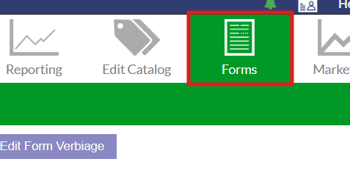
To edit an arrangement form, navigate to the Forms page in the top navigation menu.
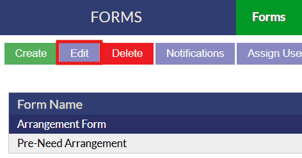
On the form page, highlight the form you want to edit and click the "Edit" button.
Form Structure
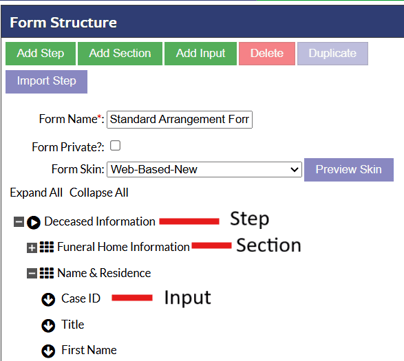
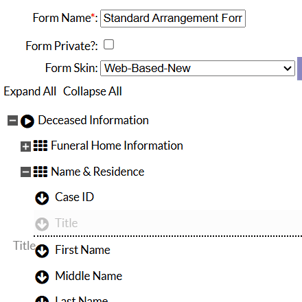
On the edit page for a form, the form structure section on the left side will layout the various steps, sections and inputs that make up the form. The form will be in a nested format, with steps at the top level, sections acting as subcategories underneath steps and inputs acting as the portions on the form where the user can interact with to enter information.
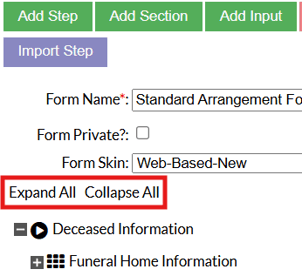
 All the steps, sections and inputs can be expanded or collapsed via the "Expand All" or "Collapse All" buttons.
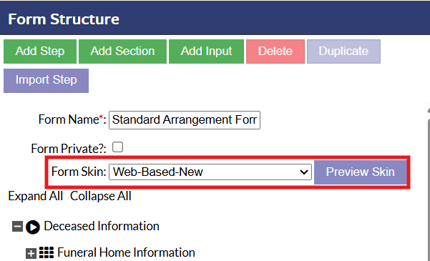
The skin of the form can be changed from the "Form Skin" drop down. An option to preview the select skin is also available via the preview skin button.
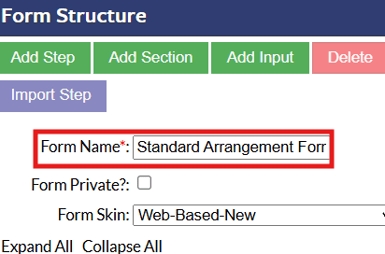
The name of the form can be customized at the top of the form structure under the "Form Name" option.
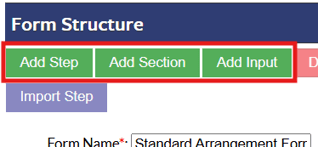
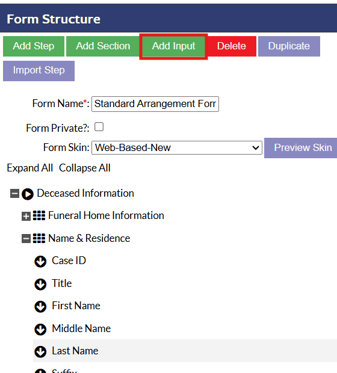
To add new steps, sections or inputs, use the green buttons along the top of the form structure section.
Creating or Editing Inputs
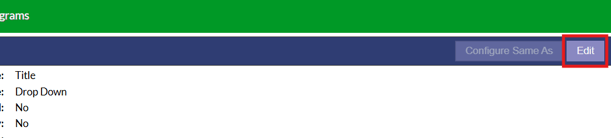
To edit an existing input, simply select the input from the form structure section and click the "Edit button on the far right side of the page.
To add a new input, go to the location on the form you wish to add the new input to then select the input in the above position where you would like the new input to go. Doing this will ensure that the input is added in the correct area straight away and doesn’t require any moving. With the location set, click the “Add Input” button at the top of the form structure page.
This will open up the Input Details interface on the right side of the page, from here give the input a name and select the type.
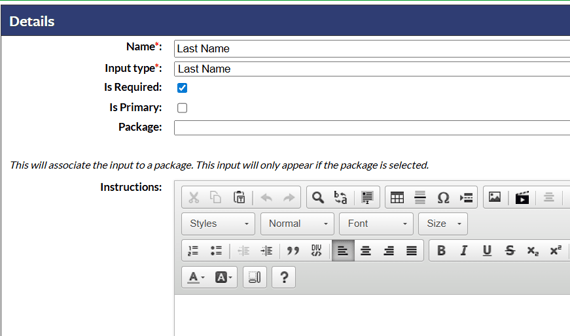
The common input types are outlined below:
- Text: This is a simple textbox. Anything can be entered in this input.
- Paragraph: Similar to the textbox anything can be entered in but this input allows you to stretch the box bigger making the information easier to see if there is a large quantity of information added.
- Full Name, First Name and Last Name: These Inputs allow for names to be input.
- Drop-Down: This input is used to create lists.
- Email: This input is for capturing email addresses.
- Phone: This input is for capturing phone numbers.
- Dollar Amount: This input is for capturing a dollar amount.
- Date: This input captures the date. The information can be selected from a calendar or hand typed in.
- Time: This input captures the time. The input uses the 12 hour time format with the option of selecting either AM or PM
- Address: This input is for capturing address information.
- File Upload: This input allows for a file to be uploaded.
- Product Selector: This input allows for products from the GPL to be added to allow for selections to be made on the arrangement form.
- Cash Disbursement: This input allows for cash disbursements to be added.
- Package Selector: This input allows for product and service packages to be added to the arrangement form to be selected from.
- Location: This input is used to capture details about locations such as Hospitals, Churches or Cemeteries.
- Person: This input is used to capture information about people.
- Instructions Only: This input allows for instruction text to be added to the arrangement form that the user cannot edit.
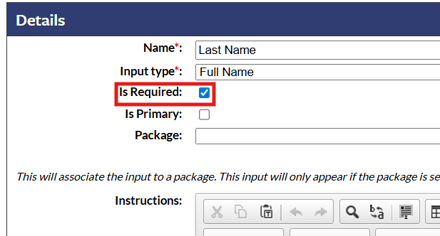
All inputs can be marked as required if you want by toggling the "Is Required" option.
Once you have configured your input, make sure to click the save button in the upper right corner to save your new input.
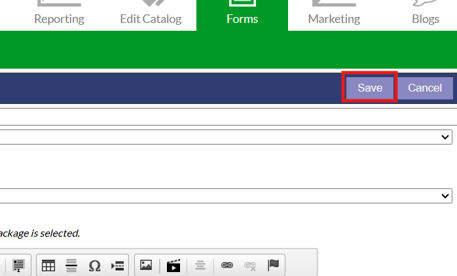
To apply changes to the form once you have added all your inputs, click the save button in the bottom right corner. This will save the entire form and make your changes go live.
**New inputs do not get applied to cases that are already created. Only new cases will show the new inputs on the form. A case will always have the same arrangement form version associated to it from when it was created.
Moving Inputs
Inputs, steps and sections on a form can be dragged and dropped on the edit form page to organized and restructure your form.
Editing Drop Down Options
To edit data options in a drop-down list input on your arrangement form, select the drop-down input you wish to adjust and click the “Edit” button in the top right corner of the screen. Scroll down to the bottom of the details section, where you will see the current data options.
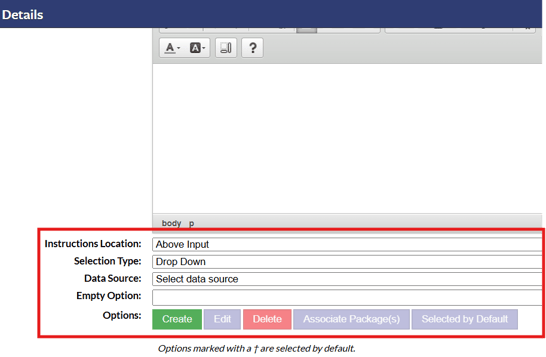
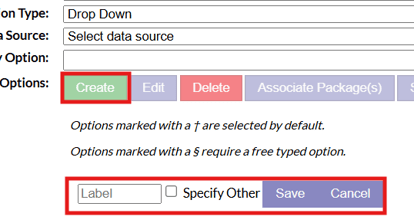
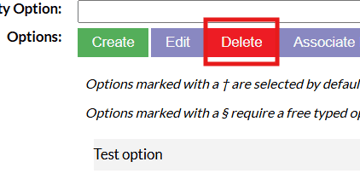
From here you have the option to create, edit or delete. The create button allows you to create a new option in the drop-down list. A blank textbox will appear at the bottom of the current list where you will be asked to give the new option a name. Once filled in click the “Save” button to the right of the input.
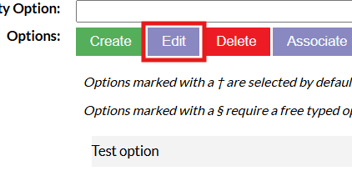
The edit button allows you to change already existing data options. Click the option you want to change then select the “Edit” button. Change the data option as desired then click the “Save” button on the right of the input.
The delete option removes the data option from the drop-down list.
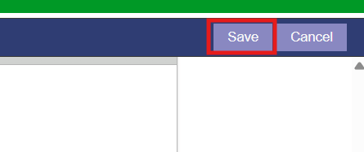
Data options can be moved around in the list by simply clicking and dragging the option into the new desired position. When everything has been set, click the “Save” button in the top right corner to save your drop down options.
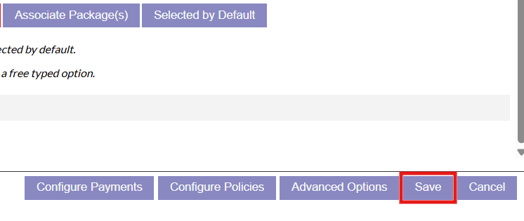
To apply your changes to the form click the “Save” button in the bottom right hand corner of the form structure screen. The next time a case is created the new data options will appear.
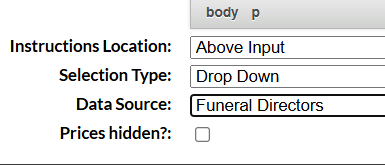
Options are available under the "Selection Type" list to choose between 3 different formats for the input, Drop Down, Check Boxes and Radio Buttons.
If you want your drop down options to populate from a pre configured data source in the system, the data source list will let you select from the system data sources. For example, if you wanted to add Funeral Directors as the options then the system would pull from the configured funeral directors as options.
Goods and Services Configurations
Arrangement forms can be configured to display packages and products in the goods and services section. These configurations can get complex when packages are being set up and different parameters are being configured to implement specific functionality on the form for selections.
It is recommended to reach out to Funeral tech support for assistance if you are trying to make changes to your packages or goods and services section on the arrangement form at support@funeraltech.com.