
MiMS is designed for any user to quickly learn how to enter, print, and look up information with ease. When you enter MiMS you start at the Main Menu.
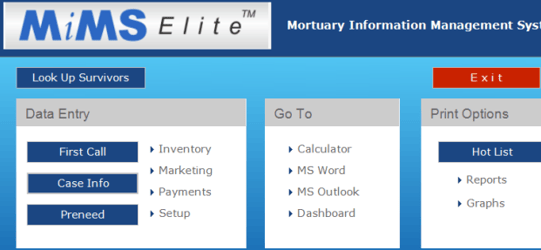
- DATA ENTRY (to add information)
- PRINT OPTIONS (to print information and reports)
- LOOK UP SURVIVORS (to search for information)
- GO TO (to switch to a different application)
- *CEMETERY (to track cemetery spaces)
*The cemetery module (CiMS) is not available by default. The Cemetery Module must be enabled before this area becomes available.
Simply click the button that corresponds to the task you would like to perform.
DATA ENTRY
Using the DATA ENTRY buttons, you will enter all information: basic setup information, "At-need" and "Preneed" information, inventory, customer payments, even deaths from your local newspapers.
PRINT OPTIONS
Using the PRINT OPTIONS buttons, you can print a multitude of REPORTS helpful in managing your business or a HOT LIST which is an up-to-date "To-do list”, that keeps track of when and how you want to follow up with your families.
LOOK UP
Using the LOOK UP buttons, you can easily find any At-need or pre-need case by the last name of the survivor. For example, if Mrs. Smith calls and wants more certificates for “Mom”, you can type in "Smith" and "Mom" will appear with all the associated information.
GO TO
The GO TO button brings you directly to the designated item. If you click CALCULATOR, MS WORD or MS OUTLOOK / MiMS Calendar, MiMS will display the calculator, open MS Word, the MiMS calendar, or open MS Outlook*, respectively.
*CEMETERY
The Cemetery area is used for help tracking what spaces are open, reserved, or in use throughout the cemeteries that you work with.