Website pages can easily be added, deleted, renamed and moved within the CMS website editor.
Adding Pages
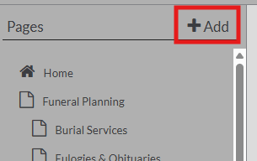
To add a new page, click the add page button on the Edit Site screen.
When adding a page you will need to select what type of page you want to create. The different page types are:
- Home Page - Configured with the home page layout. There is usually only one of these per site, though multiple can be set.
- Inside Page - Configured with the inside page layout. These make up the bulk of most websites.
- URL – This is a unique type of widget page that allows the user to link out to other websites by pasting or typing a URL in the field.
- Widget Page: These serve more unique purposes (showcased below)
- Service Listings: You can create a main or secondary link to your service listings by typing either current or past services into the field.
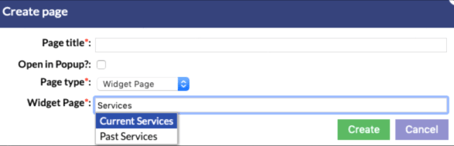
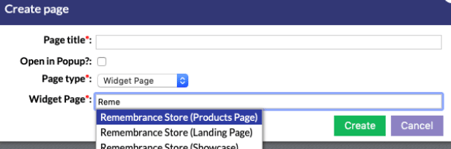
- Product Catalog: You need to create a Store and then Publish your store in order for it to appear here. You can link to the Products Page, the Landing Page or the Showcase. Start typing the name of your store in the Widget Page box and choose the one you want. Hit “Create”.
- Service Calendar: Begin typing “Calendar of Events” then hit “Save” once it has populated in the field. This displays a list of coming services on a per-month basis. The layout will appear slightly different in each template.
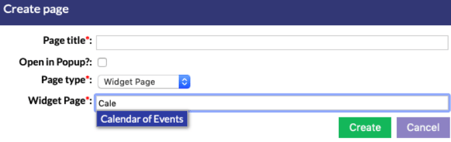
- Forms: To add a form, begin typing the name of the form, then click “Save” once it has populated in the field.

- Service Listings: You can create a main or secondary link to your service listings by typing either current or past services into the field.
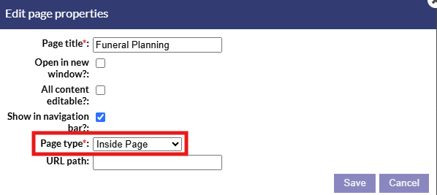
Page type for existing pages can also be changed by going into the properties section of the page and changing the page type.
Deleting Pages
To delete a page, click the drop down arrow beside the edit button of a page and select the delete option.

**It is important to note that pages nested as sub pages underneath a page will also be deleted if you delete the top level page. Once pages are deleted they cannot be retrieved.
Renaming Pages
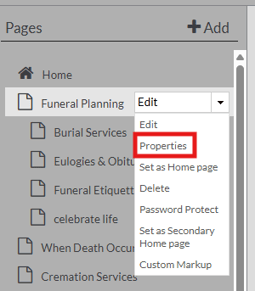
To rename a page, click the page name and click the drop down arrow to open the page options. From here select the "Properties" option, type the new name into the page title area and click save.
Arranging Page Order
Pages can be dragged and dropped in the page list to order how they will display on the website's navigation menu.
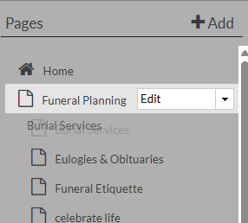
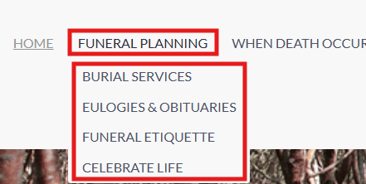
Pages can be nested underneath each other in the page list. The top level page will display in the navigation menu of the website. Any pages nested under a page will appear in the navigation menu as drop down options when the top level option is hovered over.
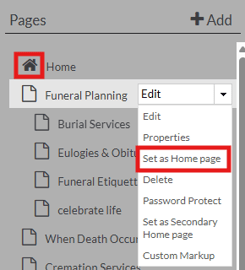
To set a page to be your home page, click the "Set as Home Page" option in the drop down options for a page. Whichever page is marked as your home page will show a home icon in the page list.