
MiMS comes with an extensive library of forms, documents, and letters. When integrated with Microsoft® Word, the ability of the user to create additional custom forms with MiMS integrated data is virtually unlimited.
For increased speed and use of complex queries, several documents are "hard coded" directly in MiMS. Other documents such as prayer cards, memorial cards, letters and others are MS Word documents that get data from MiMS. Documents created in MS Word are editable by the user. The user cannot edit documents and reports created in MiMS.
The PRINT OPTIONS section of the MAIN MENU is one of 3 areas where you may select your documents or reports to print. The options available are:
- Hot List
- Reports
- Graphs
The other section that contains your documents is located in the MiMS toolbar. Simply click on Documents to bring up a drop-down menu containing your various documents.
Hot List
A HOT LIST is developed from the actions that were selected when survivor information was entered. Any date range the user selects, from one day to several months, may call up a Hot List. The HOT LIST is an excellent way to ensure that your follow-up program doesn't fall through the cracks when you get busy.
- From the MAIN MENU, under the PRINT OPTIONS section, click HOT LIST. Select the date range for which you want to print your to-do list and click Continue.
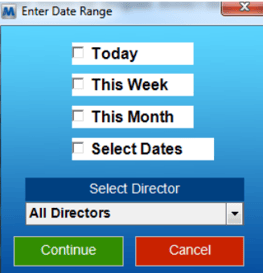
- The first item due will show up on your screen (see Figure 8.2.2). The Activities field describes the item that was selected when that survivor information was entered.
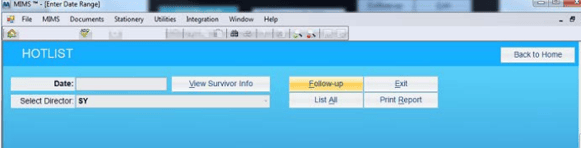
- To print a letter, click Follow-up, which takes you into MS Word, where you will select the appropriate letter to send the survivor. The letter will be customized for the specific person on your list. Review the contents of the letter and then choose Print from the File menu to print the letter.
- Close the document you just created, and do not save changes.
- After printing the appropriate document, return to the HOT LIST window and click Task Completed. After clicking on the Task Completed button the system will automatically fill in the current date in the “Date Completed” line for the follow up activity in the survivor area.
- To view all your tasks for the period, click List All. You may print the list or make any changes.
- To go from one "to-do" item to the next, click on the Next Record button located on the toolbar at the top of your screen. You can also move to the Previous, First or Last Records.

- Click Exit when done.
Reports
MiMS comes with an extensive list of pre-defined reports. These reports have been designed specifically to give the funeral director information helpful to making important management decisions.
- From the MAIN MENU, in the PRINT OPTIONS section, click REPORTS. A list of reports will appear. Each report button describes the specific report. Most reports allow you to specify a particular date range.
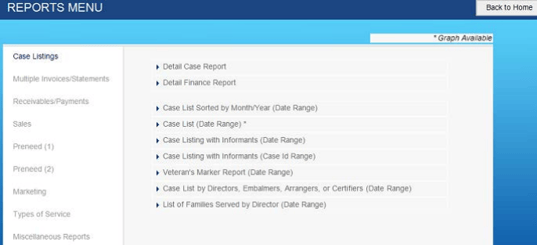
- Click a specific report. Where appropriate, a pop-up box will appear asking you for the specific data sorting and filtering options for which you want the report printed. In most reports a Date Range option will be the final or possibly only option which will give you an option to just print the report right away or preview the report before printing.
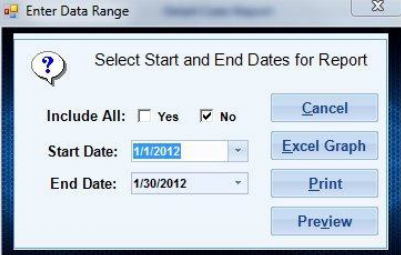
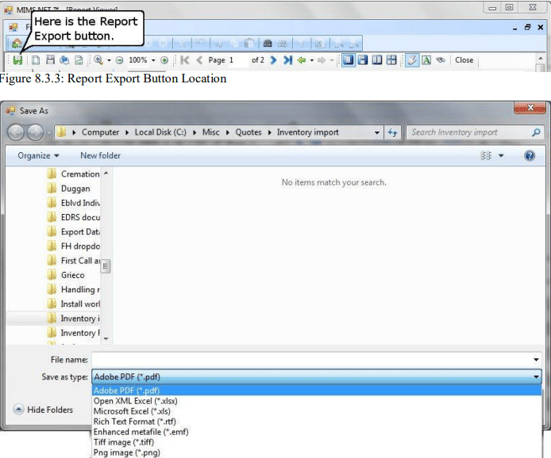
- To print the report after viewing, choose Print from the File menu, or click the Print button. In the event that you wish to export the data outside of MiMS click on the export button. A “Save As” window will open to choose the file name for saving the report outside of MiMS. This window is also where you choose what kind of file the report is supposed to be.
- Click the Close File button when done.
- Click Exit when done.
Graphs
Here are the current graphs reports available:
Tab 1: Case Information - Families Served for Period
With this graph you can view how many families you have served, monthly or by year, by each individual funeral home you operate or combined, in either a bar or area chart.
Tab 2: Marketing Graphs - Market Share % by Funeral Home (Date Range)
This graph will show you your market share for your chosen date range, in a percentage pie graph, a totals pie graph, or a totals bar chart.
Tab 3: Sales - Product Sales Analysis (Date Range), Total Sales Analysis (Date Range), and Casketed/Non Casketed Service Analysis (Date Range)
These graphs will show you your amount of sales by product or total, and your amount of casketed vs noncasketed services.