
The catalog feature on Funeral Tech websites allows you to create browsable product catalogs for your visitors. This works well for showing merchandise options like caskets, urns, jewelry and other products in an interactive way on your website.
**Product catalogs are strictly for display purposes. They do not function as an e-commerce store that can take payment.
To access the product catalog, click on the "Edit Catalog" option in the top of the admin dashboard.

In the green sub menu, pages can be navigated for making changes to various components of the catalog.
Managing Products
The manage products page will be where you can make changes to product categories, arrange products, add new products or edit details for products.
Product Categories
There are 2 types of categories you can create: Parent and Sub-Category.
To create a Parent Category, click on “All Products” in the left column of the Manage Products page, and then the grey plus sign. Enter a name, image and a short description. Click “Save”.
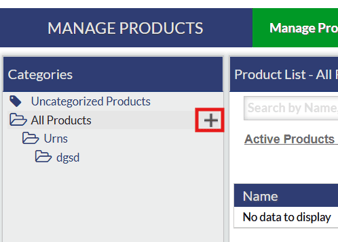

Your new category will appear on the left of the page underneath the All Products line.

To add a Sub-Category, click on the parent category and the grey plus sign next to it. Follow the same steps as before, only make sure to type the name of the parent category in the parent category field. Click “Save”.
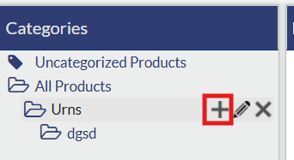
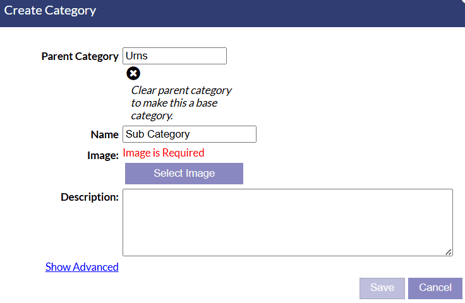
Your sub category will appear on the left screen below the parent category.
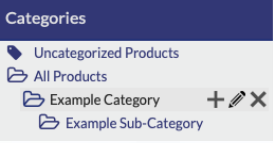
To Edit your categories, click on the pencil sign next to the category.

To Delete a category, click on the “X” sign next to the category. Note: Deleting a category will mark all products in it as uncategorized.

Adding Products
To add a new product, click the green “Create” button.

In the create product pop-up window, choose a Name, Price (Optional), Image, Category, and a short description. If you would like this to be an active product in your catalog, check off “Active”. Additional items such as Item Number, Weight and Height are optional. Only red boxes are mandatory to fill out. Click the save button to save your product.

Once you have added your product, it will appear in the product list on the main page. You can see the category it belongs to, price and whether it is active or not.

If you click on a product from the main list, it will display a preview of the details for that product on the right side of the page. If you need to edit any product details, click the edit button on the product details window.

Publishing Catalog Changes
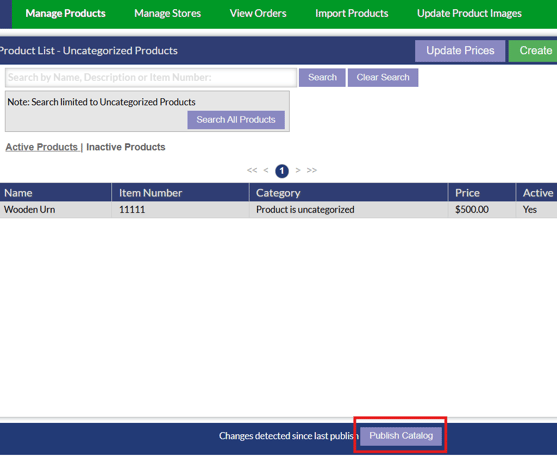
If you have made any changes to your catalog such as changing product details, adding products, adding categories, moving categories or products around, you will need to publish your catalog for the changes to show up on the live website. To publish changes, click the publish catalog button at the bottom of the page.
Manage Stores
In the catalog tool, stores act as specific groups of products and categories that can be placed on the website individually of one another. You may want to have multiple separate catalogs that display on different pages of the website for example. Or you may want to have those products on the same page of the website under the same catalog.
To access the stores section, click the "Manage Stores" option in the green menu of the catalog page.

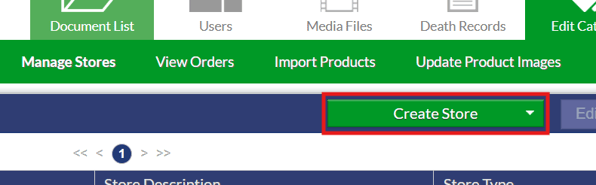
To create a new store, click the "Create Store" button and select the the Product Catalog option. The E-Commerce and Remembrance Store options are no longer supported and should not be used.
To edit an existing store, click the catalog store in the store list and click the edit store button.

When creating a new catalog store or editing an existing catalog store, various details can be entered such as store title, description and price description. Options are available to configure which skin you want your catalog to use and a banner image can be uploaded to show at the top of your catalog.

On the right side, categories of products will display where you can make selections for what categories and products you want to display in this particular catalog.

Uncategorized Products
To see a list of any Uncategorized Products you have, click on Uncategorized Products icon from the categories page.

To categorize an uncategorized product, click the blue “Edit” button in the Product Details column in the far-right of the screen after selecting a product. Then, you just need to choose the category you want to assign that product to and click the save button.
