
Creating / Editing Users
To create new users within the CMS system first go to the Users tab located in the top navigation bar of the system.
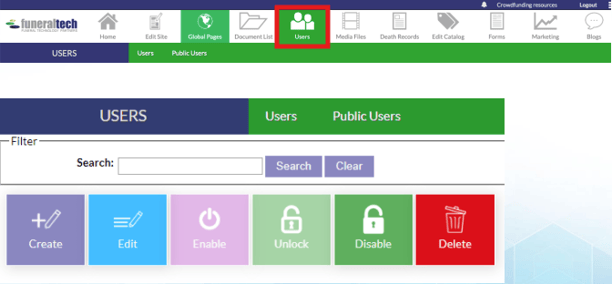
Once on the Users tab, click the “Create” button. Doing so will display a pop-up window asking for information about the new user. This information includes the username, password, email, first name, last name and what roles the user will have.
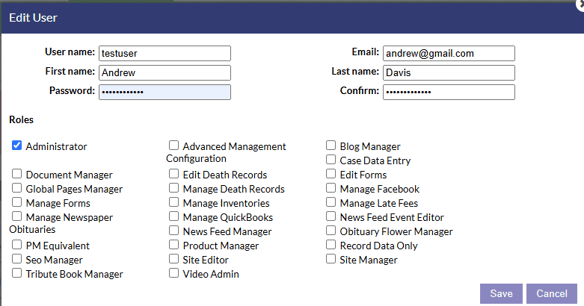
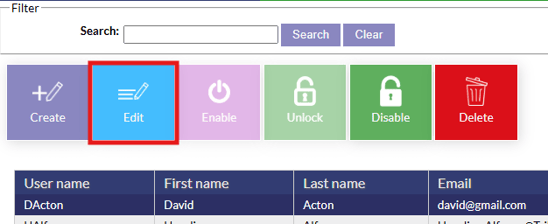
If the user is already created and changes are required, simply click on the user you wish to change then click the “Edit” button. This will display the same pop-up window from when the user was first created. In this window you can make changes for the user.
Deleting/Disabling Users
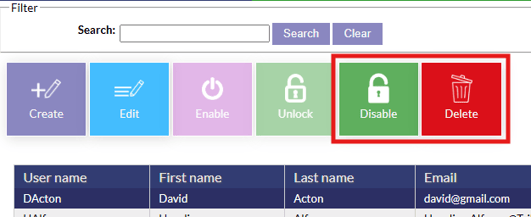
To delete a user, simply highlight the user in the list and click the red delete button. Users can also be disabled if you wish to keep their account in the system but disable access. To disable a user, simply highlight the user in the list and click the green disable button.
User Roles/Permissions
Once you have created a user, you will need to define what type of access/permissions they have when they are logged into the system. You can select multiple roles for the user or even just one depending on what areas of access you want to grant them within the CMS System. Note that some of these user roles are not applicable to all modules in your system.
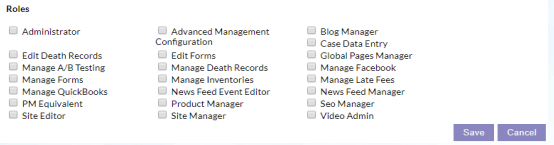
Administrator – Allows the user access to everything. This applies to the management software, as well as the website.
Edit Death Records - Allows the user to add and edit death records only. If you are setup with
multi-locations, you’ll only see the death records for the locations you’re assigned to.
Manage Death Records - Provides the user with the ability to delete death records, and create memorial videos. If you are setup with multi-locations, you’ll also be able to see the death records for ALL locations.
Manage Late Fees – Allows the user to manage late fees, without needing Admin access.
SEO Manager - Provides the user with the ability to edit keywords and title/description tags to help with Search Engine Optimization.
Advanced Management Configuration (Family Arranger Only)– Allows the user to edit mapping ID’s and various advanced settings.
Global Pages Manager - Allows the user to make changes to multiple websites at once. Global pages are used if you have more than one website that shares the same content. Global pages ensures you’re only making changes once, as opposed to multiple times for each site.
Manage Forms - Allows the user to edit, delete any forms on the system.
Manage Quickbooks (Family Arranger Only) – Allows the user to manage your QuickBooks configuration. Typically used by accountants or anyone who is needing to map accounts, etc.
Site Editor - Allows the user to edit and manage your website.
Blog Manager - Allows the user to create, edit, manage your blog.
Case Data Entry (Family Arranger Only) – Allows the user to only enter in cases through the management software. You will not have access to documents or financials.
Manage A/B Testing -Allows the user to enable the A/B Marketing services the system offers. This is typically used by someone working with a marketing company who’s providing them with this service.
Manage Inventories (Family Arranger Only) – Allows the user access to inventory services.
Product Manager - Provides the user access to the product catalog.
Site Manager - Allows the user to have access to anything website related (edit website, death records, etc).
PM Equivalent (Family Arranger Only) – Allows the user to have the same functionality as an Implementation Specialist, allowing you access to advanced backend areas of the Web-Based system.
Edit Forms - Provides the user access to the forms area of the system in order to make edits to the arrangement forms in the system.
News Feed Event Editor - Provides the ability to create News Events that appear in a specific place on the website.
News Feed Manager - Allows the user to choose where the News Event Widget is placed on the website.
Manage Facebook - Allows the user to publish records to the funeral homes Facebook page.
Video Admin - Allows the user video management access only (cannot edit/delete cases).