
The Utilities Menu is where you go to change, edit, and add documents or stationary, and change some document settings.

Add New Stationary
The Add New Stationary item is where you would go to add in new verses into you prayer library for Acknowledgement Cards, Bookmarks, Memorial Folders, or Prayer Cards.

Acknowledgement Cards, Bookmarks, Letters, Memorial Folders, and Prayer Cards
All you have to do for any of these items is choose which type of letter or stationary you are looking to add into MiMS. Once you have chosen the type of letter or stationary to add a document of that type of stationary will be loaded where you simply type in the letter or verse where you want it to go and save it.
**When saving your new document DO NOT save over any existing prayers that we supply with the system. Your new document could get replaced by an update if you do this.
Create New Acknowledgement/Memorial Library
We provide many standard sizes for Acknowledgement Cards and Memorial Folders however there are many more sizes and designs that exist. This feature is to allow you the ability to actually create whole new libraries for Acknowledgement Cards or Memorial folders. In the event you have a size that does not match one we provide.
Stationery Options
Stationary Options is designed to hold all items provided to help in adjusting the way things print for specific differences with specific printers.
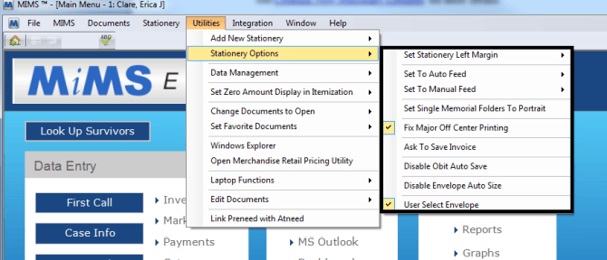
Set Stationary Left Margin
This will allow you to adjust the left margin in the stationary items when they load. This is useful when the stationary items are printing too far to the left and need to be moved to the right.
Set To Auto Feed
This item allows you to tell MiMS which stationary items should pull from the auto feed tray of the printer.
Set to Manual Feed
This item allows you to tell MiMS which stationary items should pull from the manual feed tray of the printer.
Set Single Memorial Folders to Portrait
This item allows you to compensate for single verse Acknowledgement Cards or Memorial Folders that the printer cannot print in landscape.
Fix Major Off Center Printing
This item forces all documents that are not 8.5 inches wide to be 8.5 inches. This is used for printers that have trouble properly aligning the printed document because they are not 8.5 inches wide.
Ask To Save Invoice
When enabled this feature will ask you if you want to save a copy of the generated invoice to the case in MiMS.
Disable Obit Auto Save
By default MiMS ask you if want to save obituaries you create to the case in MiMS. This feature allows you to turn this feature off.
Disable Envelope Auto Size
By default MiMS tries to make your envelopes match the size of the letter you are using. This feature allows you to turn the envelope auto-sizing off so you can load a custom sized envelope.
User Select Envelope
When loading certain documents like invoices and statements MiMS will ask you if you want to load an envelope to print for that document. By default MiMS will choose its own envelope for you. In the event that you have your own custom envelope that you would like to choose this feature will make the system give you a Select File window to choose the envelope you wish to load.
Data Management
Data Management is where you would go for managing your MiMS data.
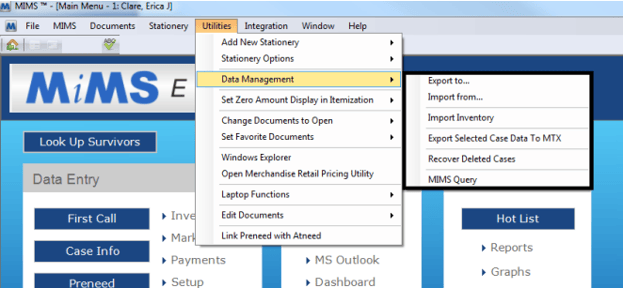
Export to…
This item allows you to export data from MiMS for use.
Import from…
Allows you to try to import data from an outside data file into MiMS.
**This is NOT meant for updating existing data.
**Before using this utility BACKUP your MiMS data. In the event that this does not work correctly, you will want to restore your data back to before running this utility.
Import Inventory
This function is used for importing prices into MiMS from an external file.
Export Selected Case Data to MTX
This feature is used to update the data used for the documents without having to actually load a document.
**This features primary use is for assistance while creating or modifying documents for the MiMS program.
Export Cemetery Spaces (CiMS Only)
This feature gives you the ability to export data from the Cemetery Spaces area of the MiMS Setup.
**Items will not be available unless the cemetery module is made available.
Import Cemetery Spaces (CiMS Only)
This feature gives you the ability to import data into the Cemetery Spaces area of the MiMS Setup.
**Items will not be available unless the cemetery module is made available.
**Before using this utility BACKUP your MiMS data. In the event that this does not work correctly, you will want to restore your data back to before running this utility.
Recover Deleted Cases
This feature gives you the possibility to recover deleted cases.
MiMS Query
This feature takes you to a SQL query screen to query the database for various information that you are looking for.
Set Zero Amount Display
This area lets you change how zero amounts display on the Goods and Service form.
Change Documents to Open
In the documents printing menu, there are some selections that open a specific document (ex. Social Security, Clergy Information, etc…). This option allows you to change the default document opened to one that you specify. If you have edited one of the standard documents (ex Clergy Information.doc) and saved it as "Your FH Clergy.doc" and when you select Clergy Information under the Documents menu, you want your version of that document to open not the MiMS standard.
Set Favorite Documents
This area is where you set up your most commonly used documents as favorites in MiMS.
Favorites can be any MS Word document you want and would be located at the bottom of the Documents Menu.
Setting Up Favorites
To set up a favorite:
- Click on any favorite in the list that is not assigned to a document.
- In the Select File Window navigate around the computer until you find the document you want to assign as a favorite.
- Click on this Document and click open.
- Click ok to the confirmation box that displays and you are done.
**If you wish to change what document a favorite is assigned to simply click on the favorite that is assigned and then follow the same instructions from item 2 through 4 above.
Clearing a Favorite
To clear a favorite:
- Click on the favorite you want to clear.
- In the Select File box click Cancel.
- The system will ask you if you want to clear your favorite.
- Click Yes to the prompt and you are done.
Windows Explorer
Loads a Windows Explorer window.
Open Merchandise Retail Pricing Utility
This takes you to the Open Merchandise Retail Pricing Utility.
Laptop Functions
This section will allow you to either Copy Data to Laptop (to create an updated database for your laptop) or Sync Laptop Data to Main (to add information to the main server database once you're back in the office from an arrangement meeting).
Edit Documents
This selection allows you to choose any existing MiMS document and open it so that it may be directly edited without writing over any template merge code information. This is a good selection to use if you have an existing document the at-needs minimal correction or adjustment, rather than recreating the document from scratch.
Link Pre-need with At-need
This feature will help you link a pre-need case with an At-need case. This is useful when someone forgets to convert the pre-need to an At-need.