Fully integrated with your software, E-signature will auto-populate your data fields, use your staff signatures kept on file, and easily collect electronic signature either in person or via email. Once they are signed and submitted, forms are then saved directly to Virtual Files.
STEP 1: Form Set-up
Determine which forms need electronic signatures and email the form(s) in PDF or Word for set up. All forms for E-Signature must be setup before you can send them electronically.
STEP 2: Identify signers for the case
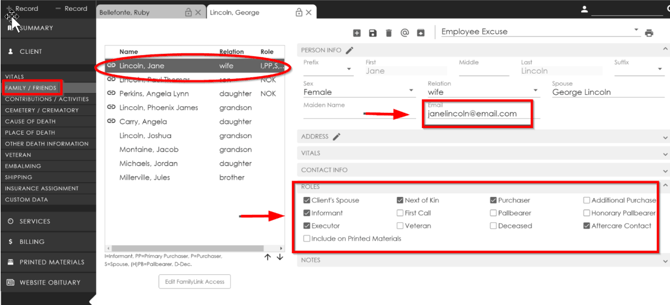
Be sure all of your required signers are identified properly in your case for both your staff and your family members. Inside the case, click Client, and indicate which staff will be assigned to the case and signing documents. Then click Family/Friends and be sure each family member has their specific role identified. Also be sure that family members have emails.
In the Client tab: Staff Members should be identified.

In the Family/Friends tab: Be sure your family member roles are correct and you have their email listed.
STEP 3: Choose your Document
Once your form(s) are set-up with E-Signature, you’ll find the forms in either Billing or Printed Materials.
In Printed Materials: Find your form in the drop-down menus.
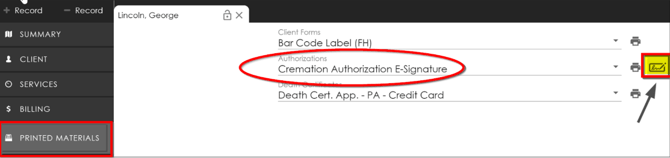
Once you choose the document, this icon  will appear next to the printer icon. Click the
  icon to proceed.
In Billing: Find your form in the drop-down menu. Once you choose the document, this icon  will appear next to the printer icon.

Click the  icon to open Crystal Reports.
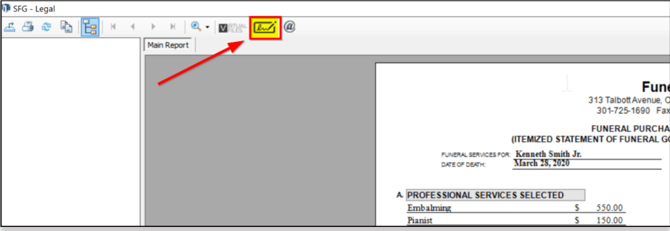
Once the form has opened up, click  icon to proceed.
STEP 4: Review/Edit the E-Signature form to be signed
The next screen shows the document that needs signed. The funeral home can review it by scrolling through the form.
Depending on the type of form, you may also have an opportunity to make edits if needed.
Follow the instructions on the screen to make edits. You can type into a field by hovering over top of it and clicking on it. The field will have a dashed box around it that will indicate it can be typed into. You can also mark check-off boxes if needed.
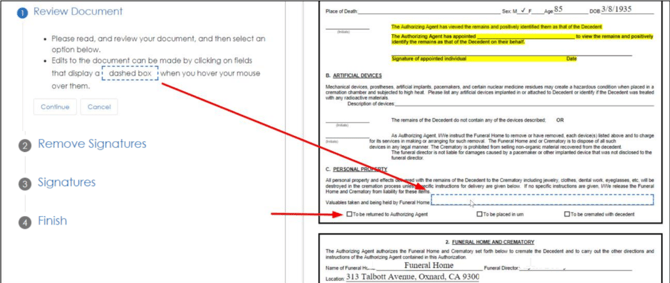
In the example above, a field under Personal Property was selected. A dashed box will pop up to identify the field. Click on the dashed box.
A pop-up window opens to make an edit.
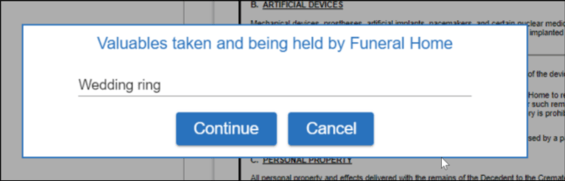
Once finished with your edit, click Continue, and the text will appear in the form. You can edit as many fields as you need to following these same steps.
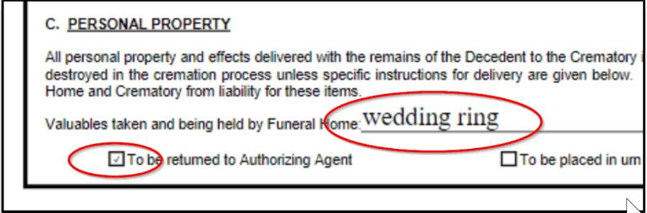
Note: Edits made here will NOT be reflected in your database.
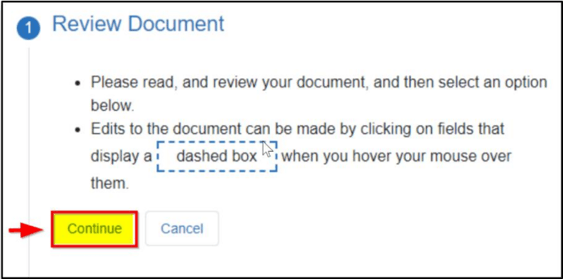
Once the document review is complete, click Continue.
STEP 5: Remove Unwanted Signature Fields
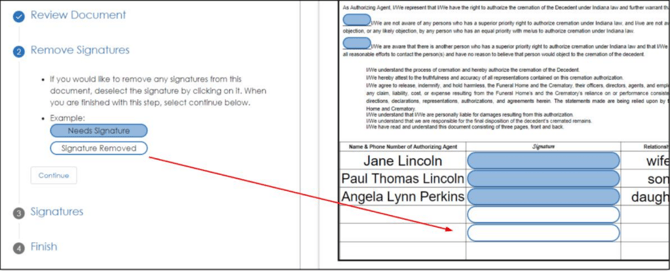
This next step gives you the opportunity to customize the signature fields in your document. You’ll see blue circles where signatures and initials will be collected.
Click on the blue circles to de-select fields where signatures are not required or needed.
Example 1: Deselect the extra signature spaces not needed.
Example 2: On a Crematory Authorization where there are “or” statements. In other words, where they would only sign in either one field OR the other. You can see this in the Artificial Devices section as shown below.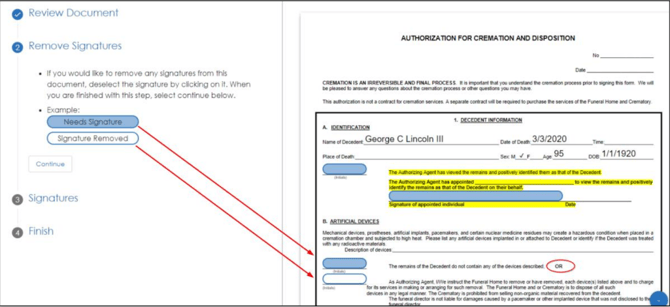
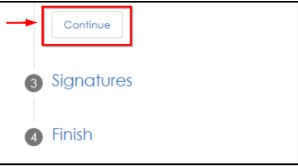
Click Continue.
STEP 6: Collecting Electronic Signatures in Person or Send Request by Email
The next screen shows everyone required to sign the document.
Be sure that anyone who needs to sign the form has been added in the Family and Friends section and also has an email address.
In this example, we have NOK1, NOK2, NOK3 and the Funeral Director. Colors are associated with each signer.
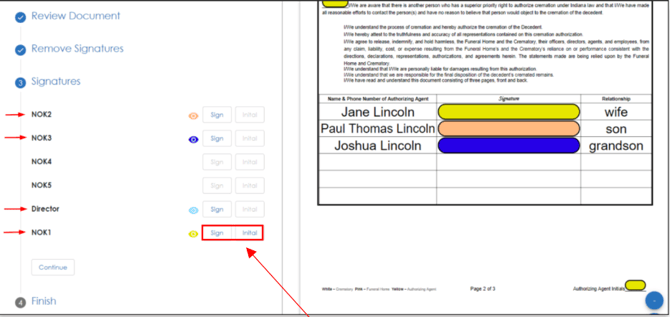
You have two options to collect electronic signatures - IN PERSON or EMAIL.
-
Electronic Signature when IN PERSON:
Family Members: If they are present, click Sign and Initial, then family members can sign/initial the document on your PC or tablet. They can use a touch screen or a mouse to sign.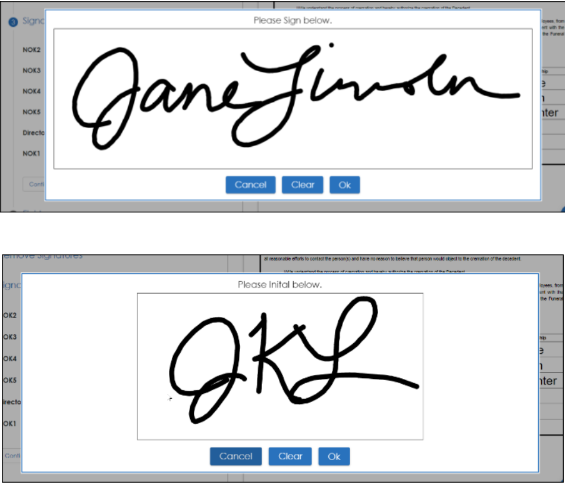
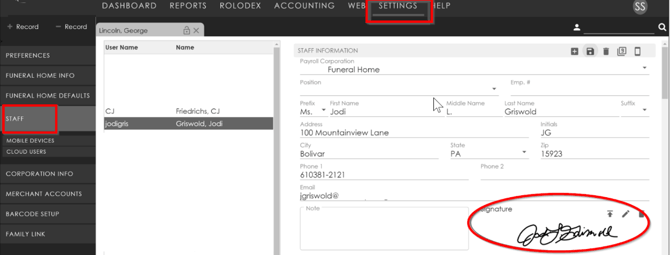
The Funeral Director can also sign IN PERSON at this time by clicking Sign and Initial. If their signature is saved in Settings, the form will be signed automatically when you click Sign.
Autofill: Staff’s signatures are added under Settings/Staff.
2. Electronic Signature when NOT IN PERSON:
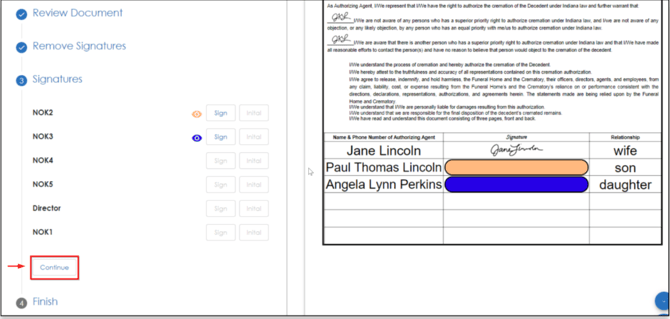
After any in-person signatures are collected, you’ll see the remaining signatures that are still needed. In this example, both the Director and the NOK1 signed in person. NOK2 and NOK3 still need to sign.
Click Continue.
STEP 7: Send Signers an E-Signature request by Email
Family members or Funeral Directors who are still required to sign this document will be listed in the box. Those who have signed in person will not be listed.
You can remove, reorder, or reset signers. You can also edit who from your staff will receive the notifications.
Click Send to email the signature request to the family.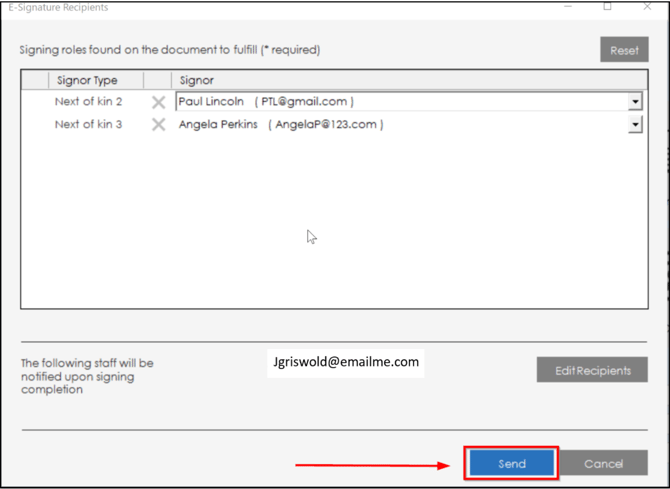

STEP 8: Family member receives and Signs E-Signature request
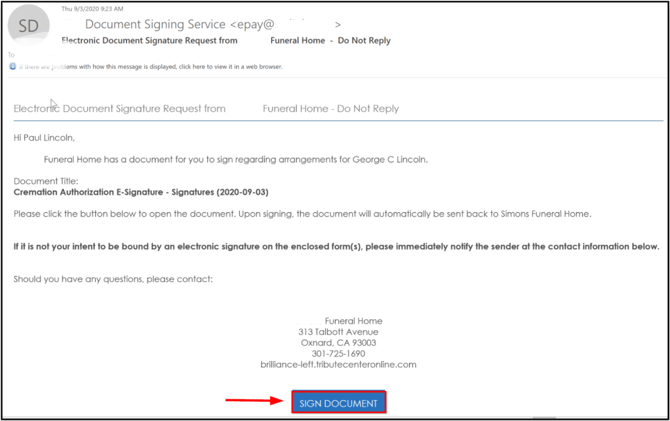
The family will receive an email with a link to sign the document. Below is the email the family receives.
They will click Sign Document which will open the form to be signed in a web browser. They will then complete the steps needed by following the directions given on the screen.
Steps For Family To Sign Document
-
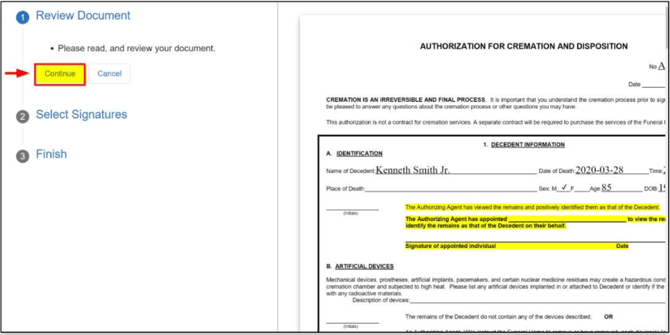
Family members can review the document to be signed then click Continue.
-
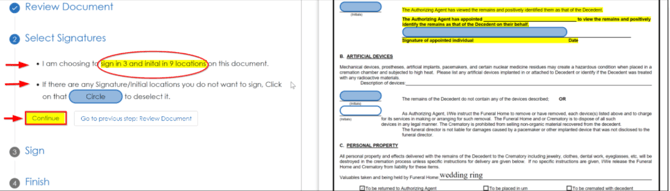
Under “Select Signatures” the required number of signatures and initials for that individual are indicated. Blue circles will show where signatures or initials are needed.
Family members have the option to click on the blue circles to deselect it if they choose. -
Click Continue when complete.
-
The family will sign their signature first. They will click OK to save it to the form.
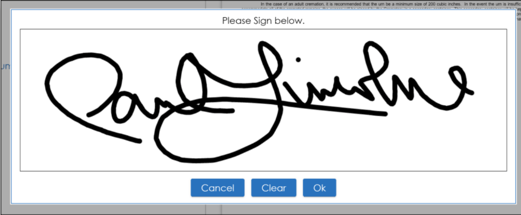
Initials will be next (if necessary). They will click OK to save it to the form.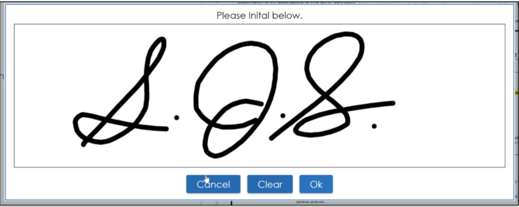
-
The family can scroll through the document to view their initials and signatures.
They can click Restart if changes are needed. Then click Submit Document to finish.
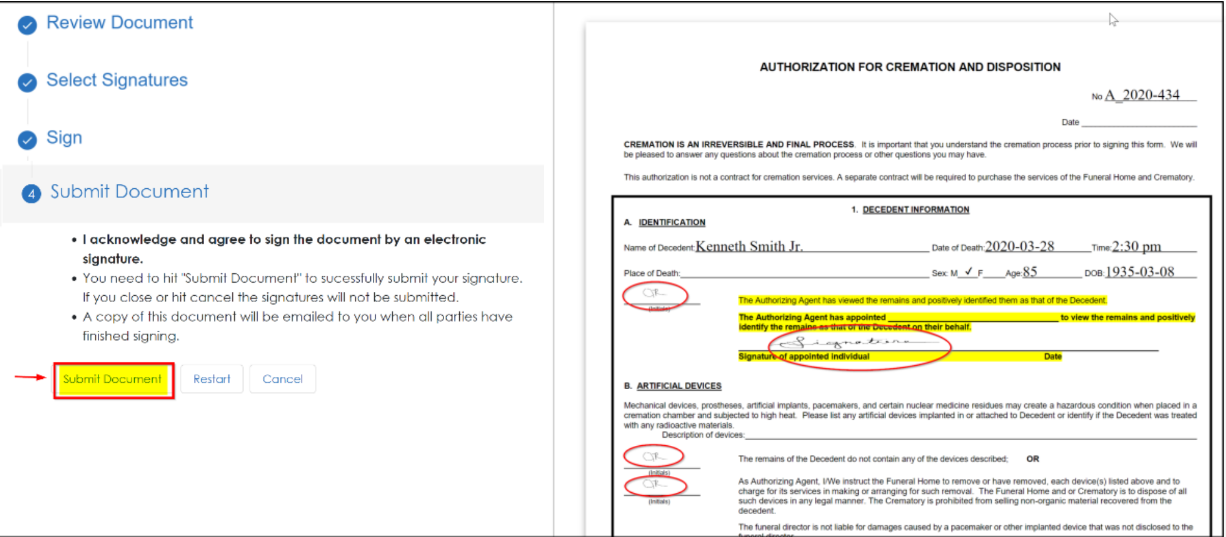
Once submitted, the family will see a confirmation message and can close the browser. 
STEP 9: Signed document is submitted and placed in Virtual Files Automatically
When a signed document is submitted, it is automatically placed in Virtual Files, found on the Summary tab.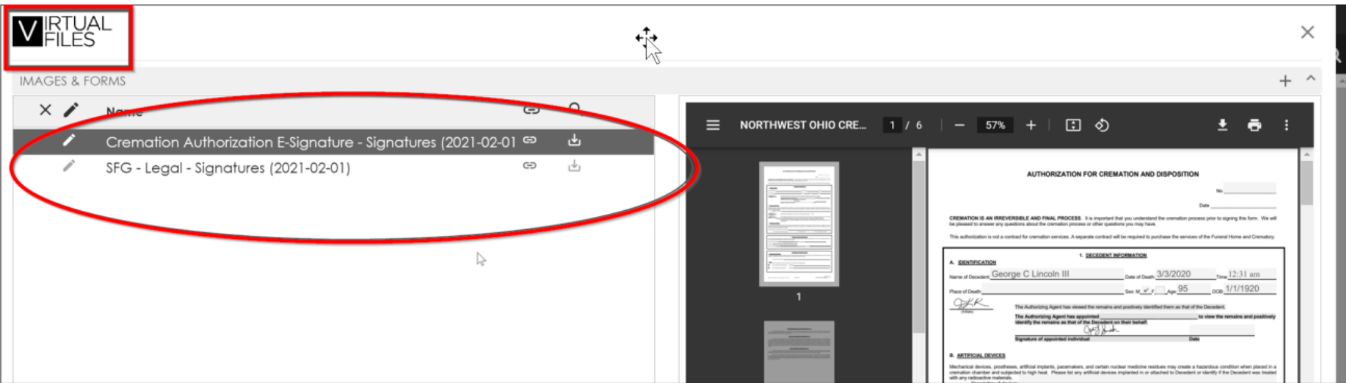
Multiple Signatures
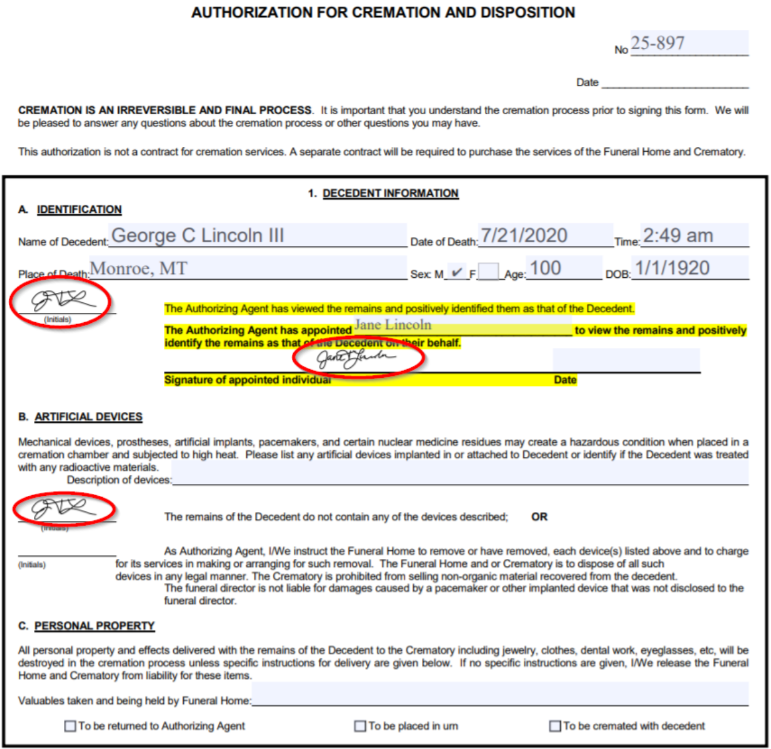
If multiple signatures are requested, the saved copy in Virtual Files will be updated when each signature is submitted. You can go to Virtual Files at any time to view the current state of the document.
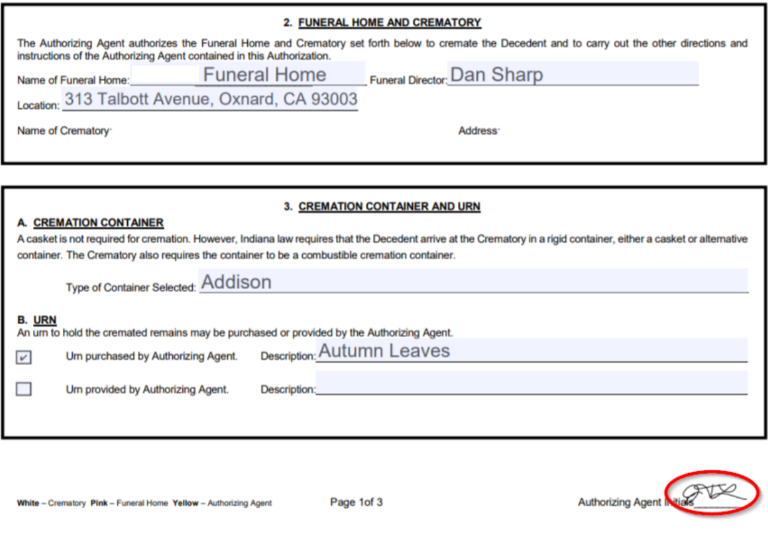
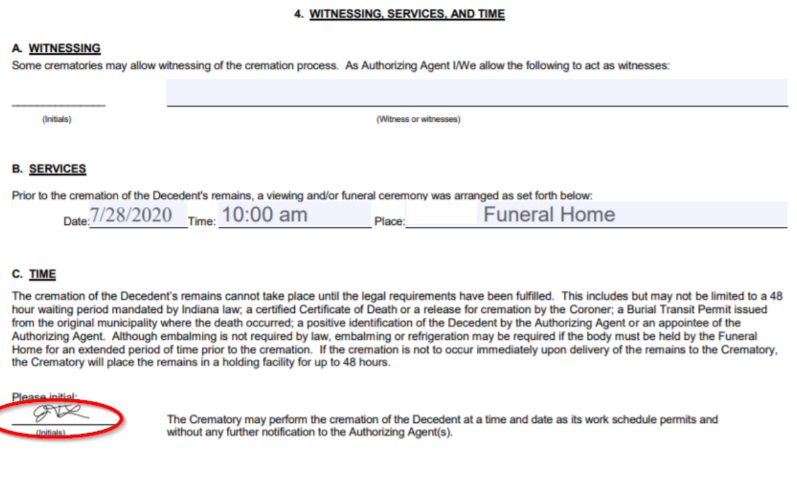
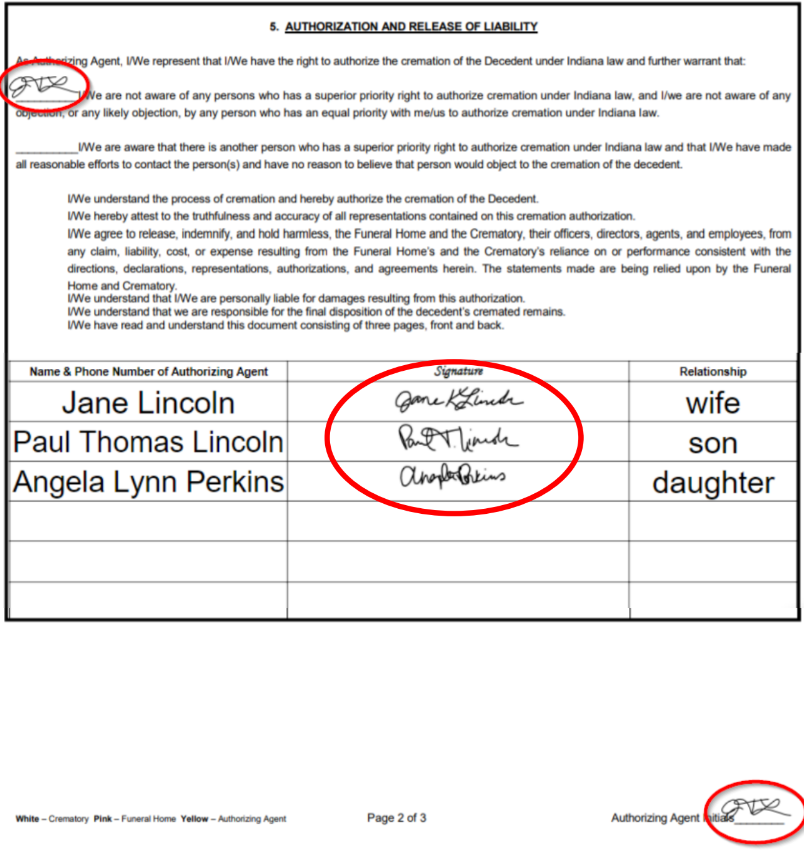
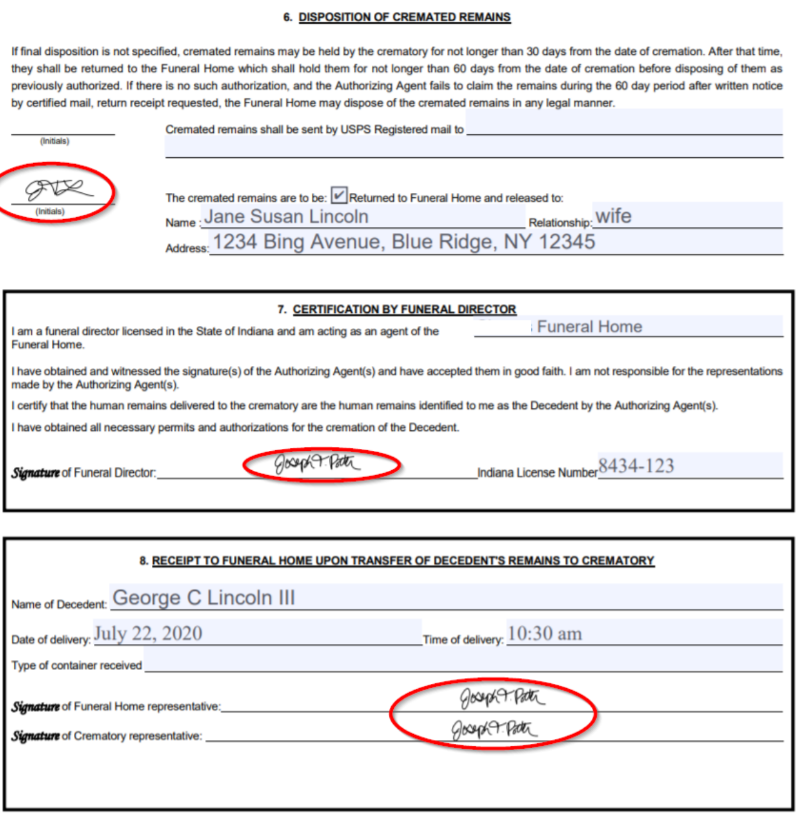
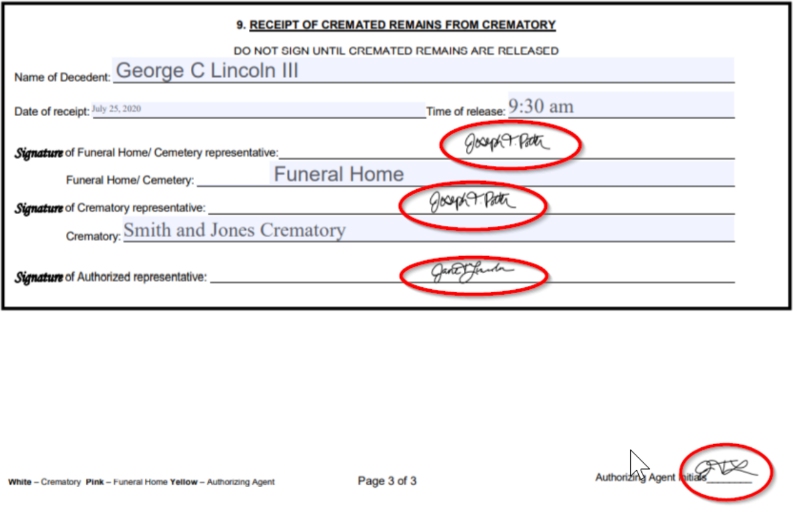
From Virtual Files you can open your document in a PDF viewer. Below is an example of the signed document with initials and signatures from all signers.
Step 10: Notifications that signatures are complete
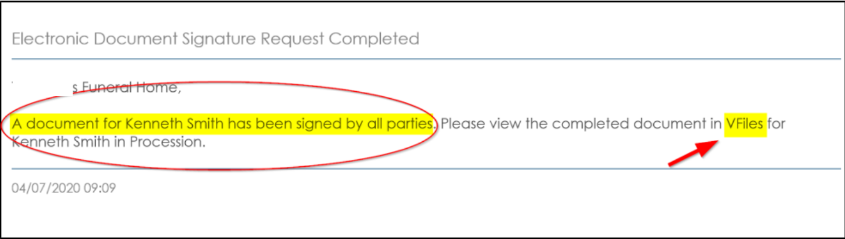
When all required signatures are gathered, the document is complete. The designated funeral home staff member and the family members will a notification via email.
The funeral home will receive this email.
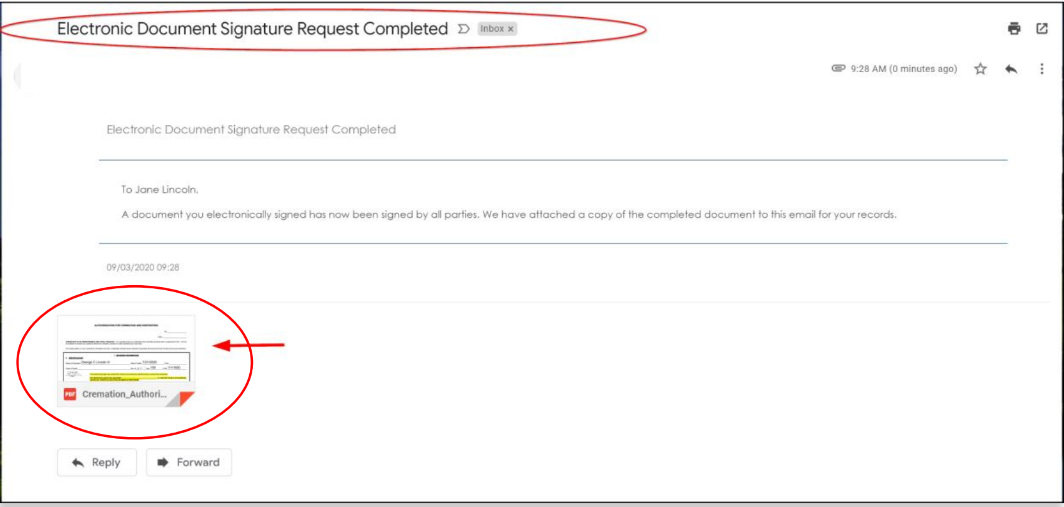
Families receive this email with an attached PDF copy of the completed document.
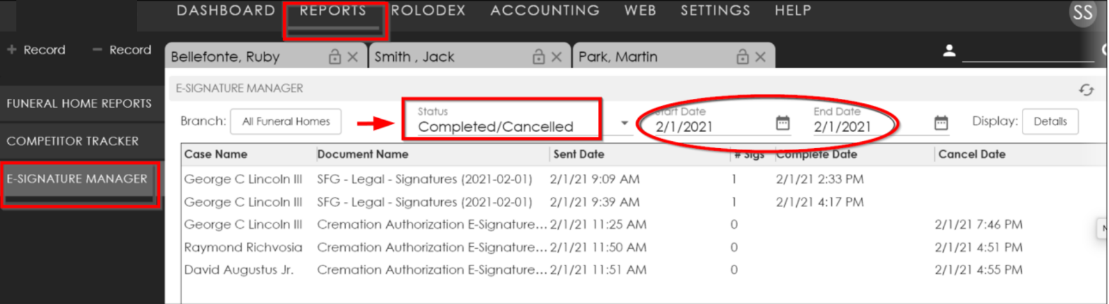
E-Signature Task Manager – located in Reports
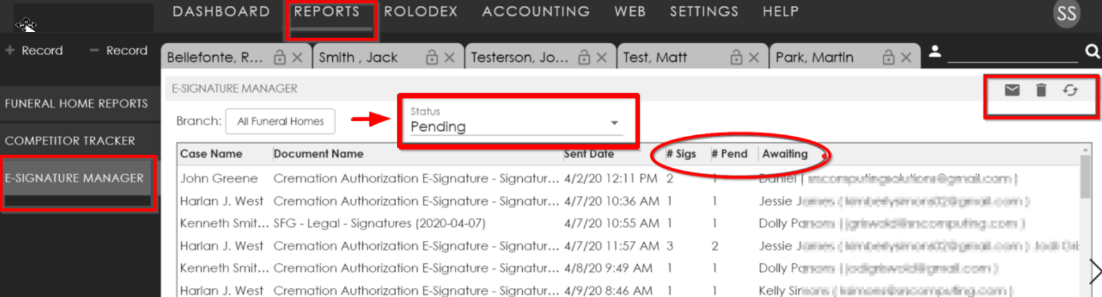
This tool provides an at-a-glance reference to the status of all signature requests sent.
Go to Reports and click on the E-Signature Manager button.
-
Choose all locations or the specific branch you want to see.
-
Choose Pending or Completed/Cancelled.
Pending view
-
In the Pending view, you can see the status of each pending signature request. Particularly useful is seeing which signatures are still needed.
-
Click Resend Invites to easily send a reminder email to signature recipients who still haven’t signed the document.
-
Cancel Job will cancel all signature requests and Refresh refreshes the table status.
Completed/Cancelled view: You can filter by Date Range and how much detail you’d like to see. The screen opens with the Statistics Summary.