
Overview of E-View
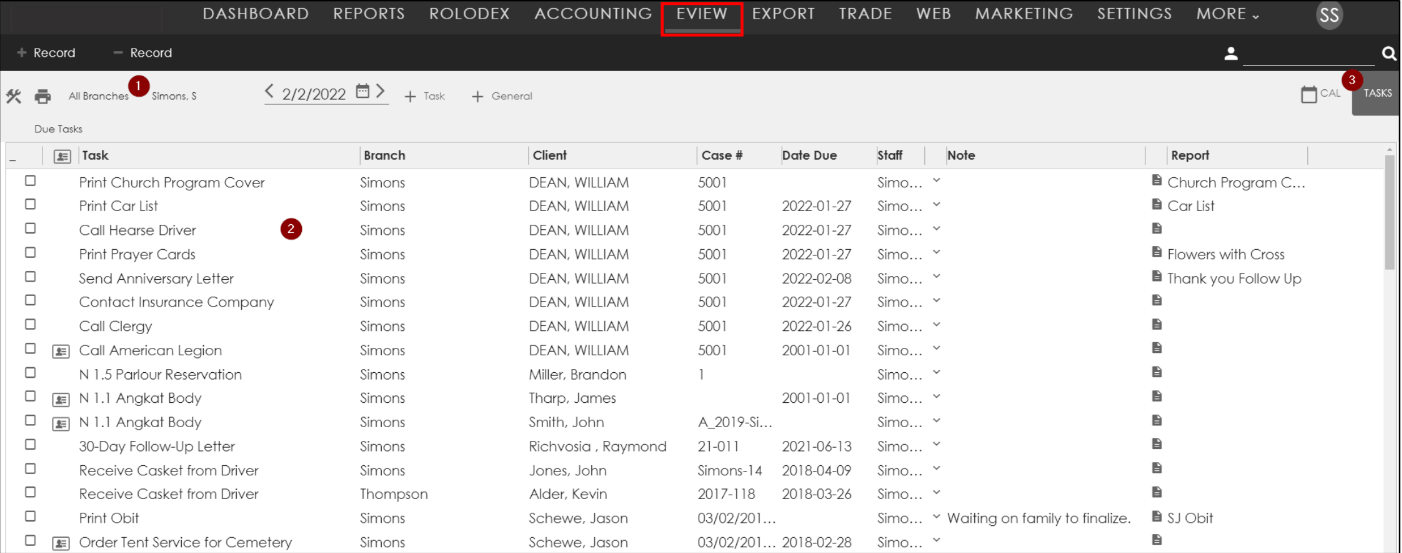
To begin, click the E-View icon at the top of the program. This is where Tasks that need to be completed will display. You may see a blank page when starting out, but with a customization and setup you’ll soon be on your way.
You may see specific tasks for a Branch or Staff (1) by selecting from the dropdowns. A list of Tasks (2) will be visible at the bottom of the page that need completed. You can switch between the views for Tasks or Calendar (3) by clicking Tasks or Cal.
Creating a Task List & Assigning Triggers:
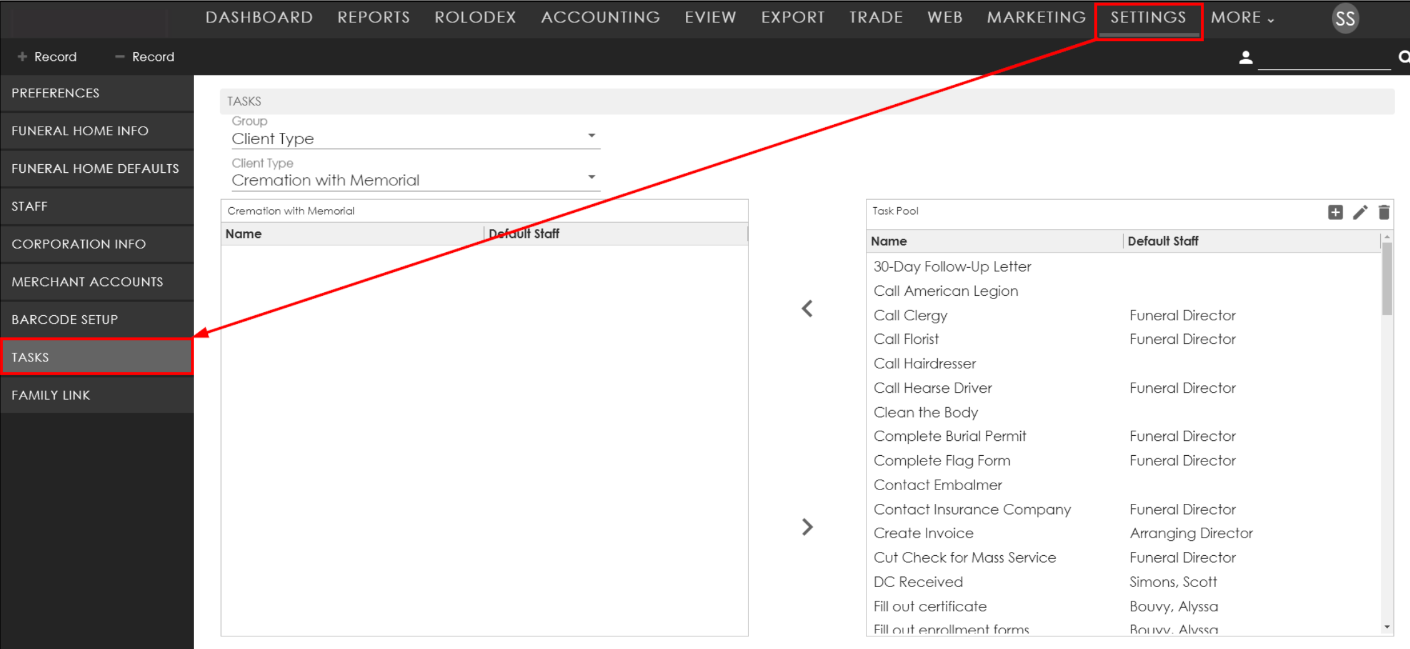
To create a list of E-View tasks, click on Settings at the top of the program, then select the Tasks tab.
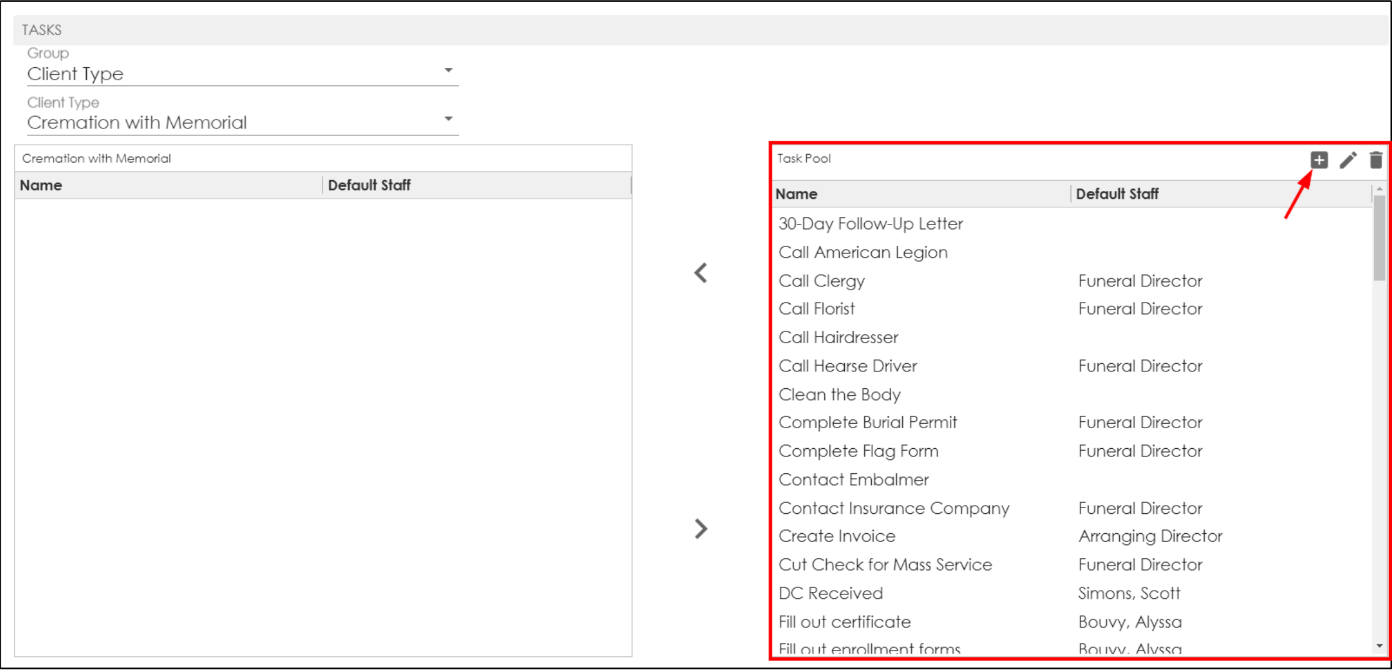
Click the plus icon in the Task Pool to create a new task.
-
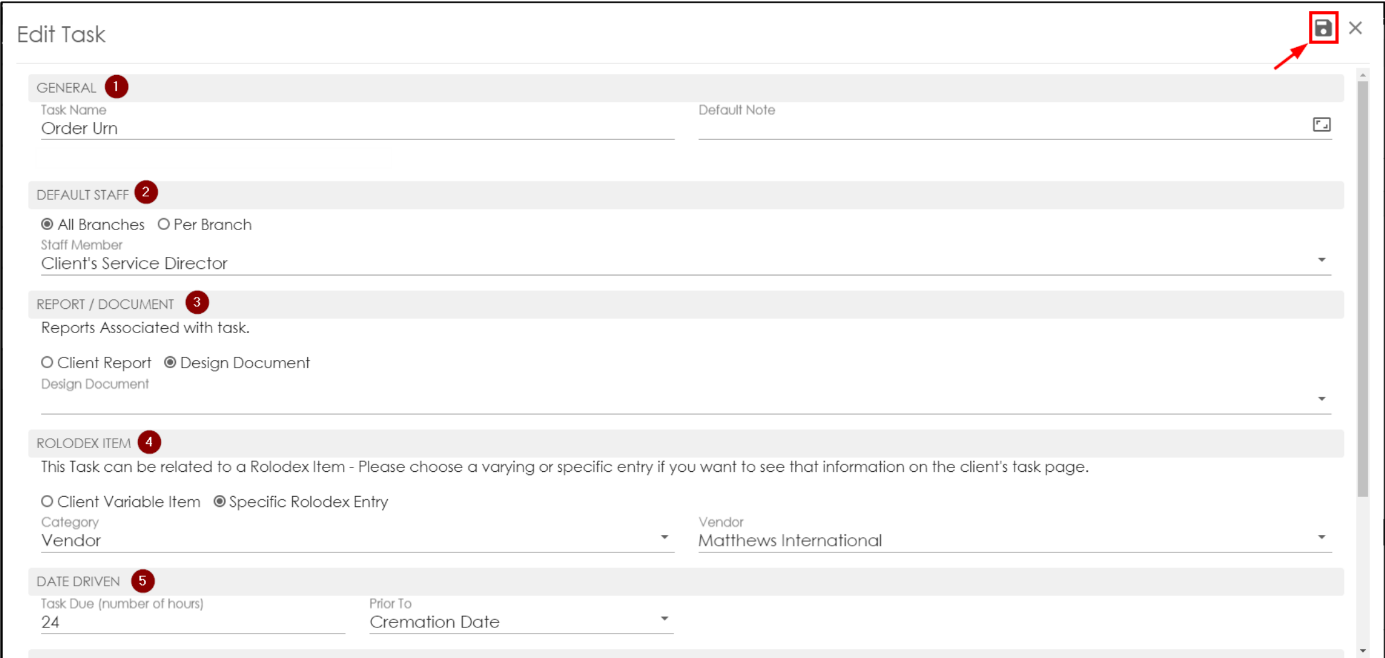
Create the Task Name and any default notes for the task.
-
Select who the Default Staff will be to complete the task, whether it is one person for all branches or per branch.
-
If the task requires any type of form to be completed and printed, attach a Report or Document. Multiple Reports can be added to one task.
-
If the task involves a vendor, they may be selected from the dropdown under Rolodex Items. Use the Variable Item if it could involve any person/vendor within that category (IE: variable clergy). Use the Specific Entry if there is an exact person/vendor (IE: Mary’s Floral Shop) that needs to populate.
-
The task can be Date Driven (5) by assigning a deadline based on any date selected. The task will be due hours prior to an event.
NOTE: Use a negative number (-2 hours) if the due date should follow a Date of Death or Arrangement.
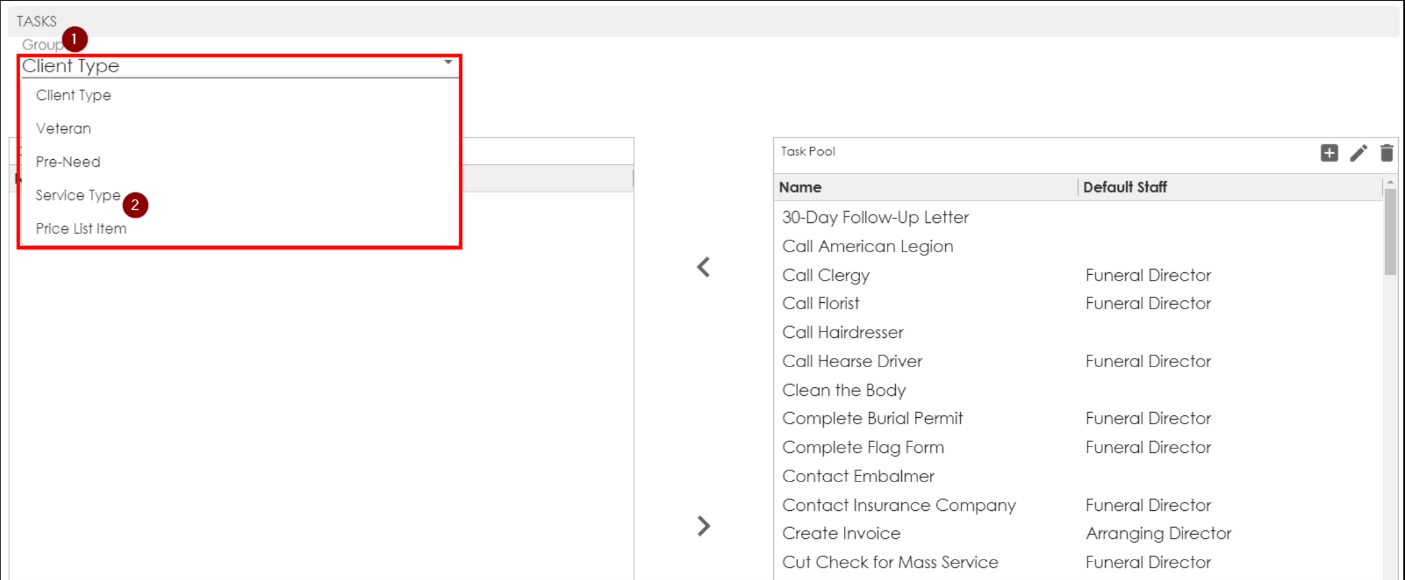
Select the Group Type (1) to create a task for. There are 5 triggers (Client Type, Service Type, Veteran, Price List and Pre-Need) that will generate a set of tasks.
NOTE: Client Type, Service Type, and Price List Item will ask for specific types from the dropdown (2).
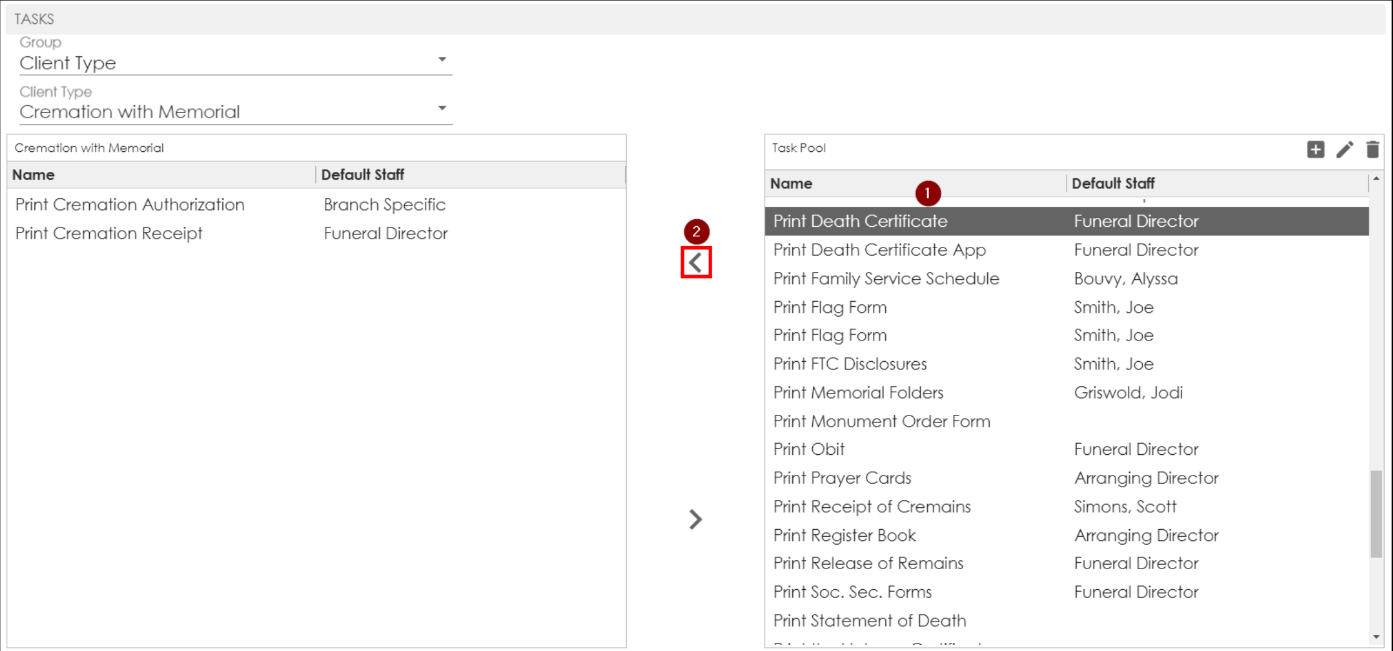
To add a Task to the Group Type (ie Client Type)
-
Select the task from the Task Pool.
-
Click the Add Arrow .
Repeat the steps to include all tasks needed for the selected trigger (ie Client Type of Cremation with Memorial. The task list will grow as more are added.
Viewing & Completing Tasks
E-View Section View:
Once the task list has been built with the triggers set, you can view a list of tasks and complete them from the E-View Task window, or from the Client Task window within a client’s case.
-
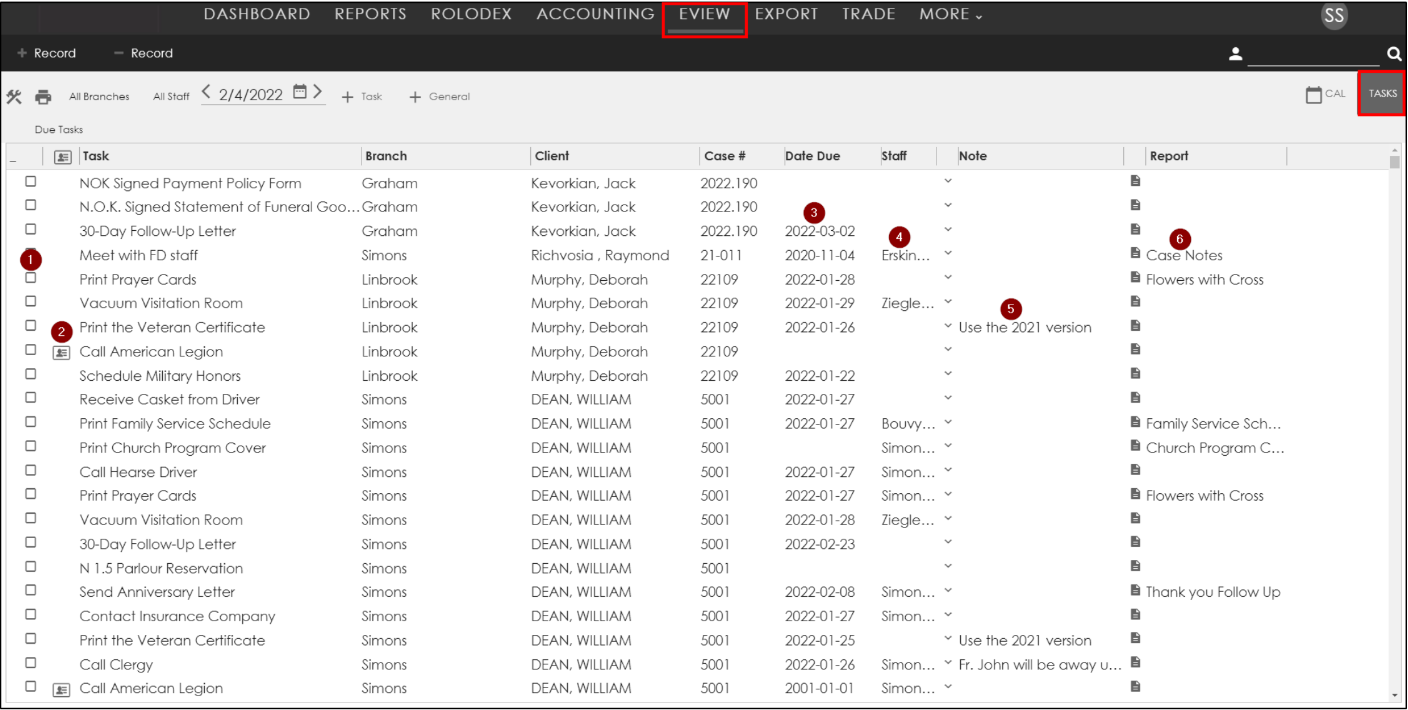
To complete a task in E-View, click the Check Box. When a task is completed, it will remove itself from the list once the screen is refreshed.
-
If a vendor from the Rolodex was assigned to the task, an icon will appear next to it. Double click on the icon to open the vendors information to contact them.
-
The Due Date column will display when a task needs to be completed. These can be manually changed if needed.
-
The Staff column will show who is responsible for completing each task. These can be reassigned as needed.
-
Notes may be entered on tasks to keep staff up-to-date with the status of the task being completed. If a default note was entered in the Task setup, it will pull into this column.
-
If any Reports/Documents were attached to the Task, the report name will show and will automatically populate when the completion box is checked.
Client Record View
Once the Tasks setup is complete, create a new case and select the specific triggers, such as Client Type, Veteran, or Pre-need from the Client page. Those pre-set tasks will automatically populate on the client Tasks tab under the Summary section. The layout will be similar to the E-View Tasks section. Tasks may be completed from this page. The completed tasks will not disappear from this list, but rather show the completion dates.
NOTE: (Optional) Additional individual tasks can be added or removed to/from the Client’s task list by clicking the Add/Delete button. This will allow you to customize a task list for a specific client.
-
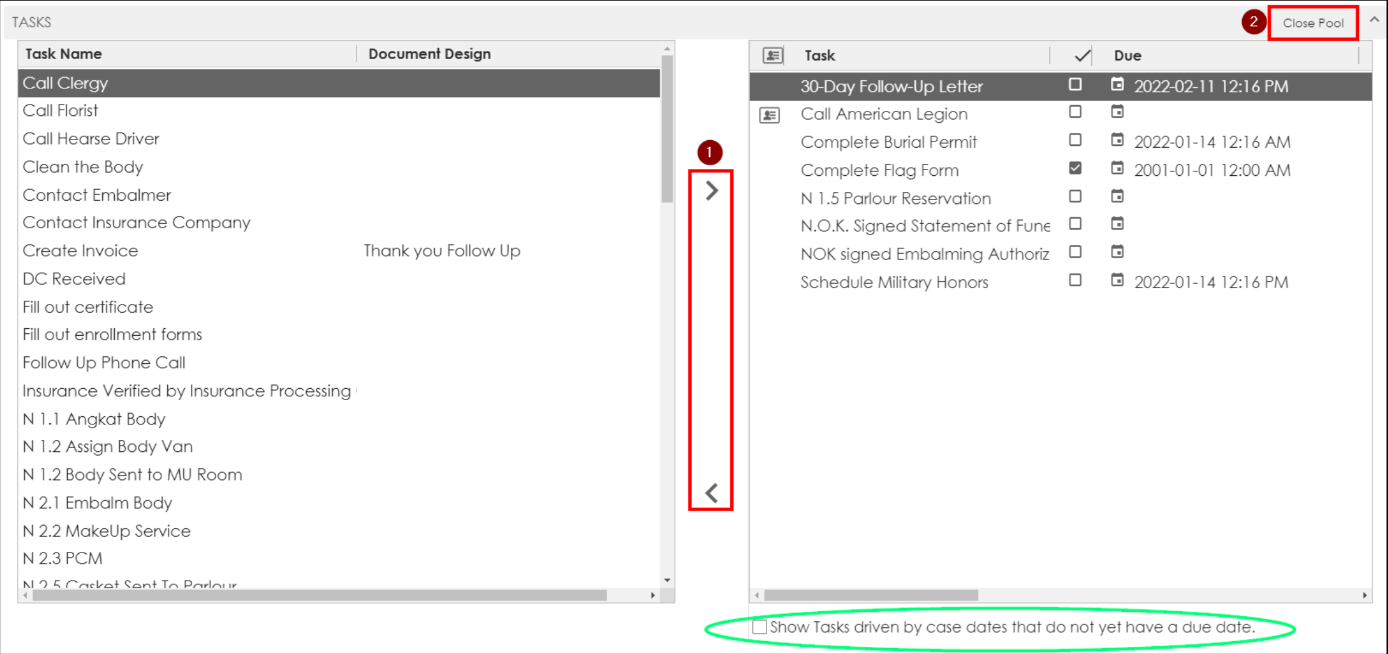
Similar to the Task trigger setup, use the Arrow buttons to customize the list by adding or removing tasks.
-
When finished, click on the Close Pool button.
The Show Tasks driven by case dates that do not yet have a due date check box will display tasks that do not have a Service Date.
Calendar View:
The Calendar View will display Services and Arrangements that have been scheduled.
-
Click on the Settings Icon to customize how you would like to view the calendar. Make the selections of what will display and color code the Service Types. The colors will make it easier to recognize a type of service (ie red is a Visitation).
-
When a scheduled service appears on the calendar, its information may be previewed by hovering the mouse over the event. It will display who the service is for, when & where it will take place, who the funeral director is, the assigned clergy, and any notes that were saved for the service (from the services page of the client’s case).
-
Services, Tasks, and General Events may be added on the fly too. The client’s record will need to be opened to add a service. General Events, such as an office meeting, will show up on everyone’s calendars.
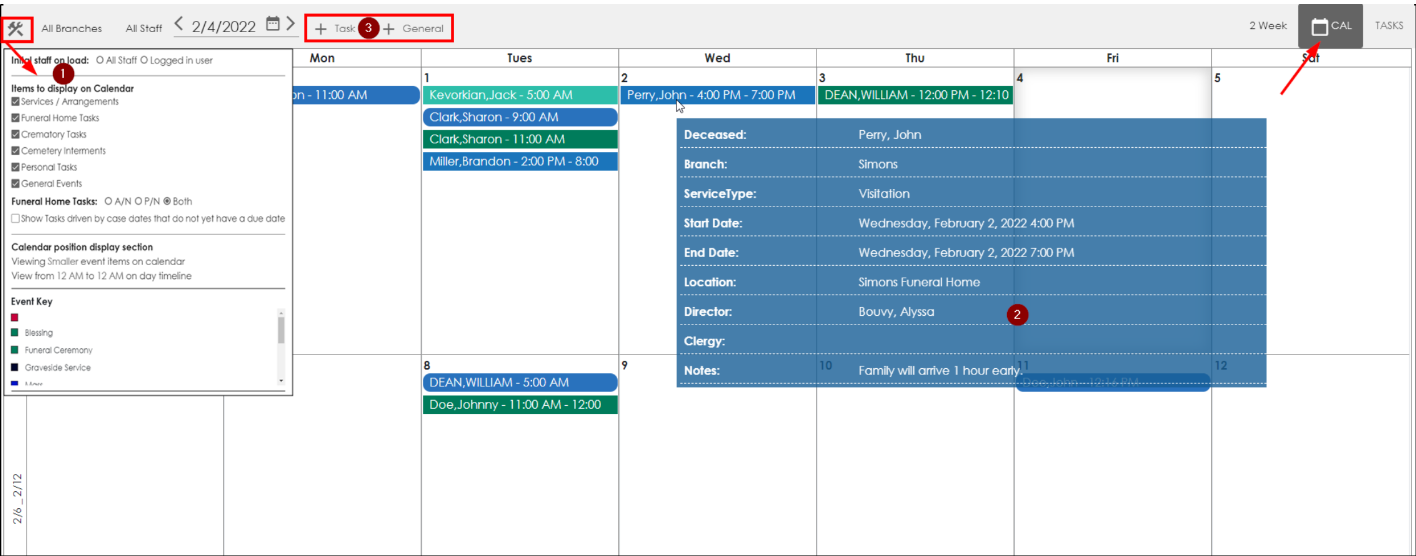
The calendar may display 1 Day up to 6 weeks of Services. This can be changed by using the dropdown next to the Calendar/Task view buttons.
