Once logged into your software, some minor setup will need to be configured. This guide will walk through the initial steps that need to be taken to ensure the settings and configuration are accurate.
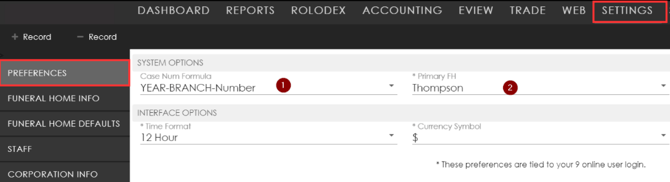
Click on the Settings icon at the top of the program. Once in the Settings, look at the Preferences. All staff members will have access to this tab. This tab will configure personal preferences. It includes options for System Options as well as Interface Options which will allow users to customize their time format and currency symbol. First look at the System Options.
-
Choose your Case Number Formula. This will enable the Generate button to function on the Client tab. If your case number formula differs from any of the options listed select Custom. We can customize many types of case numbers. Let us know your format.

2. Choose your Primary Funeral Home from the dropdown.
Funeral Home Info
Once your Preferences are set, click on the Funeral Home Info tab. This is basic information regarding your funeral home branches.
Be sure to select the Branch (1) you will be entering information for. Verify or enter any information for each location, such as address, email address, website, phone & fax numbers, license number, and branch manager. The information displayed in this tab will be used to populate onto certain forms and letterheads.
Verify the Other information with FH license number, Branch Manager, and Time Zone.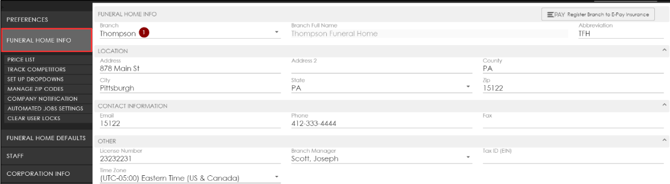
Funeral Home Info
The Funeral Home Info tab will allow you to access your Price List, Set Up Drop Downs, Manage Zip Codes, and post Company Notifications on the Dashboard of the program.
Price List will take you into your Pricelist where you can make edits and changes. See the Price List document.
Track Competitors will allow you to enter the deceased info that chose another local FH for services. Reports can then be generated to compare the number of calls received and market share of death calls.
Set Up Drop Downs will allow you to customize choices within dropdowns in the program. Any dropdown can be customized through here, your Rolodex, or Staff. Choices include Client Type, Service Type, and Payment Type.
Manage Zip Codes will allow you to set postal code choices for cities or towns that share a single postal code.
New Company Notification will allow you to post a new notification for users to see on your Dashboard screen. These can be directed to a certain location or to the whole company.
Clear All User Locks will unlock the selected page on the case for editing if someone else is already on it. This will remove the original users “rights” to the case/page they were on so that another user may access the client’s information and make the changes they need to. This only needs to be used if 2 users are trying to access the same record and a lock icon notification appears.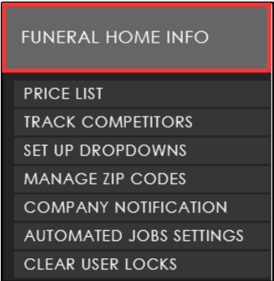
Funeral Home Defaults
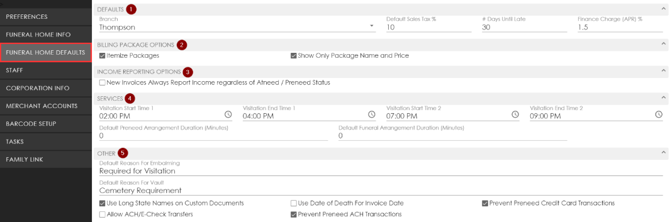
Next, click on the Funeral Home Defaults tab. This tab will allow you to set default information for each branch. Select a Branch to verify or set the default information for.
-
Defaults- Set the Sales Tax rate, Number of Days Until Late for payments, and Interest Charge rate (if you charge interest for late payments or payments schedules).
-
Billing Package Items- If you sell Packages, choose the way you would like the packages to display on your Billing screen, Bills, and Contracts.
-
Income Reporting Options- If this box is checked, Full Accounting will include PreNeed sales as income. (not for Accounting Exports to 3rd party software)
-
Services- Enter default or common times for Visitations. This will allow the "Default 1st Visitations" buttons to populate this information on the Services tab when selecting a Visitation (if using the desktop application). Add default duration times for AN and PN arrangements to show up on the E-View Calendar.
-
Other- Enter the Default Reasons for Embalming and Vault that will appear on your Statement of Funeral Goods and Services contract.
-
Check the appropriate boxes if you want/need Long State Name to appear on custom documents.
-
Select if you would prefer to use the clients Date of Death for the Invoice Date. If unchecked, the current date will act as the invoice date.
-
Select if you would like to restrict PreNeed Credit Card Transactions from being processed.
-
Select if you would like to Allow ACH/E-Check Transactions. Depends on State rules.
-
Select if you would like to Prevent PreNeed ACH Transactions from being processed.
-
Funeral Home Defaults
Below are the descriptions of how packages will populate based on if either Itemize Package or Show Only Package Name and Price boxes are checked or not: 
-
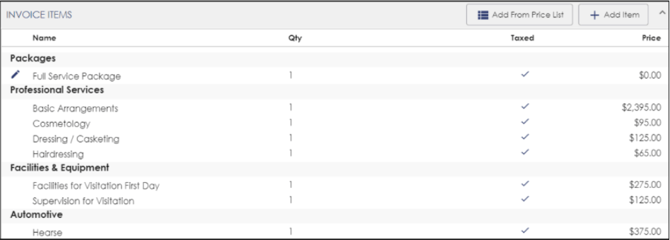
Itemize Packages: This will display the package name as $0 and all of the items within the package itemized out this their prices. This option will also display if both Itemize Packages and Show Only Package Name and Price boxes are checked.
-
Show Only Package Name and Price: This will display only the package name and price with no items being listed.

-
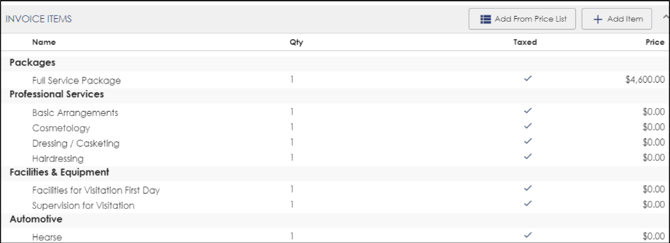
No Boxes Checked: This will display the package name and price and all of the items within the package itemed out as $0. We can format the included items as “inc.” on the Contract/Invoice if requested.
Staff
The Staff tab is where you can manage your staff and set user permissions for each user. There are 4 sections associated with each user’s profile – Name, Roles & Licenses, Program Permissions, and Branch Permissions. Scroll down the page to expand and see each section as you’re adding your staff.
The staff window will display any staff already entered and can be edited at any time.
-
To add a new staff member, click New
 .
. -
2. Enter the staff member’s information. The name will be the minimum information required.
-
3. Be sure to add an email address for login purposes and communication.
-
4. Assign the staff member a User Name and Password.
Save the user profile.
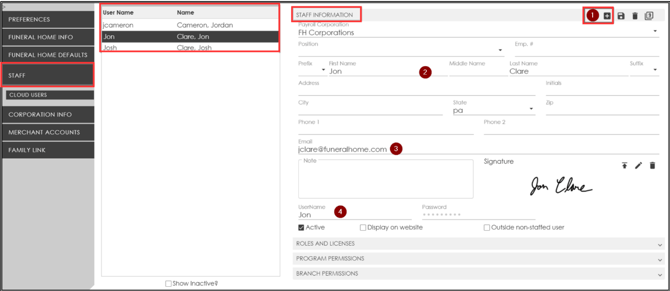
The Signature option will allow a user to add a signature to their profile. This can be signed electronically on a touchscreen or uploaded as a JPEG file. Signatures can be pulled onto specific forms for the convenience of not having to sign each form every time.
There is also a Display of Website option to add the staff member to the staff page on your website.
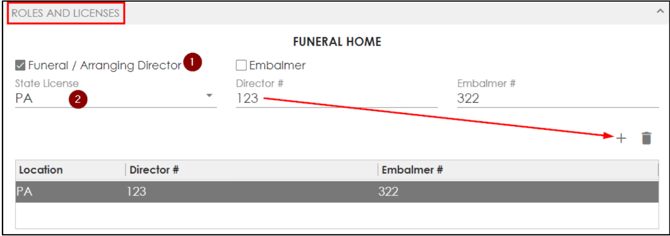
STAFF - Roles and Licenses
For the selected User:
-
Choose whether the staff member is a Funeral Director or Embalmer by checking the boxes.
-
If a Funeral Director or Embalmer, enter their license numbers and click the plus icon to add a license
 .
.
STAFF – Program Permissions
Please see the attached User Permissions document for descriptions of each check box.
If the selected staff is an Administrator, just click the Administrator box and the user will have full permission throughout all programs. 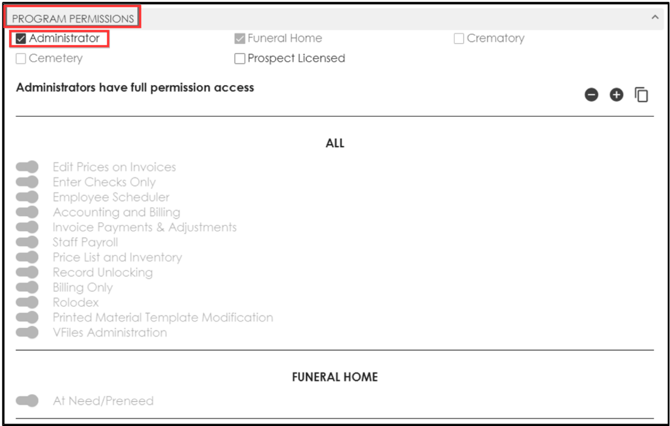
STAFF – Program Permissions
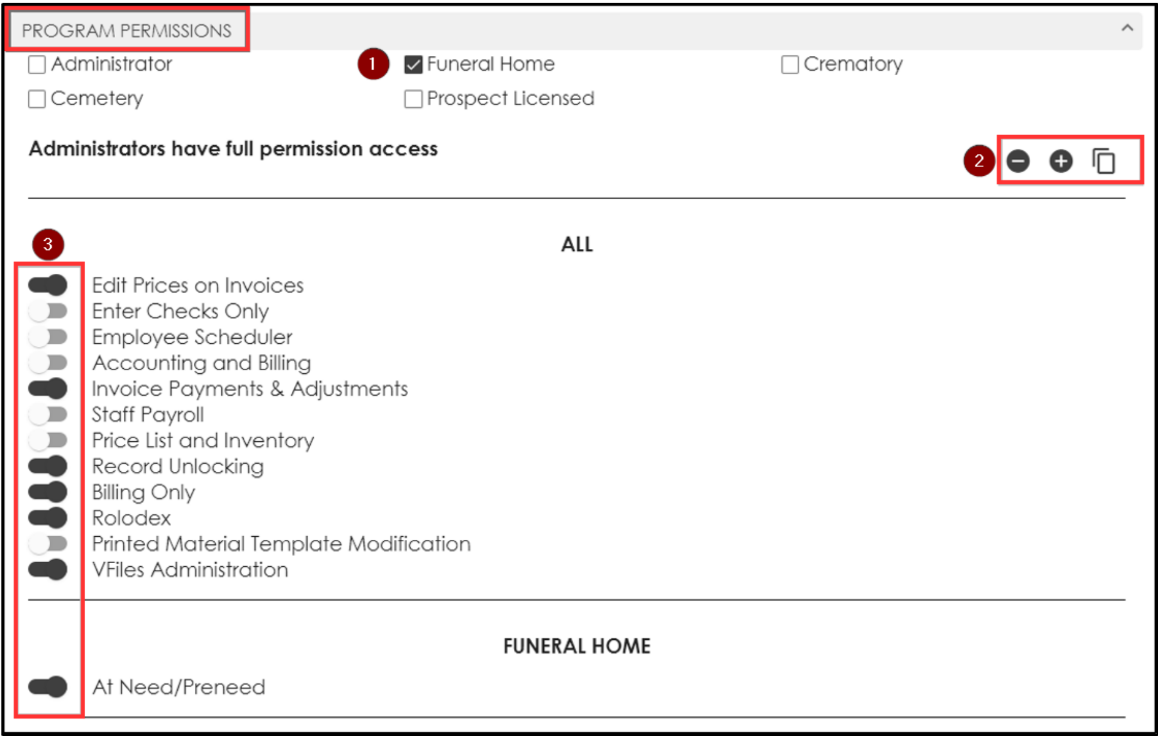
If the selected staff should NOT be an Administrator for all programs:
-
Select the programs they will need access to.
-
If the User needs to have full permissions in all of the programs, but you want to limit them from.
Settings/Deleting Cases, you may select Allow All to turn all permission in this list ON (darker shade). This will give them a lot of permission, but not as much as the Administrator in making crucial system changes. You can also Restrict All
  and Copy User Permissions
 in this area. For convenience, you can copy the selected users permission to other users rather can completing the steps for each client individually.
 -
If you want to restrict the User to limited permissions, you may turn permissions On or Off anytime.
STAFF – Branch Permissions
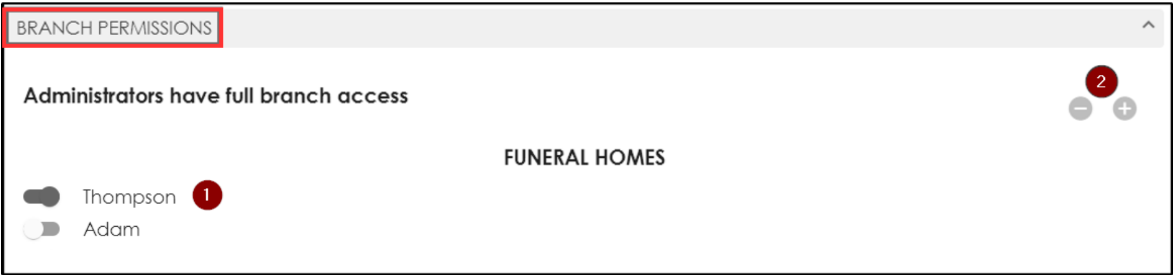
Branch Permissions will grant the selected User access to specific branches, if you have more than one location.
-
You may choose the branches the User should be able to access by turning them ON or OFF.
-
If more than one program is purchased, you can restrict or allow access to all location quickly.
CORPORATION INFO
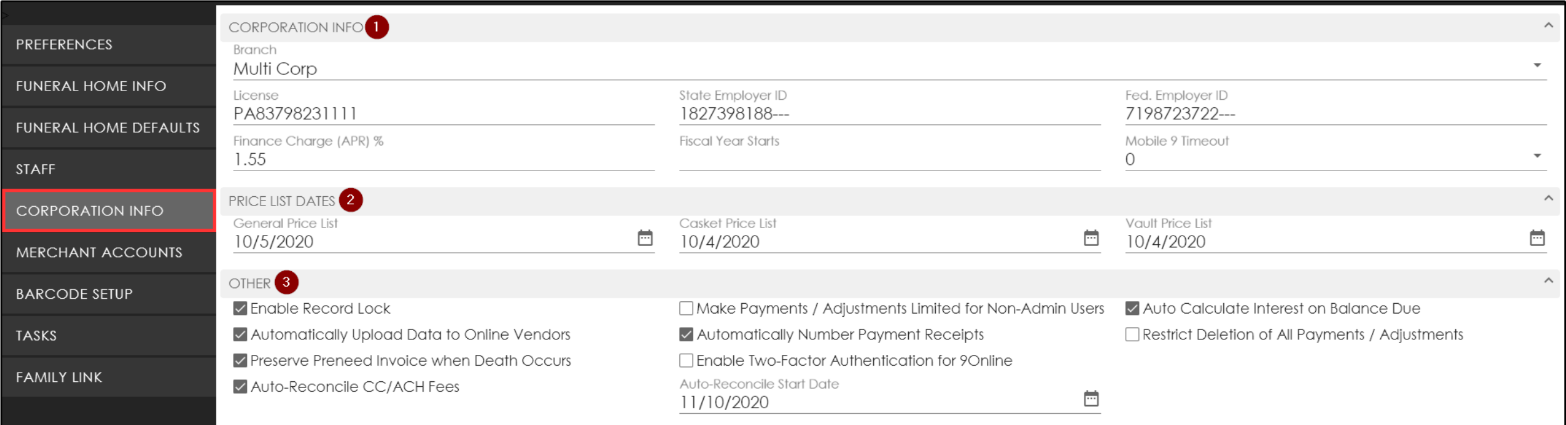
Click on the Corporation Info tab and select the Corporation you need to update information for (if more than 1).
Here you will enter:
-
Your Funeral Home License and Federal/State Employer ID’s. If your fiscal year begins any other time than January 1st, enter the correct date. If you purchased the Mobile.9 app you can set a timeout limit so the app does not stay logged in after a certain amount of time.
-
Update your Price List Dates for GPL, Caskets, and Vaults. These will pull onto contracts and disclosures, if needed.
-
Other:
-
Enable Record Lock- Ability to lock a record so no changes can be made.
-
Make Payments/Adjustments Limited for Non-Admin Users- Users can enter a payment/adjustment but, cannot edit one. Also, users cannot change the debit/credits, enter refund, enter interest, or delete a payment.
-
Auto-Calculate Interest on Balance Due- The APR% from Settings>Funeral Home Defaults will automatically be applied to each bill when the All Due Bills report is ran.
-
Automatically Upload Data to Online Vendors- If unchecked information will not be sent to vendors automatically, such as an answering service.
-
Automatically Number Payment Receipts- If the payment receipts box is enabled in billing, a number will automatically generate. If this is unchecked the box will be blank.
-
Restrict Deletion of All Payments/Adjustments- Restricts a payment from being deleted. This will enable a feature that requires a payment to be reversed to eliminate accounting errors and keep track of history. You will see when the payment was reversed and who reversed it, rather than the payment just being deleted.
-
Preserve PreNeed Invoice when Death Occurs- Will keep the original PN invoice as entered for reference. A new AN copy will be created.
-
Enable Two-Factor Authentication for 9Online- Enhanced security for logging into 9Online. A verification email will be sent to the email address in the staff’s profile.
-
Auto-Reconcile CC/ACH Fees and start date- Full Accounting feature only (no exports). If using Full Accounting journal entries will be recorded for the processing fees.
-