
Information for clients within InStone can be edited in the client tabs. After clicking someone's name in the search or clicking the add person button in the upper left corner, tabs for the client will appear on the left side of the page.

The first tab for a client will display the client's name with an edit icon. Clicking this tab will open up the personal information window where details about the person's name, address, contact info, religion, birth date, age or death date can be entered or changed.
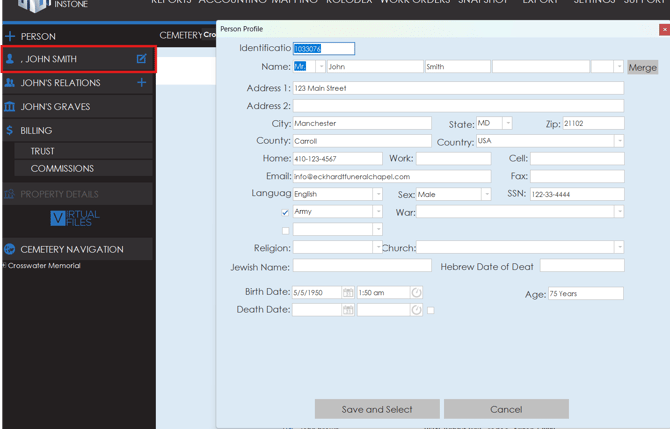
InStone Relations Tab
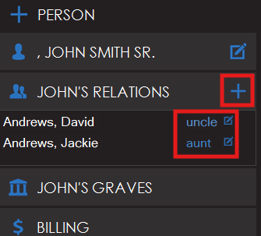
The relations tab will show any people in the system related to this person. Related people will be listed out when you click on the tab showing the family members name and relation to the person. If you need to add another related person, simply click the plus icon to add a new family member.
InStone Graves Tab
The graves tab will list out any graves associated to the selected person. The graves that are listed will show the corresponding location and plot number from the mapping grid in the system. A label will also be beside the grave that indicates if they occupy the grave or simply purchased the grave.
InStone Billing, Trust and Commissions Tab
The billing, trust and commissions tabs all work the same way that they do in Procession and Phoenix. To view more information on the functionality of these tabs, more detailed overviews can be found on the billing, trust or commission articles.
InStone Property Details Tab
The property details tab allows you to enter or change information regarding the grave space. In the center of the property details section, a grid will display the plots within the selected section. Double click on a plot to change the property details for that plot.
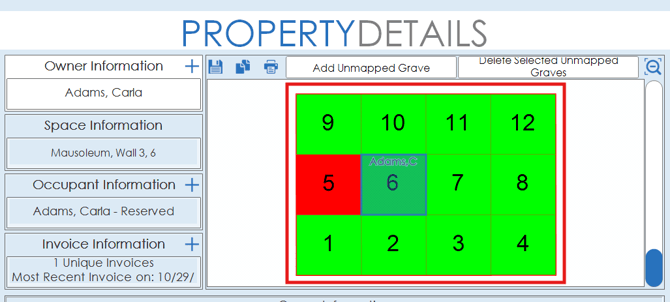
Down the left side of the section, four different tabs are available for owner information, space information, occupant information and invoice information.

Owner Information
Clicking the owner information tab will allow you to edit owner information for the selected grave plot. Below the plot grid, a list of owners and owner information will be displayed. Owner number, name, date of death, date owned, date inactive, and whether the owner is the purchaser are all details that can be added.
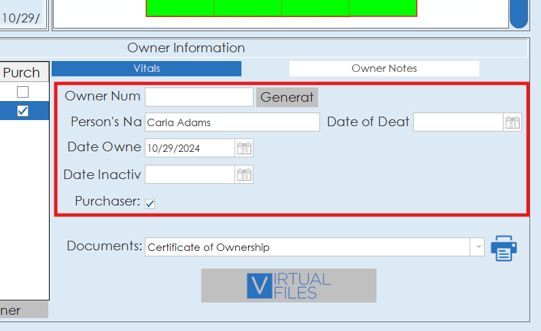
Documents such as the certificate of ownership and deed for the grave plot can also be printed from the documents drop down.
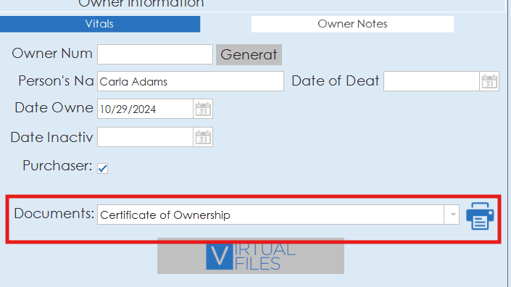
If needed, notes can be added using the owner notes section.

On the left side, a list of owners will be displayed. More than one owner can be associated to a plot. To add a new owner, click the plus icon in the owner information tab.
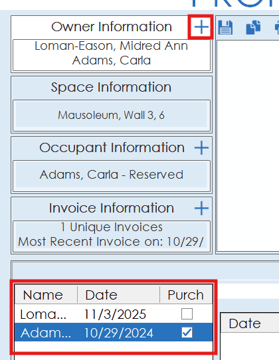
Owners can be marked as purchaser using the purchaser toggle on the owner information section. If an owner needs to be deleted, simply click the "delete selected owner" button.

Space Information
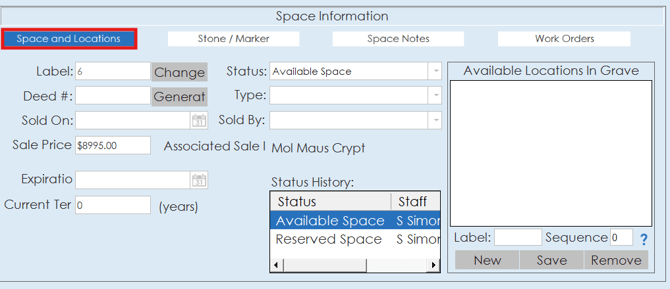
The space information tab is where details can be added or changed regarding the space location, sale, stone/marker, or work orders associated to the space.
The space and locations area allows for details to be entered regarding the plot label, deed number, sold date, sale price, status, type, staff sold by, expiration date and tier.
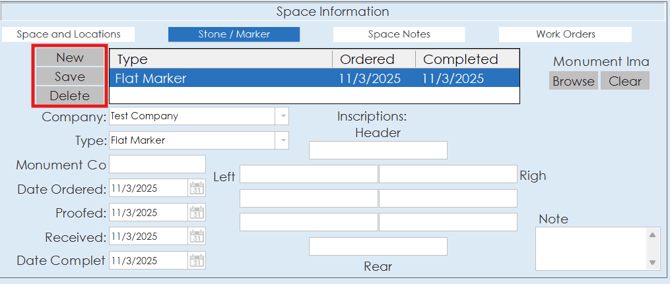
The stone/marker area is where details can be entered about the monument. Information regarding the company, type, inscription, date ordered, proof date, received date, completion date and a monument image can all be added. To add a new monument, click the new button in the upper right, use the save button to save changes to any monument information and the delete button can be used to delete monuments from the list.
The space notes section can be used to add notes about the space in the system.

The work orders tab will list out any work orders that have been associated to the selected plot.

Occupant Information
The occupant information section allows you to enter or change any details about the grave occupant. Information such as interment number, persons name, date of birth, date of death, age, service type/place, funeral home and interment information can be added.
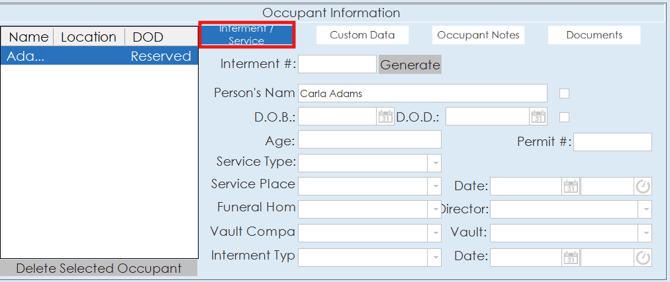
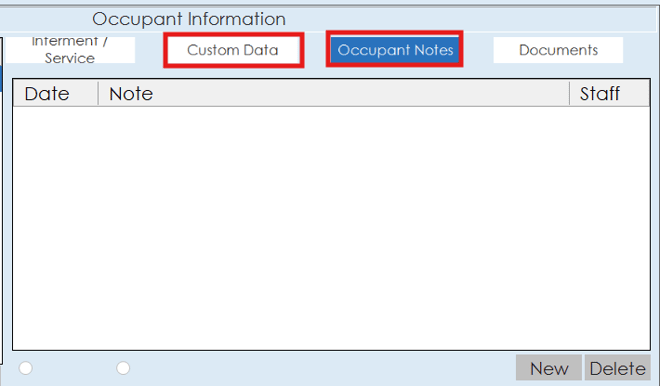
Options are also available to add custom data or notes regarding the occupant.
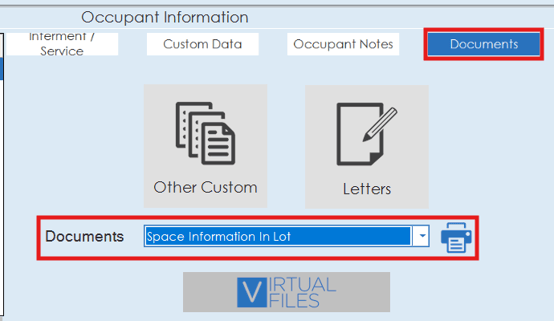
Documents can also be printed regarding the space information from the documents area of the occupant information section.
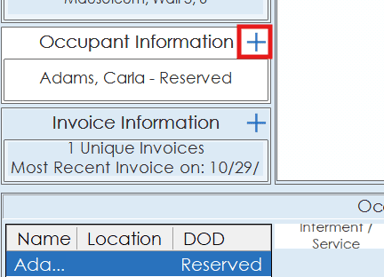
Occupants can be added to a grave plot by clicking the plus icon on the occupant information tab.
Invoice Information
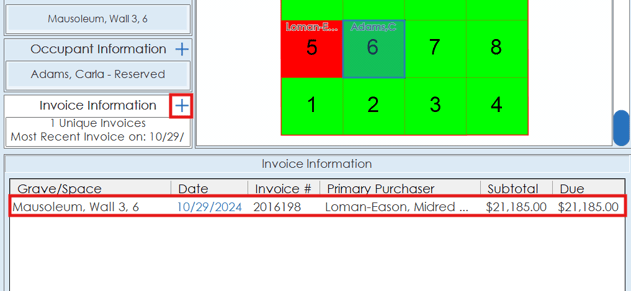
Invoices can be associated to a grave plot using the invoice information tab. To add an invoice to the plot, click the plus icon on the invoice information tab. Any associated invoices will be listed out in the section below the plot grid.
Cemetery Navigation
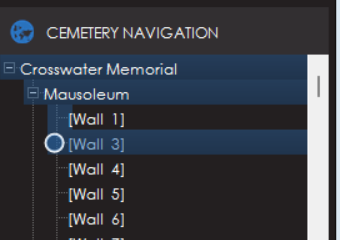
The cemetery navigation tab on a case will display a nested breakdown of cemeteries and their sections. Double clicking on a section will open the property details for that corresponding section.
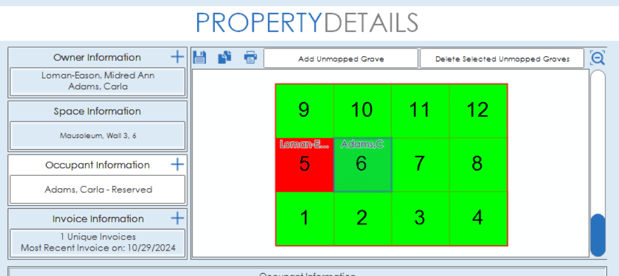
In the property details window after selecting a section from the cemetery navigation tab, plots in the section can be double clicked in the grid to add or change info regarding the owner, space, occupant and invoice information with regards to that property.