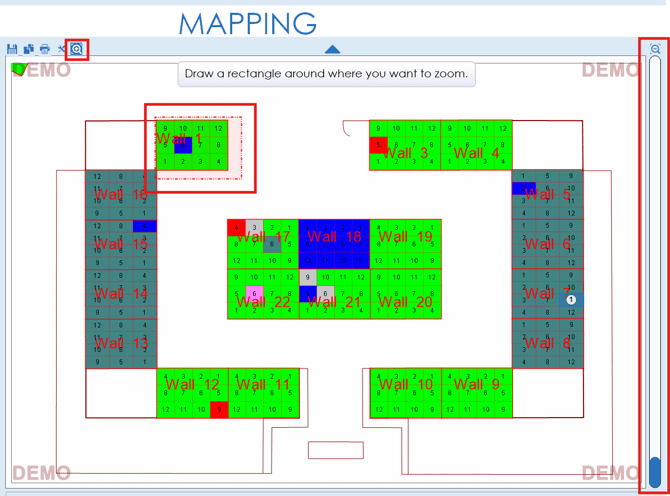
The mapping feature for InStone allows for a map grid to be created for your cemetery spaces. Within the map grid, sections, rows and spaces can be created and labels can be applied to these areas.
On the mapping page, the map grid will display in the middle of the page. Information regarding the selected space, along with information regarding unmapped graves and display options are available on the left of the map grid.
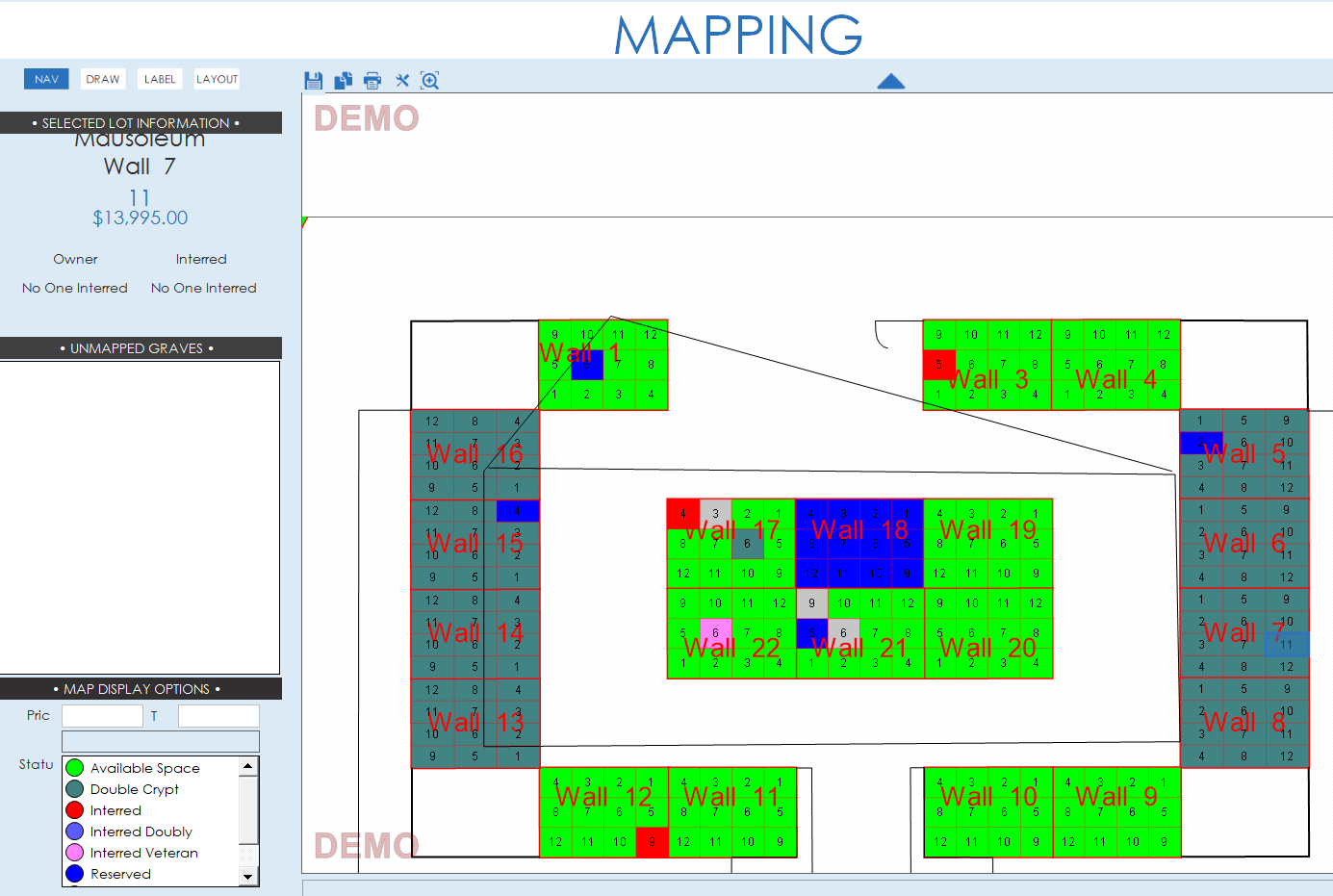
Nav Tab
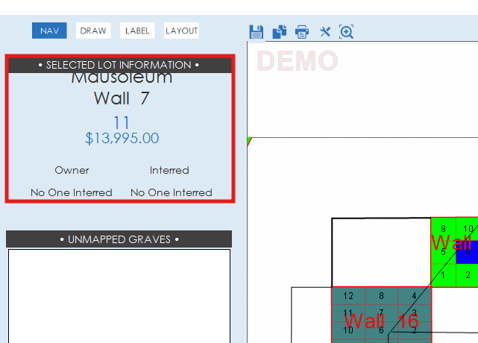
The nav tab of the mapping page is where lot information for a space will display along with options to filter which spaces will display. Owner information, location details and pricing information regarding your selected space will display at the top of the left side.
Any unmapped graves will show in the unmapped graves area. Under the map display options. spaces on the map grid can be hidden or displayed by entering a price range. They can also be hidden or displayed by selecting/deselecting statuses from the status list.

Draw Tab
The draw tab allows you to draw lines and shapes on the cemetery map to create the layout and design of your cemetery in the system. If you need to make design changes to the map in the system, reach out to SRS support assistance at support@srscomputing.com.
Label Tab
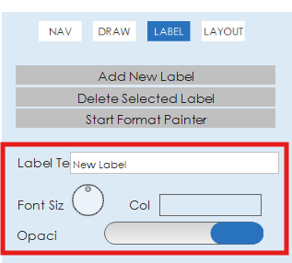
The label tab allows you to add labels to the cemetery map. To add a label, simply click the "Add New Label" button.
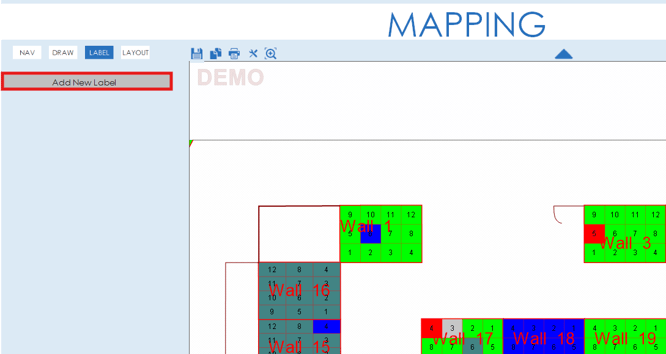
When adding a new label, some options will appear under the new label button. Options are available to change the label text, the font size, the color and the opacity of the label.
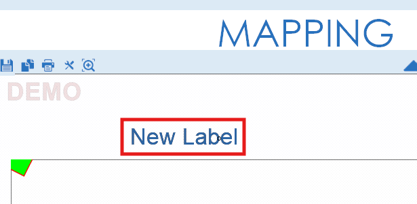
On the map, the label text should appear and has drag and drop functionality to be moved around on the page.
Layout Tab
The layout tab is where the overall map layout can be edited. If you need any adjustments made to the overall layout or design of your cemetery map, reach out to SRS support for assistance at support@srscomputing.com.
Additional Options
A few additional options are available above the map grid on the mapping page. If you need to print out a copy of your map grid, the print icon above the map grid can be used to print a copy of the map.
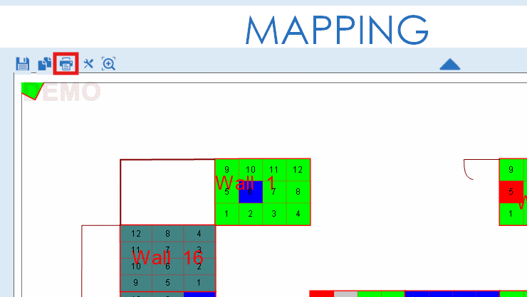
Colors can be changed for selected spaces and spaces being hovered on with the mouse by clicking on the tool icon above the map grid.

The map can also be zoomed in or out by utilizing the zoom bar on the right side of the page. If you want to zoom in on a specific area of the map, the magnifying glass icon can be used as well to draw a zoom area on the map to focus on.