
Emails can easily be sent to users from your system to register for the Mobile App.
To set up Users:
- Go to Settings, Staff, and click the user you’d like to register.
- Be sure the user has a valid email address.

- To adhere to the required security strength to use the Mobile App, set your password to have at least 8 characters, including upper case/lower case, and a number or
special character (#$%^&*). To test your current password’s strength, go to Step 4. - Click the mobile phone icon in the upper right corner to send an email to the new user on how to register their device.
- If your password isn’t strong enough, you’ll get a pop-up warning indicating you need to make your password stronger.
- If your password is strong enough, an email will be sent to the user with a link to the app store to download/install the app, login and register their device. SAMPLE REGISTRATION EMAIL:

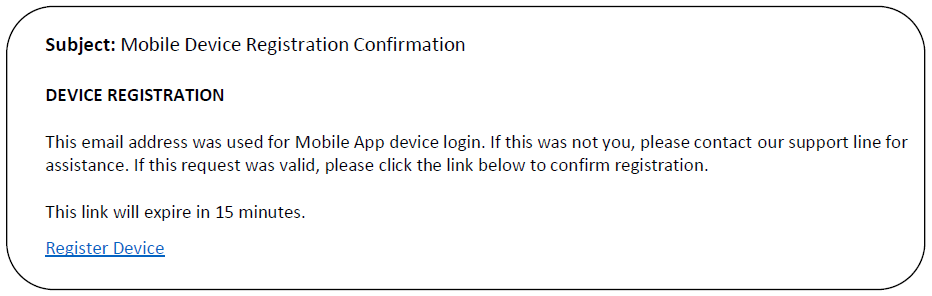
- Once the user registers their device, they will be sent an email confirmation with a link to be used in 15 minutes. When confirmation is complete, the app will be ready for use. SAMPLE REGISTRATION CONFIRMATION EMAIL:
Check Status of Users
You can quickly see how many users (i.e. licenses) you have registered on the mobile app by clicking Settings, Staff, Mobile Devices.
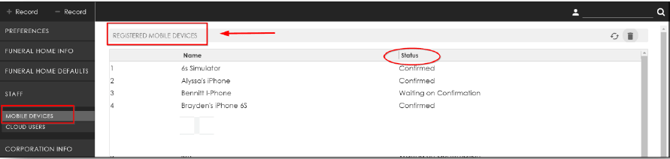
Confirmed: A user has registered their device and completed the email verification process successfully.
Waiting on Confirmation: A user has not completed the email verification process.