The payroll tab of the accounting page will take you into the payroll section where staff payroll can be managed and configured.
Payroll Period
The payroll period page will show staff members and their corresponding numbers for hours worked, vacation hours, sick hours, commissions bonus and gross/net details.
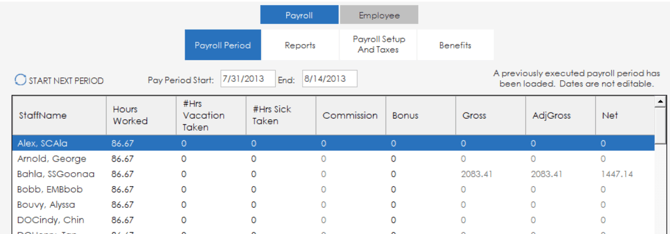
Different pay periods can be viewed using the pay period date range options at the top of the page.

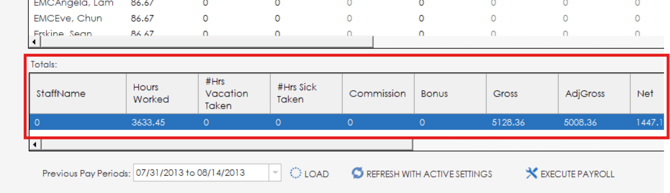
Totals for the list of employee payroll details will display at the bottom of the page underneath the staff list.
Payroll Reports
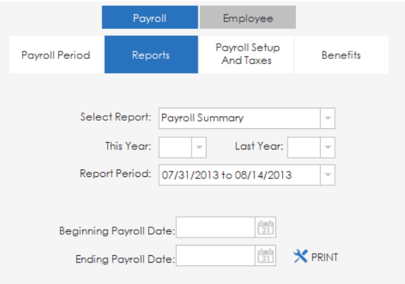
On the reports tab, a payroll summary report can be generated. Simply enter the date range for the report and click the print icon to generate the report.
Payroll Setup and Taxes
The payroll set up page will allow you to configure different taxes that will apply to payroll. At the top of the section, initial payroll start date can be set and the frequency of payroll can be set.

Any tax deductions currently in the system will display in the tax deduction types list.

Underneath the tax deduction list, details of the selected tax deduction can be changed and configured. Options are available to set the tax collector, tax rate, match rate, tax ceiling, payable liability account, and the match expense COA. There is also an available setting to ignore tax exemptions when calculating tax.

Make sure to save your changes when done using the "save" button. Tax deductions can be deleted from the list using the "delete" button. If you need to enter a new tax deduction, clicking the "new" button will give you a blank entry to enter information into.

Benefits
On the benefits section of the payroll page, benefit deductions can be added to payroll. The list at the top of the page will display any benefits that are currently in the system. The name, rate, amount, matching rate, matching amount, description, tax exemption, tax details and account details will be available to view in the list.
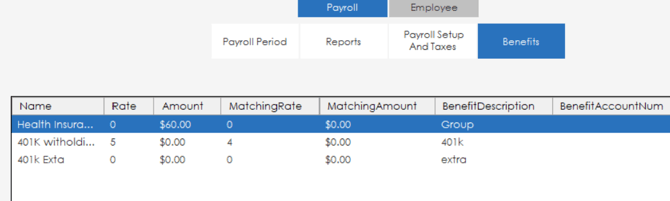
Underneath the list, settings and details are available to be edited for a benefit. Once you have made changes to an existing benefit, make sure to click save to save your changes. If you need to delete a benefit from the list, simply highlight the benefit in the list and click the delete button. If you need to enter a new benefit, click the "new" button and you will be given a blank entry where you can enter all the befit details, then click save to save it to the list.

Employee Section
Under the employee section of the payroll page, details about a staff member can be edited, employment information can be entered and deductions can be configured at a staff member level.
Personal Tab
Under the personal tab basic information such as name, DOB, SSN, address, email, phone active status or notes can be added for a staff member. Make sure to hit the save button to save your changes.

Employment Tab
Under the employment tab, information about the staff members employment can be edited such as position, pay type (Salary, Hourly, Commission), date hired, date terminated, years of service, vacation and sick hour balances. A history of the staff members wages will also be displayed along with options to configure their max sick days and vacation days, along with a setting to configure their accumulation type for vacation/sick days (accrual or allotment).

Deductions Tab
The deductions tab is where deductions can be set up for a specific staff member. Deductions will display in the deductions list that are associated to the staff member. To add a deduction to an employee, select a deduction from the deduction drop down list and click the save button. Amount of the deduction can be set manually for the employee using the amount box and matching or rate can be set through the toggle boxes.
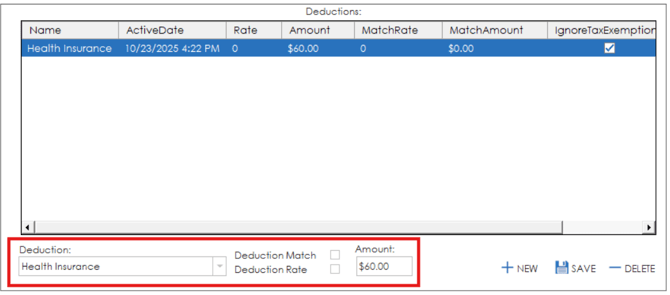
Deductions can be deleted by highlighting the deduction and clicking the delete button. New deductions can be added by clicking the new button.

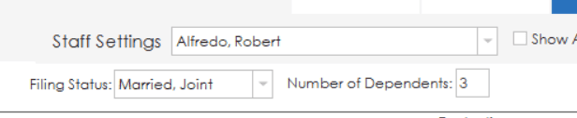
Options are also available at the top of the page to set the filing status of the staff member (Single, Married Separate, Married Joint, Head of House) and number of dependents.