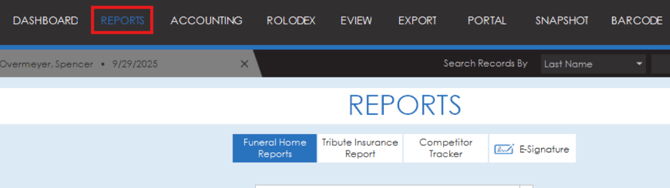
A variety of reports can be generated covering a range of specific information on cases, finances and more. To generate reports, navigate to the reports page from the top of the program.
Funeral Home Reports
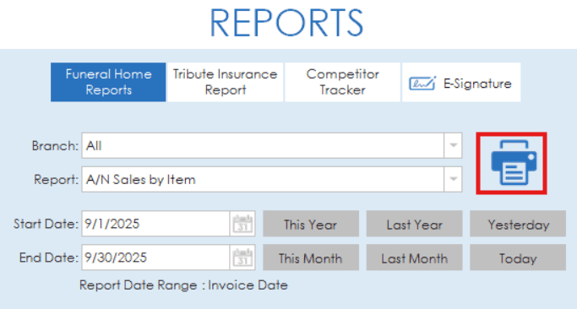
The funeral home reports tab is where you can generate reports relating to cases, sales, inventory, merchandise, accounts receivable and more. To generate a report, select the branches you want the report to cover and select a report from the report drop down list. Set a date range you want the report to cover and click the print icon to generate the report.
Payment Processing Reports
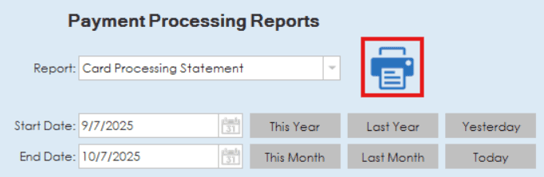
Underneath the funeral home reports section, a section for Payment Processing Reports is also available. This section will let you generate reports specific to payment processing. To generate a report, select a report from the drop down, set a date range and click the print icon.
Tribute Insurance Reports
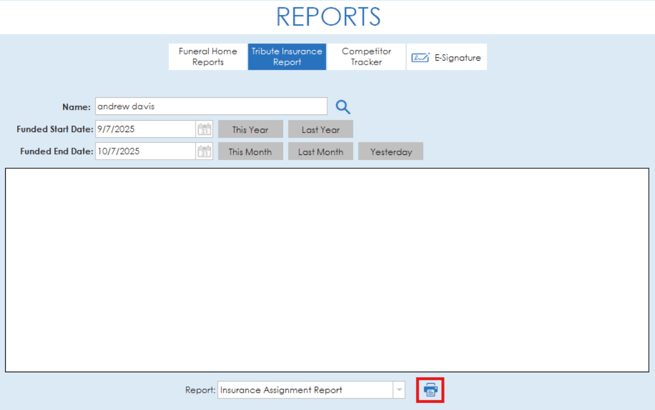
The Tribute Insurance Report tab allows you to generate a report regarding insurance assignments. To generate the report, select a name in the name box, add a date range for the funded dates and click the print icon beside the selected report. Only names of clients with insurance assignments connected to their case will show up in the name search.
Competitor Tracker
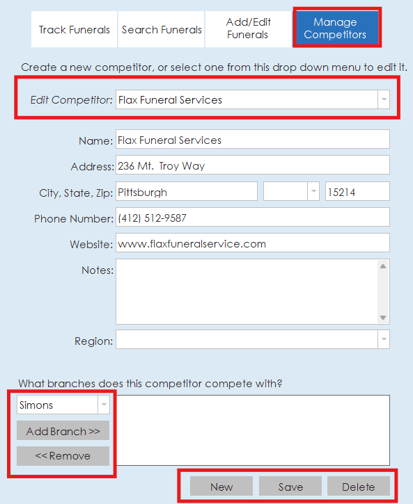
The competitor tracker section gives you the ability to add competitors to the system to be tracked and reported on. First, competitors will need to be added to the system for tracking. Click the Manage Competitors tab to add or edit competitors in the system. If entering a new competitor, hit the new button at the bottom, fill out the information and click save. Existing competitors can be selected from the "Edit Competitor" drop down list and edited, click save to save your changes. Branches can be assigned to a competitor at the bottom of the tab if the competitor competes with a specific branch.
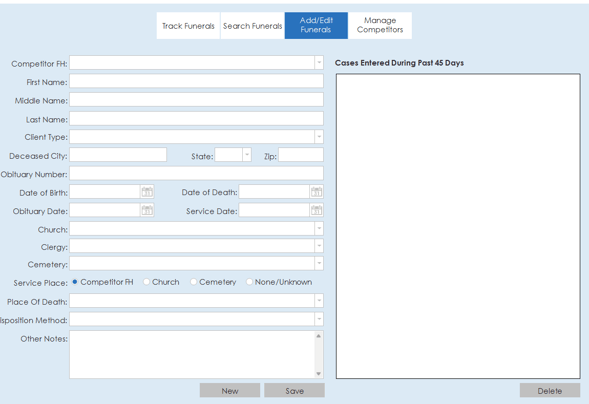
Once competitors are added to the system, funerals can be added using the Add/Edit Funerals tab. This tab lets you enter funerals that are taking place at competitor locations so that they can be tracked in the system. Fill out the funeral information and click save at the bottom to add a funeral.
The track funerals tab allows you to see data regarding the number of funerals that competitors have had for specific periods. The list view at the bottom will give a quick glance into the numbers for each competitor. Deeper reports are available from the reports drop down list. To generate a report, select your date ranges and click the print icon.

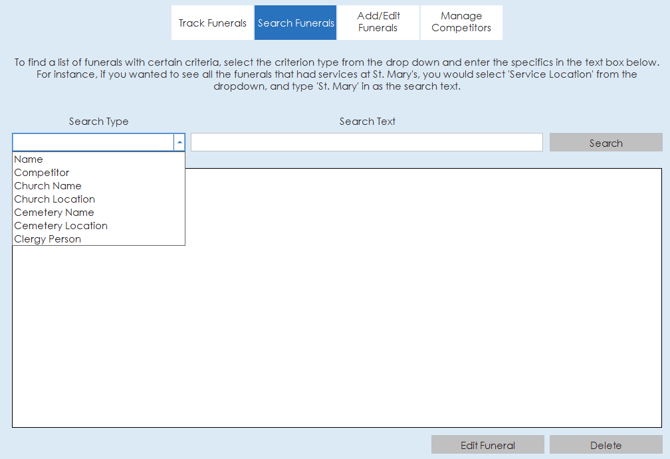
If you need to search for funerals based on specific criteria, the search funerals tab allows for funerals to be searched by specifics such as competitor, church name/location, cemetery name/location or clergy.
E-Signature Manager
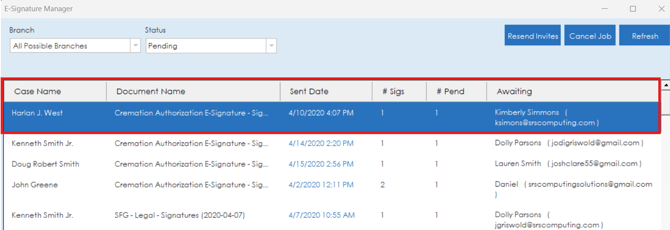
The E-Signature Manager section displays a list of all E-Signature invites that have been sent out. On each entry you can see the date it was sent, what case it was for, the document it was for, number of signatures and number of signatures pending. In the awaiting column, you can see which person the pending signatures are for.
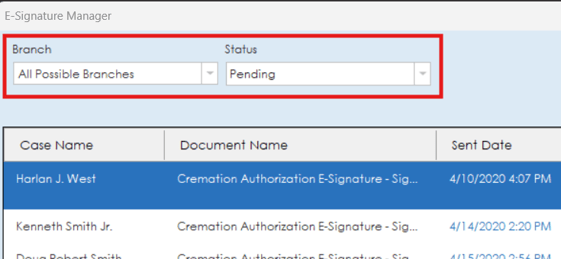
The list of invites can be filtered by branch or status through the drop down list options in the upper left corner.
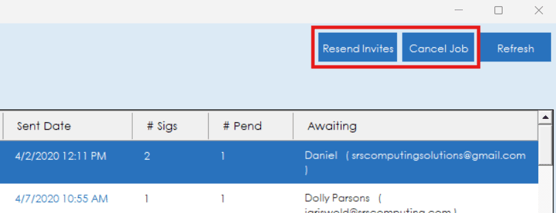
If an E-Signature invite needs to be resent or cancelled, highlight the invite and click on the "Resend Invites" or "Cancel Job" buttons in the upper right corner.