
The work orders feature within InStone allows work tasks for graves or other cemetery work to be issued and tracked in the system. To navigate to the work orders page, click on the work orders page at the top of the system.

Work Orders Tab For InStone
The work orders section of the work orders page will show you any currently open work orders. In the work order list at the top of the page, open work orders will show the description, date issued and date due for the open work orders.

Once you have selected a work order from the list, information regarding the work order will display below the list. Details regarding the work order requester, foreman, workers assigned, description, due date and grave will be available to view or edit.
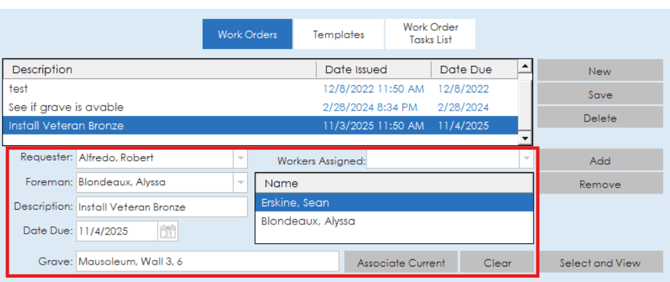
New work orders can be added to the list by clicking the new button, entering the details and clicking save. If a work order needs to be deleted from the list, simply highlight the work order and click the delete button.

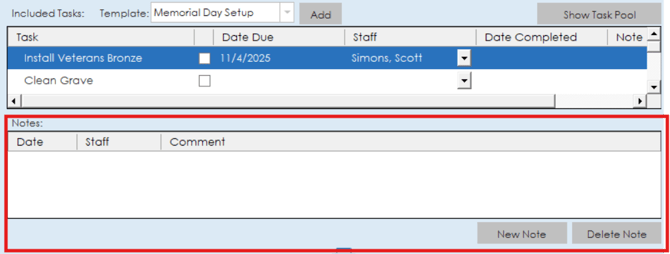
Tasks can be associated to a work order, and a list of associated tasks will be listed out in the task section of the work order page. Tasks can be added by templates or can be added from the task pool using the show task pool button.

Tasks on the work order can be marked as complete by clicking the toggle box on the task.

At the bottom of the work orders section, notes can be added regarding the existing work orders.
Templates For InStone Work Orders
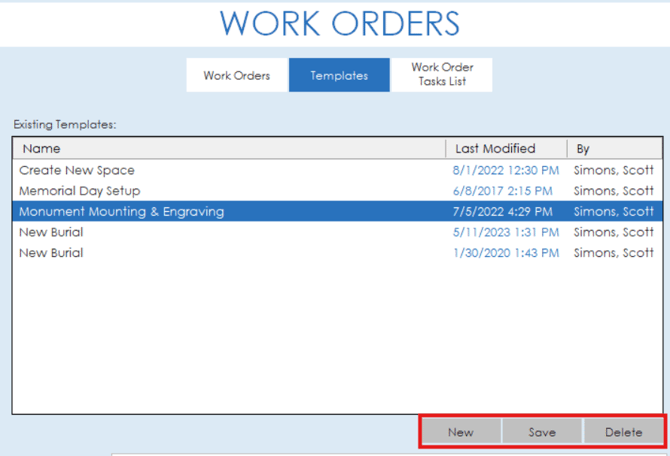
Templates for InStone work orders allow you to group together multiple tasks to be added to a work order via a template. On the template section of the work orders page, a list of existing templates in the system will be listed out. To add a new template, simply click the new button below the list. To edit an existing template, click on the template from the list to open the details down below. If you need to delete a template, highlight the template in the list and click the delete button.
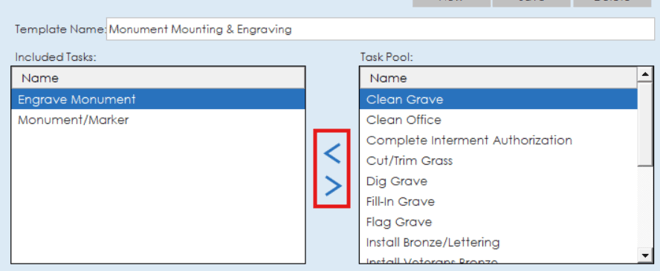
Name of the template and tasks associated to a template can be edited in the lower half of the template section. Enter or edit the template name in the template name field. Tasks can be added or removed from the template task list by using the two arrows between the included tasks and task pool. Once you have made your changes, make sure to click the save button to save your changes.
Work Order Tasks List For InStone
The work order tasks list is where tasks are managed that can be added to work orders. This task list functions very similarly to the tasks list in Procession and Phoenix, but is more focused around the work orders concept used for InStone.
Existing tasks in the system will be listed out on the left side of the section. To open a task to change details, simply click the task in the list and the name, description and default staff will appear on the right side.

If you make any changes to a task's details, make sure to hit the save button to save your changes. If you need to enter a new task, click the new button and if you need to delete a task from the list, simply highlight the task and click the delete button.
