On Tribute Websites, options are available to block spam users from submitting condolences or from submitting forms.
Blocking Users From Posting On Tribute Walls
If a user is submitting spam or malicious condolence posts via Tribute Walls, they can be blocked to prevent further posting. By blocking a user or marking them as spam, you are adding their IP address to the block list of the website.
From The Approvals Dashboard
If you are viewing a post from the approvals dashboard, click the "Show" button on a post to open it up. Below the message or photo, you should see an option that says "Block Author". Clicking this option will add the user to the blocked list and prevent them from being able to post again on your website.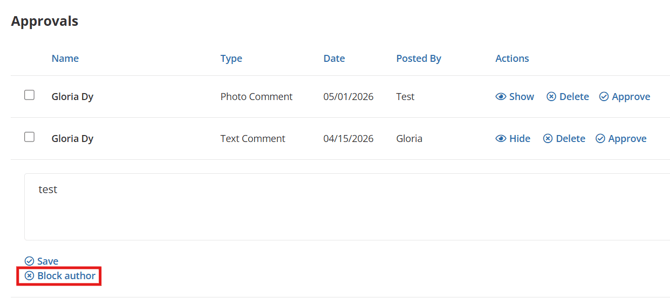
From The Edit Comments Section Of An Obituary
When on the obituary list page from the admin side of your website, comments for a specific obituary can be viewed by clicking the "Edit Comments" button beside the obituary in the obituary list. 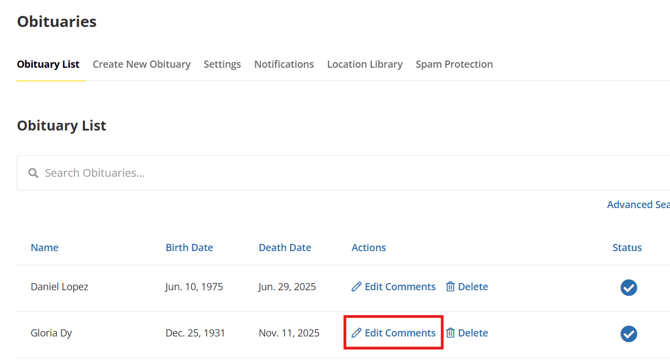
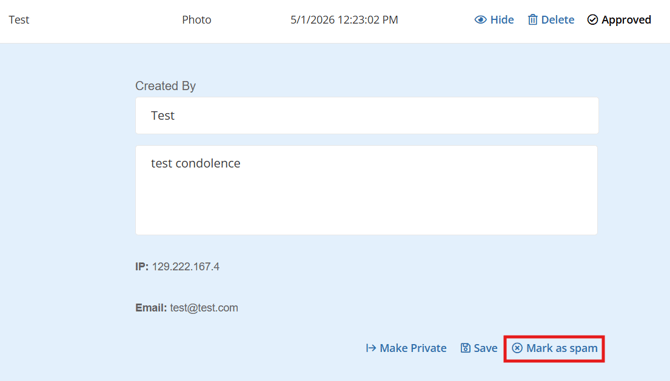
This will take you to a page where all the condolence posts for that obituary are displayed. To open a post, click the "Show" button. An option called "Mark as Spam" will appear. Clicking this option will remove the condolence message and add the IP address of the user to the block list.
How To Remove A User From The Condolence Block List
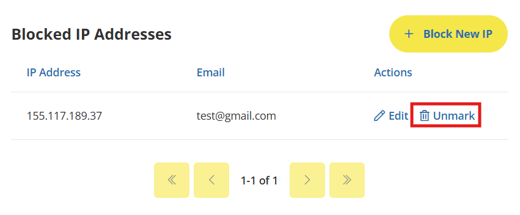
If you ever need to remove a user from the block list for condolences, or you want to review the IP addresses that are on your block list, the Spam Protection page under the Obituaries menu options will show you the "Blocked IP Addresses" list.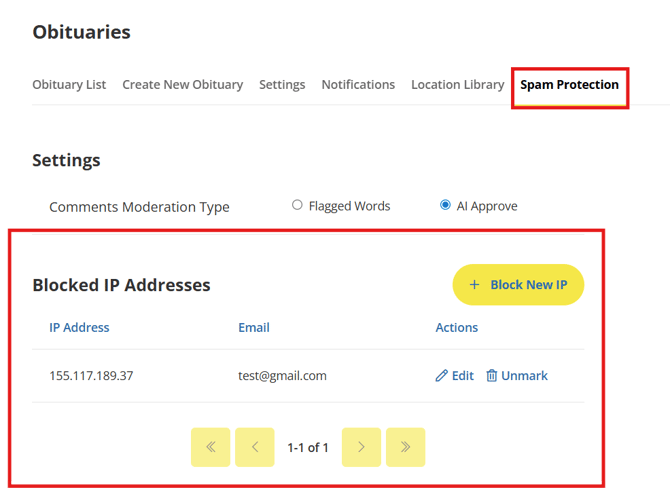
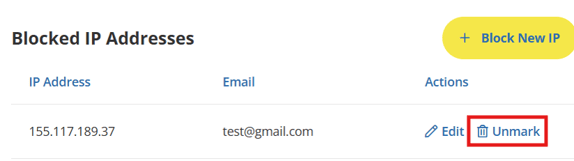
If you need to remove an IP address from the blocked list, click the "Unmark" button beside that IP address in the list.
 **It is important to note that the block list for condolence posting and the block list for form submissions are separate lists. Blocking somebody from one function does not apply them automatically to the block list for the other.
Blocking Users From Submitting Forms
If a user is submitting spam or malicious form submissions, they can be blocked to prevent further submissions. To block a user from submitting forms, navigate to their form submission, either on the dashboard or the Submitted Forms page under Website Manager. Click the "Show" button to open their submission and you will see a button that says "Mark as Spam". Clicking the "Mark as Spam" button will add the users IP address to the block list for form submissions.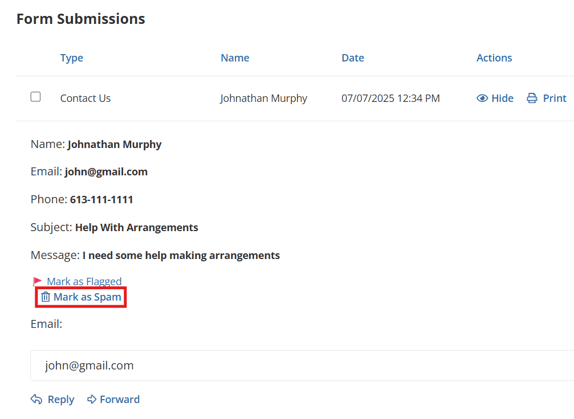
How To Remove A User From The Form Block List
If you need to remove a user from the form block list, or you want to review the blocked IP addresses for form submissions, navigate to the Submitted Forms page under the Website Manager menu options.
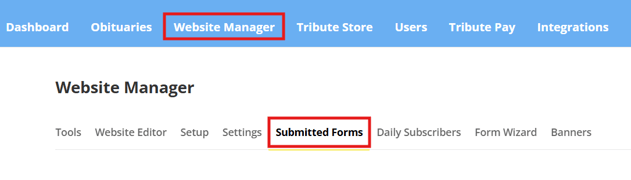
Scroll down on this page and you will see a "Blocked IP Addresses" section that lists all the blocked IP addresses for form submissions. If you need to remove an IP address from the blocked list, click the "Unmark" button beside that IP address in the list.