
Where To Configure Email Notification Settings
Email notifications are configured in the Settings page under the Website Manager menu option.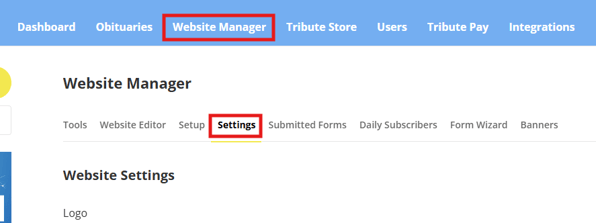
Once on the Website Manager Settings page, scroll down to the bottom of the page and you will see the Notification Email Settings area where all the email notification's can be configured.
Types of Email Notifications
There are a variety of different notification settings that can be set up such as:
-
Default Email
- Any email address set in this spot will receive all the types of email notifications on the site, unless a different email address is set on one of the other sections specifically.
-
Tribute Wall Approvals
- Any email address set in this spot will receive email notifications when a condolence submitted to a Tribute Wall requires approval before posting.
-
Payments - Tribute Pay
- Any email address set in this spot will receive email notifications when a payment is made on the site via Tribute Pay.
-
Donations
- Any email address set in this spot will receive notification emails whenever a donation is made on an obituary via My Tribute Gift or Tribute Pay.
-
Loans - Tribute Loans
- Any email address set in this spot will receive notification emails whenever a Tribute Loan is approved.
-
Online Funeral Planner
- Any email address set in this spot will receive notification emails whenever a submission is sent in via the Tribute Website's online planner.
** This notification will not work with third-party online planners, only the website's built in online planner
- Any email address set in this spot will receive notification emails whenever a submission is sent in via the Tribute Website's online planner.
-
Pre-Planning Form
- Any email address set in this spot will receive notification emails whenever a user submits a pre-planning form on the website.
**This notification will not work with custom or third party forms, only the default Pre-Planning form on the website.
- Any email address set in this spot will receive notification emails whenever a user submits a pre-planning form on the website.
-
Contact Us
- Any email address set in this spot will receive notification emails whenever a user fills out and submits the Contact Us form on the website.
**This notification will not work with custom or third party forms, only the default Contact Us form on the website.
- Any email address set in this spot will receive notification emails whenever a user fills out and submits the Contact Us form on the website.
-
Testimonials
- Any email address set in this spot will receive notification emails whenever a user submits a testimonial on the website.
-
DVD Request
- Any email address set in this spot will receive notification emails whenever a user submits a DVD request via the DVD request form on the website.
**This notification will not work with custom or third party forms, only the default DVD Request form on the website.
- Any email address set in this spot will receive notification emails whenever a user submits a DVD request via the DVD request form on the website.
**It is important to be aware that any changes to the email addresses receiving notification emails will take up to 24 hours for the changes to take affect.
Questions and Troubleshooting For Notification Emails
Why am I not receiving notifications?
- Check the Email Notification Settings to make sure the correct email address is in the correct notification spot.
- If you were using the Default Email spot for notifications, and someone elses email has been added to a specific notification section, that email will override the Default Email. Make sure your email is added onto the specific sections that you want to receive notification emails for.
- Check your spam folder or any other email folder in your email. Sometimes email notifications may accidentally get marked as spam or start routing into other folders in your email if you have multiple folders. You can always try searching your email for "noreply@" to try and find the notifications. All notification emails from your website will be sent from noreply@ your website domain. For example, if my website was testfuneralhome.com then my notification emails would come from the sender noreply@testfuneralhome.com.
- If you just added your email address to receive notifications, you may need to wait. Email notification changes take up to 24 hours to take affect.
Can I add multiple email addresses to receive notifications?
Yes, you can add as many email addresses as you want to the notification settings, they simply need to be coma separated. For example, to add 3 emails to a notification setting you would add them in the following format: email@fuenralhome.com, email2@funeralhome.com, email3@funeralhome.com.
Why can't I approve condolence messages from the email?
The email notifications do not have a direct button to approve condolence messages via the email itself. The emails act as a notification to show you who left the condolence and what the condolence message says, but you will still need to login to the website to approve it from the approvals dashboard.