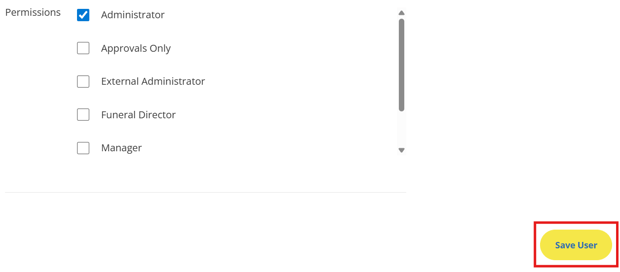
User account permissions can be changed under the Users tab of the Admin Dashboard. Once on the User tab, scroll down to the Employees section where you will see all the user accounts listed out.
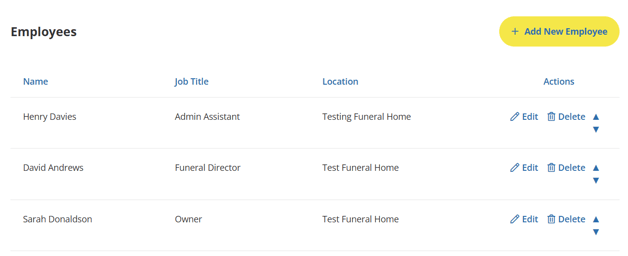
Giving An Existing Account Admin Permissions
If you want to increase the permission level of an existing user account to admin level, find the user account in the list under the Employees section and click the "Edit" link beside that account.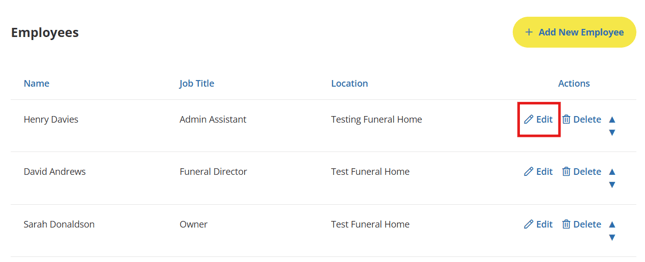
Once you are on the edit page for that user account, scroll down to the Administrative Settings section. In this section, underneath the email and password, you will see a permissions section. This section allows you to check off what permission level you want the account to have. To change the user account to an admin level, check the "Administrator" option.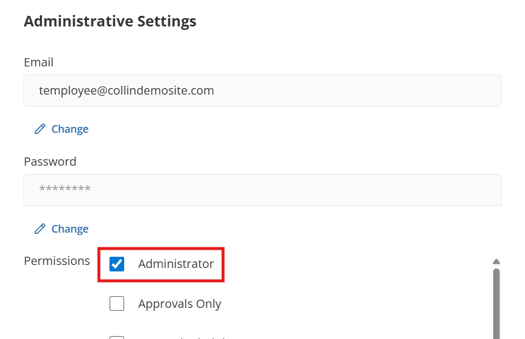
**Do not set a user account to the "External Administrator" option. This option is used for software API connections only.
Once you have changed the permission level for the user, make sure to click the "Save User" button at the bottom of the page to save the changes.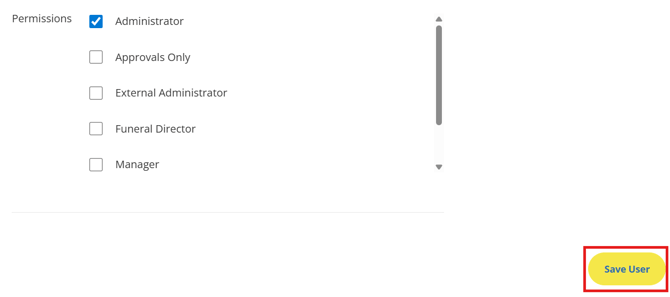
Creating A New Admin Account
If you want to create a new user account that has admin level permissions, click the "Add new Employee" button in the Employees list under the User section.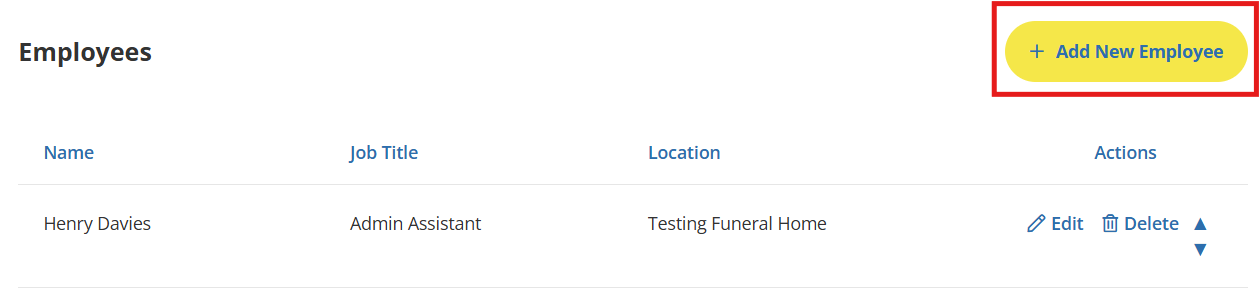
Once on the editing page for the user, fill out all the necessary information for the user account. Under the Administrative Settings section, make sure you enter an email and password, then select the "Administrator" permission level to give the user Admin access.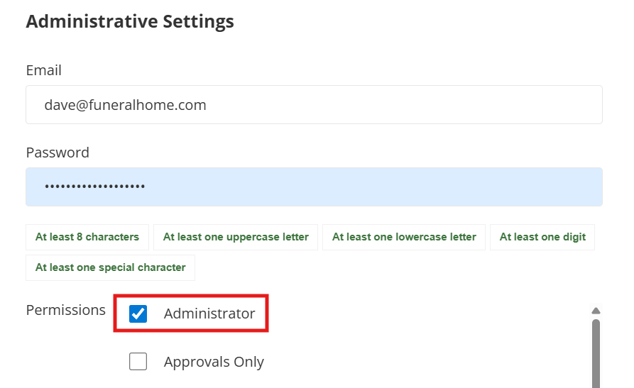
Once you have added the user's information and set the correct permission level, make sure to click the "Save User" button at the bottom of the page to save your changes.