Navigating To The Social Network Settings
Facebook and Twitter/X accounts can be connected directly to Serving Locations via the Location Library section. To get to the Social Network Settings for a Serving Location:
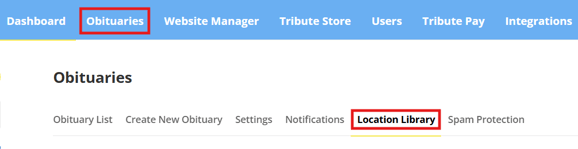
- Login to your website, go to the Obituaries menu option and select Location Library in the sub menu tabs.
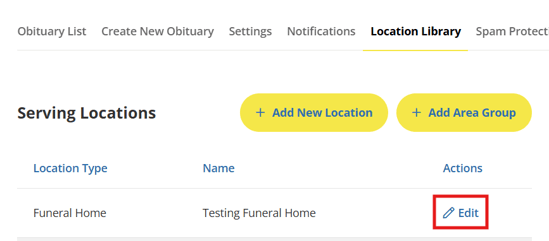
- Click "Edit" beside the Serving Location that you want to connect Facebook or Twitter/X on.
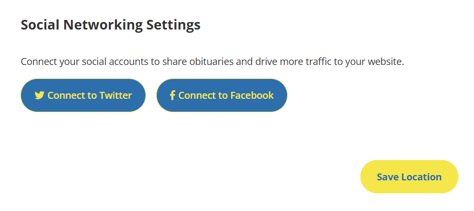
- Once you are on the edit page for the Serving Location, scroll down to the bottom of the page and you will see the Social Network section.
Connect To Facebook
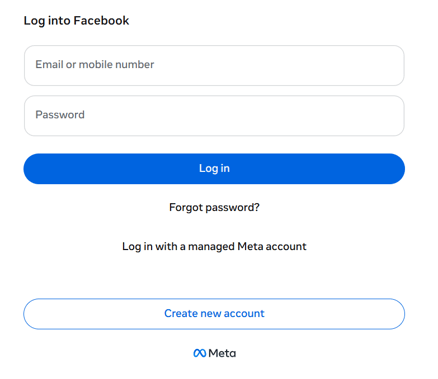
The Connect to Facebook button allows you to connect your Facebook page to the Serving Location. Once you click "Connect to Facebook", a pop up will display asking you to sign in to Facebook. Follow the prompts to login to your Facebook account.
**It is important to note that the account you sign in with must have admin access to the business page you want to connect. If the account does not have admin access to your business page, the business page will not show up as a selectable option to connect.
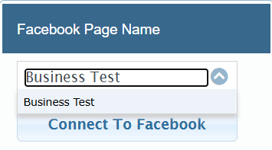
Once you login to your Facebook account, you will be asked to select the business page you want to connect. Select your business page from the dropdown list and the website will now be connected to that page.
After you have connected your page, you will see two new settings appear where the Connect to Facebook button used to be.
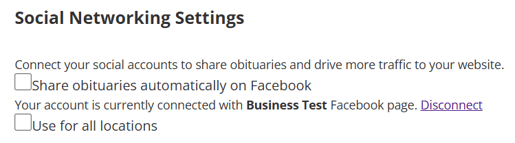
Share Obituaries Automatically on Facebook: This setting will enable or disable automatic sharing of your obituaries. When turned on, obituaries will post to your Facebook Business Page automatically once they are published on the website. If this setting is turned off, obituaries will need to be shared manually via the share settings on the edit page of an obituary.
Use For All Locations: If this setting is enabled, it will connect the Facebook page that is connected to this Serving Location to all other Serving Locations. This setting is useful if you use the same Facebook page for all of your locations. If you have different Facebook pages for your different locations, make sure this setting is not turned on.
**After changing either of these settings, make sure to click the save button at the bottom of the page to ensure the setting changes take effect.
Connect To Twitter/X
The Connect to Twitter button allows you to connect your Twitter/X page to the Serving Location. Once you click "Connect to Twitter", a pop up will display asking you to sign in to Twitter/X. Follow the prompts to login to your account.
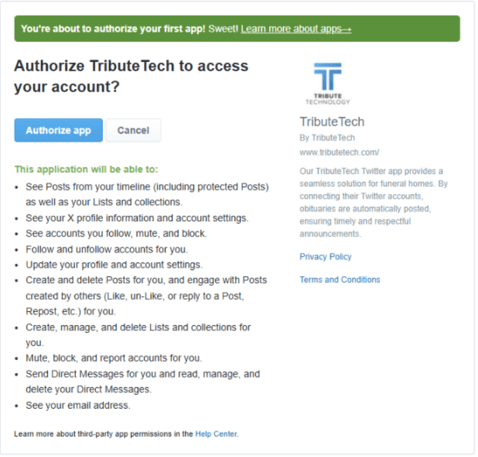
After you login, you will be prompted to allow access to Tribute Tech. Click "Authorize App" to allow the website to connect to your account.
After you have connected your account, you will see two new settings appear where the Connect to Twitter button used to be, just like the settings that appear when you connect your Facebook account.
Share Obituaries Automatically on Twitter: This setting will enable or disable automatic sharing of your obituaries. When turned on, obituaries will post to your Twitter/X Page automatically once they are published on the website. If this setting is turned off, obituaries will need to be shared manually via the share settings on the edit page of an obituary.
Use For All Locations: If this setting is enabled, it will connect your Twitter/X page to all Serving Locations. This setting is useful if you use the same Twitter/X page for all of your locations. If you have different Twitter/X pages for your different locations, make sure this setting is not turned on.
**After changing either of these settings, make sure to click the save button at the bottom of the page to ensure the setting changes take effect.
Social Sharing Setting For Manual Sharing On Obituaries
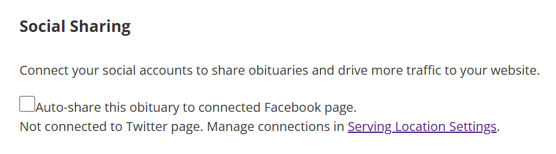
If you are sharing obituaries manually instead of using the automatic posting feature, there is a Social Sharing section on the edit page of your obituaries where you can toggle an obituary to be shared to your account. To share an obituary, check the "Auto-share" setting under Social Sharing and save the obituary to post it to Social Media.