
A Tribute Pay transaction reversal can be processed from two places in your TMS system:
- On the case
- On the Payments log
A reversal can be processed to return the full amount or a partial amount back to the original payment method. Payment reversals are often only available to be processed by Admin or Owner/Manager permission levels.
Processing a Tribute Pay Reversal on the case
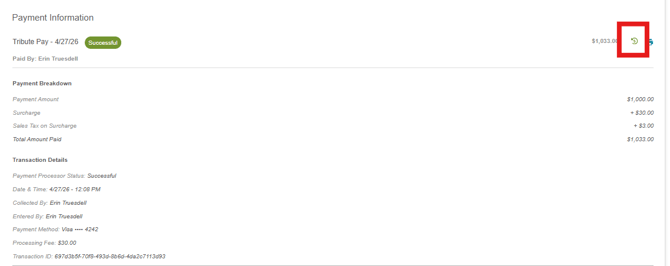
Successful payments that are eligible for refund will have a green reversal icon in the far right of the screen. Click the button to start the payment reversal process.
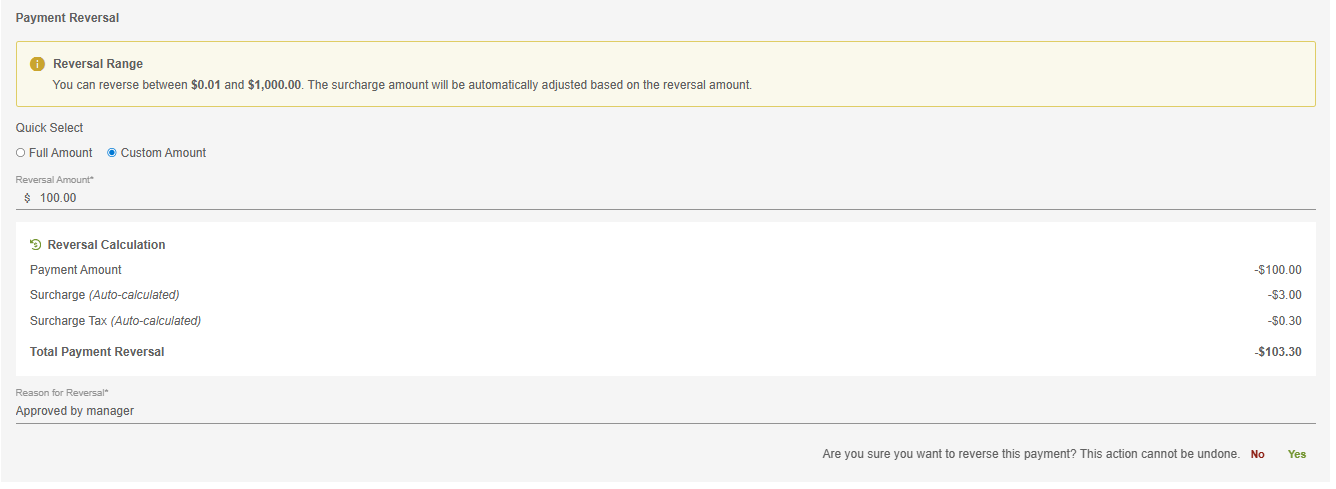
In the Payment Reversal section, select whether the reversal will be for the full amount or a custom amount. If you select a custom amount, enter the desired reversal amount. You can process multiple partial reversals, up to the total of the original transaction. For example, for a $1,000 payment, you could first process a $200 reversal, and later process an additional $800 reversal. Enter a reason for the reversal, then click Reverse Payment. Review the confirmation message, then select yes or no.
If surcharging is enabled, the surcharged amount and any applicable surcharge taxes will be automatically calculated in proportion to the reversal amount. When entering a custom amount, be sure to enter a number reflecting the original (base) reversal amount.
Payment reversals can take up to 5 business days to reflect back on the cardholder's account.
Once processed, a record of the reversal will appear on the case payment logs. 
If the payor has an email attached to their contact card, a confirmation of reversal will be automatically emailed to them.
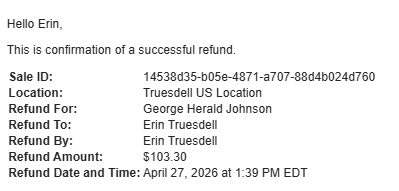
A record of the reversal can also be printed using the printer icon. 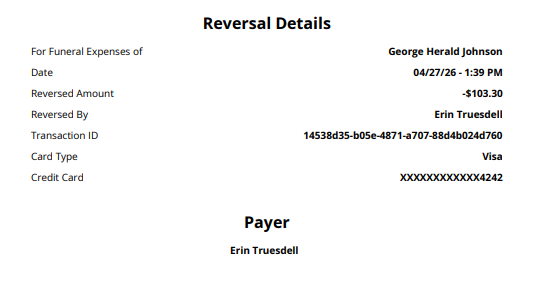
The original log of the payment will also update to reflect the reversed amount: 
Processing a Tribute Pay Reversal on the Payments Log
A reversal can also be processed on the Payments > Transactions log, accessed by choosing Payments from the TMS menu. On transactions that are eligible for reversal, "Reversal" will display on the far right of the transactions table.
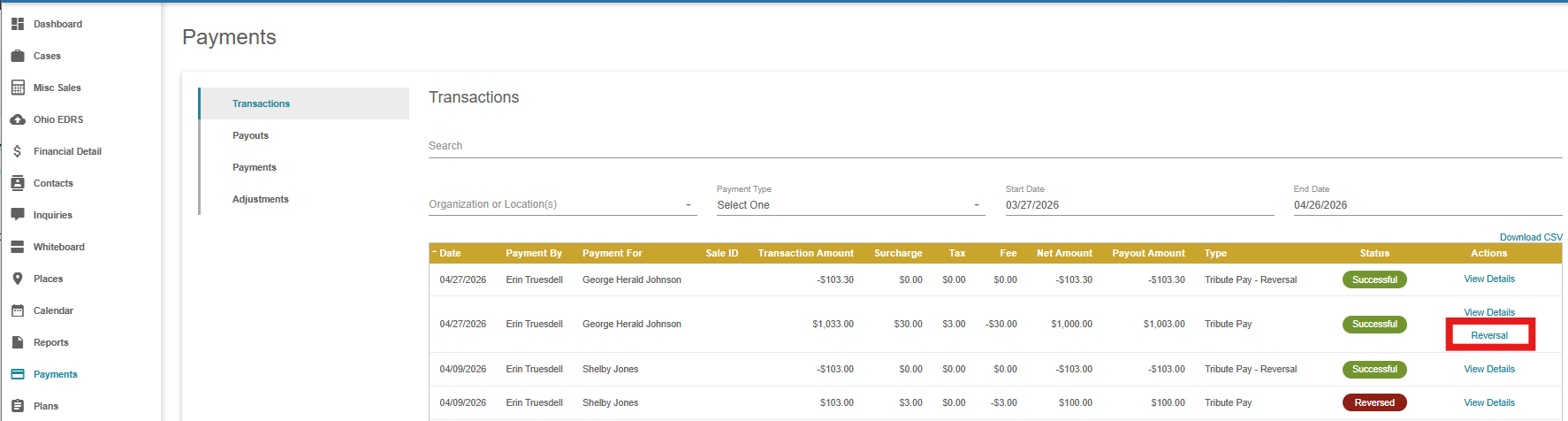
When clicked, a payment reversal modal will open where you can key in the amount to be reversed. Enter the reversal amount, then click "Reversal". 
The reversal will log to the case and provide an automated email to the purchaser if an email is available on their contact.