
Taking a payment via your Tribute Pay account is completed in the Case Financials > Payments section of a case. There are two ways to process a payment:
Key-in on case
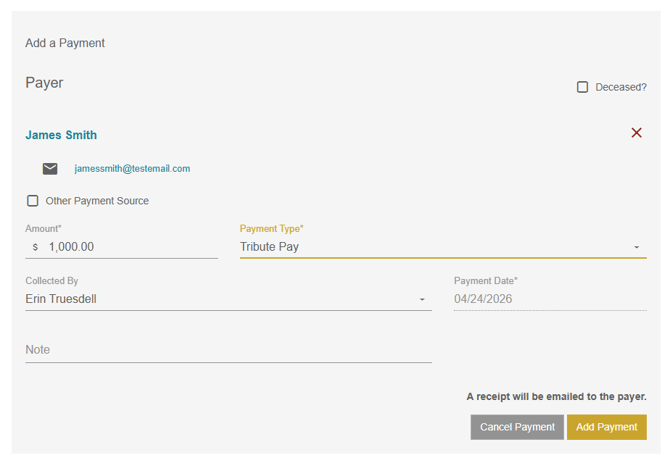
Choose the invoice or add-on to make the payment toward and select the payer. Enter the payment amount, then choose the payment type associated with your Tribute Pay account. Click Add Payment.
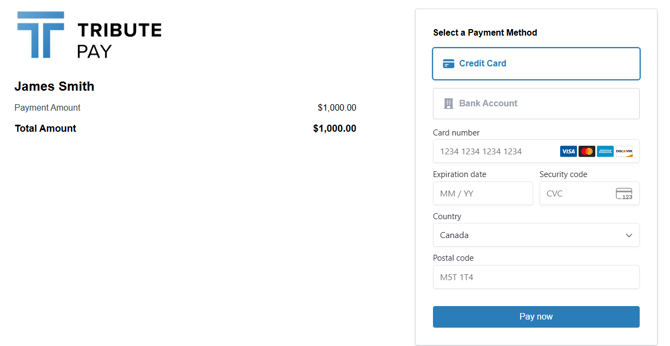
Choose the transaction type - debit, credit or ACH, then enter the card or account information and zip code. Click Pay Now to process the transaction.
Tribute Pay can accept major credit or debit cards from most countries. The transaction will process in the currency assigned by the country your business is associated with. For example, if you are in the US and process a card from Canada, the transaction will occur in USD.
Once the transaction is completed, it will appear in the payments log on the case, along with the status of the payment. 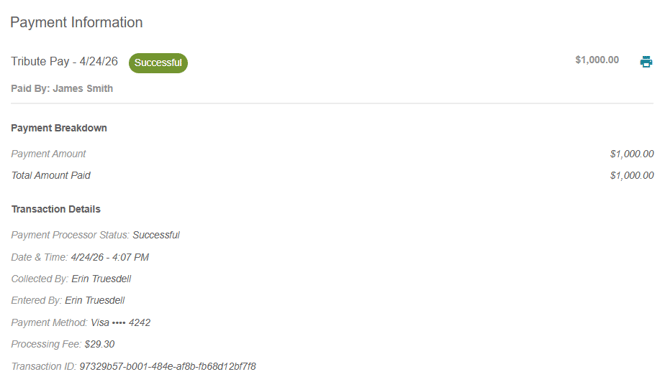
| Status | Result |
| Successful | Transaction successfully processed. Payment applied to case balance. |
| Pending |
Payment is incomplete. Amount does not apply to case balance. |
| Failed |
Payment has failed. Amount does not apply to case balance |
If the payor has an email address on their contact, an electronic receipt of payment will be automatically emailed to the payer. A receipt can also be downloaded using the printer icon.
Email Payment Link
The option to email a payment link allows you to easily collect payment from families without them coming into the office. Through your TMS system, you can send the link to one or multiple family members. Recipients of the email can see the current balance owing and choose what payment amount they'd like to contribute.
Choose the invoice or add-on to make the payment toward, then click the Email Payment Link button on the far right. Select the payment type from the drop down. Choose a recipient from the contacts associated with the case or add a contact by clicking the + button. Click Send Email.

-
The body of the email is customizable in Admin > Tribute Pay > Email Templates.
-
The balance displayed will show the balance for the selected contract or add-on at the time that the email is sent. The balance displayed when the customer clicks to pay will update to real-time.
-
The payment link is active for 30 days or until used.
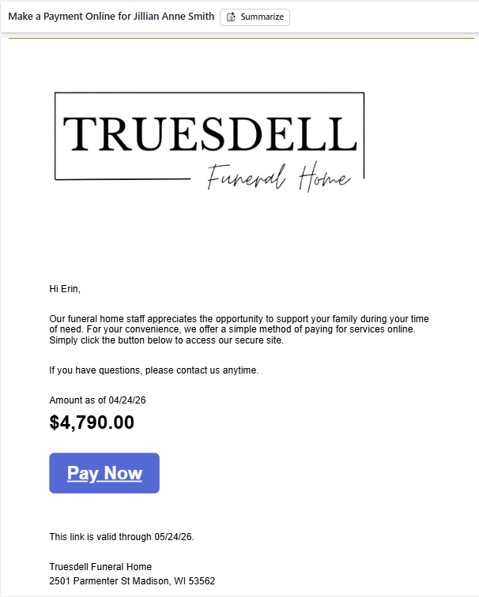
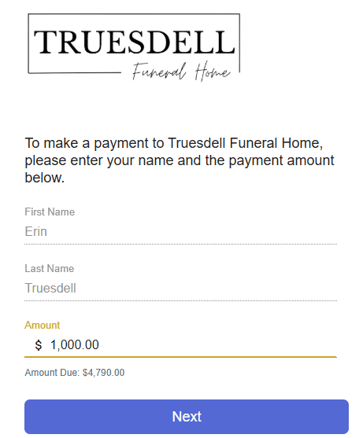
When the recipient clicks the Pay Now button, they fill out their name and the amount they would like to pay.
The recipient will be prompted to choose their card type and enter their payment information. Surcharging disclosures, if applicable, will display here. 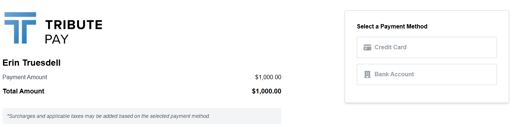
The payer will receive a successful or failed message after the payment is processed, as well as an email receipt for the transaction. 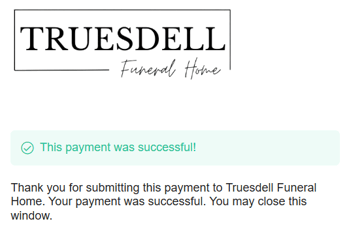
Once the transaction is completed, it will appear in the payments log on the case, along with the status of the payment. Payments made by Email Payment Link will show as such in the Entered By field. 
| Status | Result |
| Successful | Transaction successfully processed. Payment applied to case balance. |
| Pending |
Payment is incomplete. Amount does not apply to case balance. |
| Failed |
Payment has failed. Amount does not apply to case balance |
Email Payment Link Status
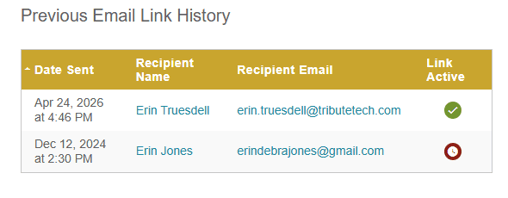
A log of the emailed payment links sent displays at the bottom of the Email Payment Link page.
Customizing the Email Payment Link email template verbiage
This feature is only available to users with permission settings of Admin or above.
The Tribute Pay Email Payment Link has generic email verbiage by default, however you do have the option to customize it to make the messaging your own.
The default verbiage is: 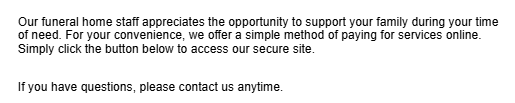
To edit the text, go to Admin > Tribute Pay > Email Templates. Select Edit on the email template you want to adjust. You can customize the verbiage to suit your firm's needs and communication style. This text is edited at the client level and applies to all locations within your system. Adjust as needed, then click Save. A status message will display letting you know that the update has been made.
