
Jump to Section
About your Terminal
| In the Box | Connectivity | Payment Types Accepted |
|
|
|
Turning the Terminal on and off
Connect the terminal to power by plugging the provided USB-C cable into the port on the left side of your terminal. Connect the opposite end of the USB-C cable to the provided power adapter and plug it into a power outlet.
After the terminal is fully charged, hold down the power button on the right side until the screen turns on. After the device powers on, press the power button to sleep or wake the device.
To fully power off the device, hold down the power button until the power off option appears on the screen, then select it.
In a countertop deployment, leaving the device on for extended periods is expected. With a full charge, you can expect the battery to last about 15 hours. Even when not in use, leave the device plugged in and powered on to receive automatic software updates.
Accessing Settings & Generate Pairing Code
-
To open the settings menu swipe right from the left edge of the screen to reveal a settings button.
-
Tap the settings button and enter the admin PIN 07139.
-
From here you can update your WiFi settings or generate a pairing code for device registration. Battery percentage is displayed at the top right of this screen.
-
To close the settings screen click the back arrow in the top left corner.
Connect your Terminal
-
On the terminal, choose your wifi network from the list and select Continue.
-
If required, enter your WiFi password.
Register your Tribute Pay S700 Terminal
Please contact Tribute Pay Support for assistance with registering your terminal.
To access the pairing code to connect your terminal:
- Swipe right from the left edge of the screen to reveal the Settings button.
- Tap Settings.
- Enter the admin passcode 07139
- From the Settings menu, select the option to Generate a Pairing Code for Device Registration.
Collecting Payment
Payments can only be collected via a terminal for locations where a terminal device has been registered.
Transactions with No Surcharge
-
On a Case or a Misc. Sale, visit the case financials.
-
Choose Payments from the menu.
- Enter the payment amount, payer and choose your Tribute Pay payment type.
- Select the payment method Credit or Debit/Prepaid Card.
- Activate the toggle to Pay via terminal
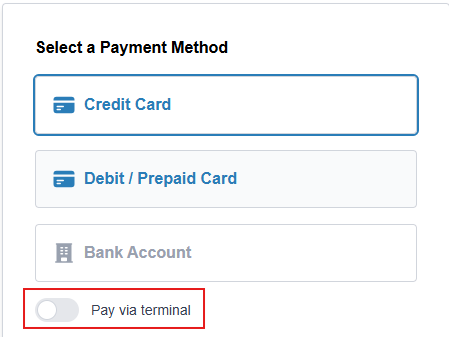
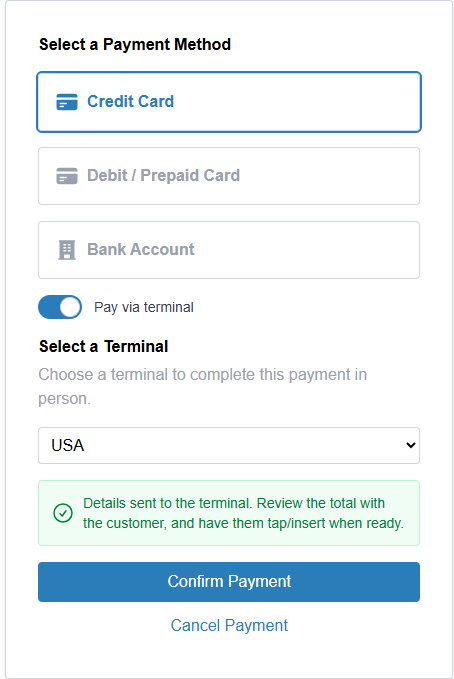
- Select the terminal device name from the drop down.
- Click Send to Terminal.
- Click Confirm Payment.
- Complete the payment with the cardholder on the terminal.
- When processed, the payment will log back to the case financials.
Transactions with a Surcharge
-
On a Case or a Misc. Sale, visit the case financials.
-
Choose Payments from the menu.
- Enter the payment amount, payer and choose your Tribute Pay payment type.
- Select the payment method Credit or Debit/Prepaid Card.
- Activate the toggle to Pay via terminal
- Select the terminal device name from the drop down.
- Click Send to Terminal. Have the cardholder review the payment breakdown (subtotal, surcharge and surcharge tax, if applicable) tap or insert their card into the terminal if they agree with the charge.
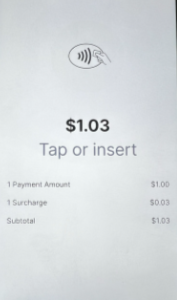
- On TMS, select Confirm Payment to complete the transaction.
Troubleshooting
Battery Life
With a full charge, you can expect the battery to last about 15 hours.
Battery and Charging Status
When your S700 terminal is on, you can check the battery level in the charging LED indicator.
| LED Color | Meaning |
| Green | The reader is fully charged with the power cable connected. |
| Blue Flashing | The reader is charging. |
| Yellow | The reader's battery level is low (10-20% remaining). |
| Red | The reader's battery level is critically low (1-9%) or drained (1% remaining). |
| None | The reader is off, or the reader is on with the power cable disconnected. |
Charging the Reader
The S700 requires a recommended 12W of power for successful operation and battery charging. It is recommended to use the AC power adapter supplied with the reader to ensure that ample power is supplied to the reader for operation and charging.
For a deeply discharged battery, a slow charging mechanism is applied to safely bring the battery to a safe zone for faster charging. During this phase, the charging LED indicator on the unit is on, however, the display remains off. This phase can take up to 30 minutes.
If you're connecting the S700 to a computer or laptop, please make sure the USB-C port can support the recommended 12W of power. The USB-A port standard does not support this power level and should not be used.
Checking Connectivity
To check connectivity, go to settings (swipe right from the left edge of the screen), then select Wi-Fi settings. This will display all available Wi-Fi networks. To see more details about the connection, tap on the connected network name.
- Make sure the network is connected and has internet access.
- The signal strength is good.
Problems Updating
If your reader doesn’t update, it’s possible that it can’t connect to our processing partner, Stripe. To check its connectivity to Stripe, go to settings (swipe right from the left edge of the screen), then select Diagnostics. This displays a list of troubleshooting tests. Check Stripe connectivity and ensure it says “Passed.” If the Stripe connectivity test fails, please follow these steps.Screen timeout
The screen times out when the reader isn’t connected to a power source. The default timeout of 1 hour is to improve battery performance. To update this value, go to the settings, select Appearance, and then select a new screen timeout from the dropdown. The device screen turns on automatically when a device interaction occurs (such as touching the screen) or payment is requested.