The cases section in Family Arranger is one of the most used areas in the whole system A wide variety of functionality revolving around cases is accessed from this section.
Dashboard Tab
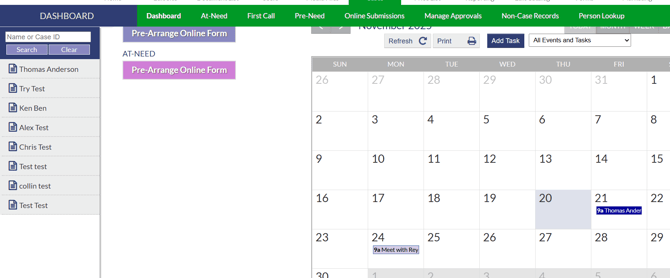
The dashboard tab of the cases section shows your most current cases, has quick access buttons to your arrangement forms and has a calendar that shows upcoming events or tasks.
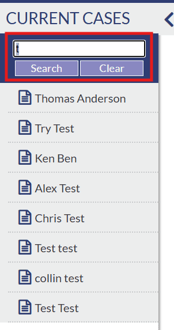
The current cases sidebar on the right will display the ten most recently added at-need cases. Any case in the system can be searched for using the search bar at the top of the current cases section.
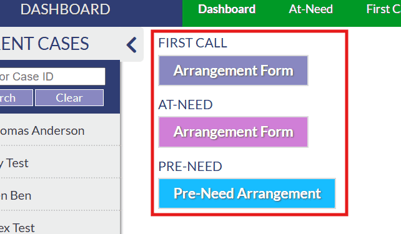
The arrangement form buttons beside the current cases sidebar allow you to quickly open up a fresh arrangement form to enter a new case into the system. At-need, first call and pre-need form buttons are available.
The calendar on the right will show any upcoming events or tasks. Events and tasks on the calendar can be clicked on to view details. The calendar view can be toggled to show in a month, week, day or list format.
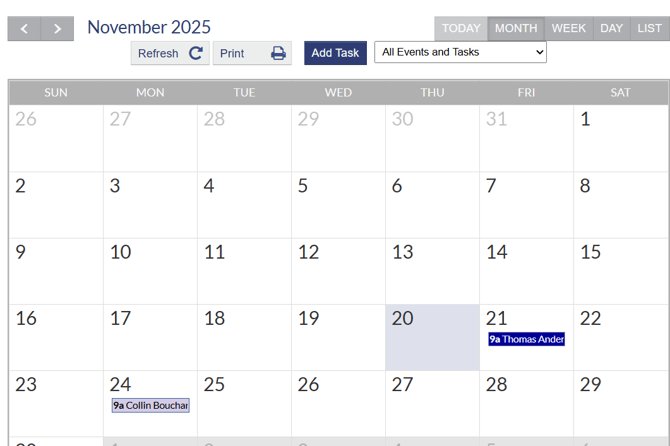
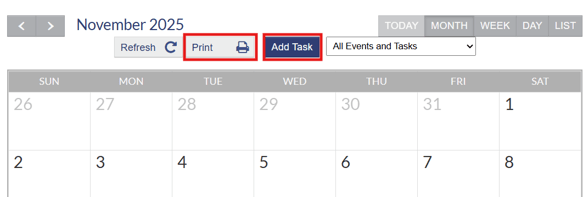
The add tasks button at the top of the calendar will allow you to manually add a task to the calendar. The calendar can also be printed if needed using the print button at the top.
At-Need Tab
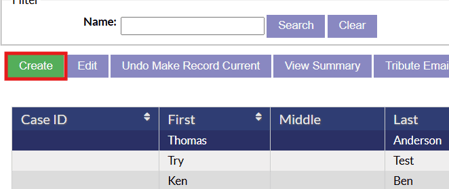
The at-need tab of the cases section will list out all the at-need cases in your system. New cases can be created by clicking the green "Create" button.
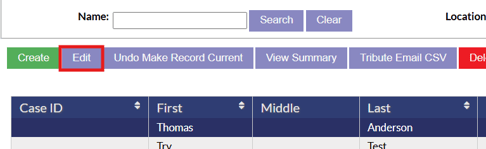
Clicking the "Edit" button will take you into the arrangement form for the selected case.
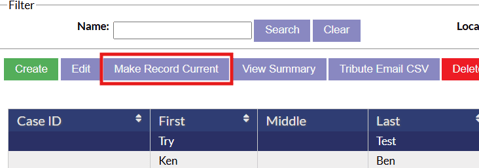
The "Make Record Current" button will make an obituary displayed in the first place position on the obituary homepage. If a record is marked as current, it will not automatically remove itself from the first place position over time. You will need to click the "Undo Make Record Current" button to reset it's position when you no longer want it to show in the first position.
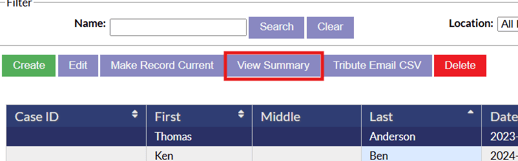
Clicking the "View Summary" button will open up the case page where all the case details, settings and functionality will be accessed for that case.
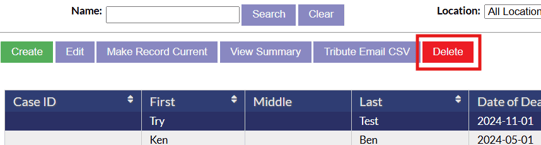
If you need to delete a case, simply select the case from the case list and click the red delete button.
First Call Tab
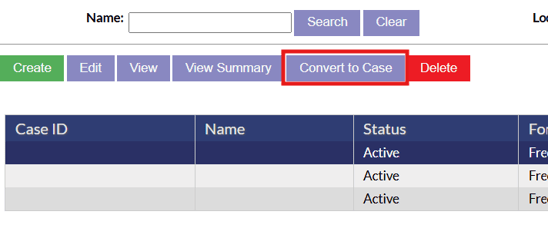
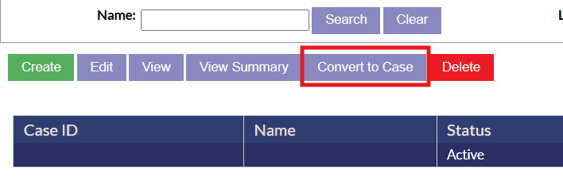
The first call tab in the cases section will list out any first call cases in the system. Functionality is similar to the at-need section for creating cases, editing and viewing case information. First call cases are entered with minimal details to get the record initially in the system. When it comes time to convert a first call case into an at-need case, simply select the first call case in the list and click the "Convert to Case" button.
Pre-Need Tab
The pre-need tab of the cases section lists out all the pre-need cases that are in the system. Functionality is similar to the at-need section for creating cases, editing and viewing case information. Much like first call cases, if you need to convert a pre-need case to an at-need case, simply select the case in the list and click the "Convert to Case" button.
Online Submissions Tab
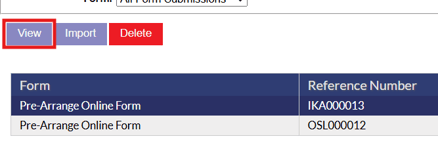
The online submissions tab of the cases section is where submissions can be viewed from Pre-Arrange Online forms on the website. The submissions in the list will display which form they came in from, reference number, person submitted by, date summary and date entered. To view the submission details, highlight the submission and click the "View" button.
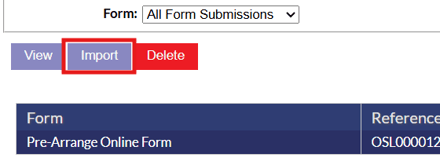
Submissions can be deleted using the delete button, and if you want to create a case from the submission, you can highlight the case and click the import button. This will create a first call case from the online submission.
Manage Approvals Tab
If your website is also hosted by Funeral Tech, the condolence and photo approvals that come in from the website will show up here in the manage approvals tab of the cases section. The functionality in this section works the same as it does on regular Funeral Tech websites without Family Arranger, as noted in this article.
Any condolences that require approval before posting to a tribute wall will appear in this manage approvals page. Condolences and photos can be approved from here or reviewed to make changes to the message/name or to block the poster and delete the message.
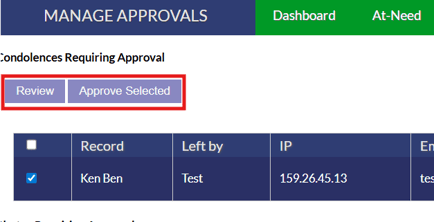
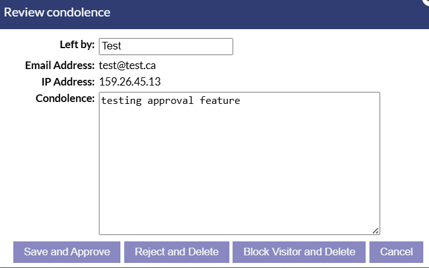
**This section will show pending approvals for all cases that are on the website. Condolences and photos can be viewed and managed for specific cases on the case page.
Non-Case Records Tab
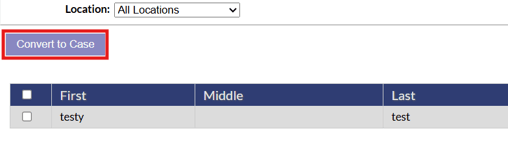
The non-case records tab of the cases section will show any older obits that were imported from a previous website. If any of these records need to be converted into a case in the system, simply click on the record and click the "Convert to Case" button.
Person Lookup Tab
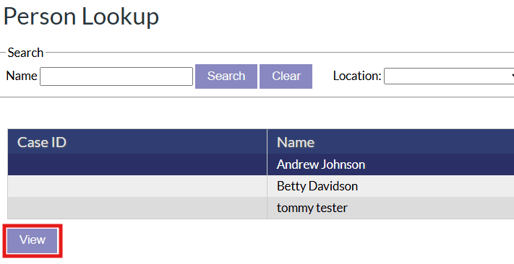
The person lookup tab of the cases section will show any people who have been added to case information in the system (Informants, Next of Kin, Purchasers etc.). To view details of anyone listed in the person lookup, simply highlight their name in the list and click the view button.