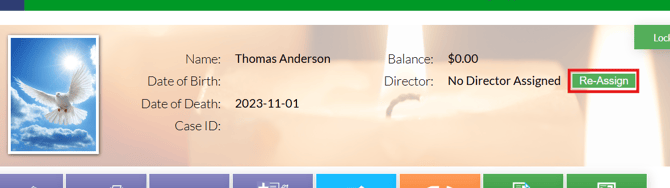
Case summary pages are the central hub for a case where all the functionality and information for managing a case is accessed. Along the top of the page, the main obituary photo will be displayed, along with name, date of birth, date of death, case ID, balance and assigned director. If you need to assign a new director the the case, you can click the re-assign button at the top of the case page.
Case Menu Bar Options
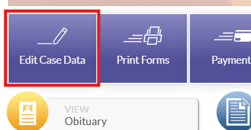
Various options are available in the menu bar below the obituary information. If you need to make changes to any case data, the "Edit Case Data" button will take you into the arrangement form to make changes.
The "Print Forms" button will take you to a quick print window where you can print forms and financial documents quickly.
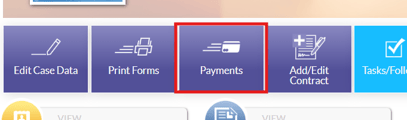
The payments button will open up the financials tab to view payment information.
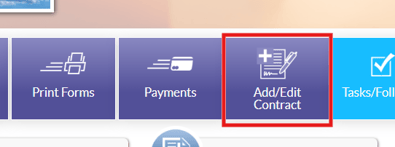
The "Add/Edit Contract" button will take you into the contract creation page where you can build a contract for a case with items from your GPL.
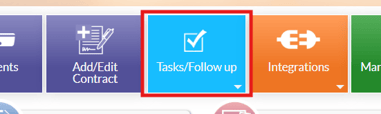
The "Task/Follow Up" button allows you to add a new task to the case. The added task will show on the task area of the case page.
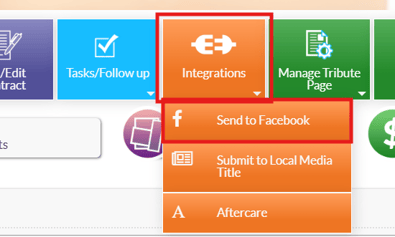
The orange "Integrations" button will open a submenu showing you the available integrations you have enabled in Family Arranger. Simply click on the integration you want in order to send the case information to that integration. For example, if I selected "Send to Facebook" in the integrations list, it would create a Facebook post for this obituary on my connected Facebook page.
The Manage Tribute Page button will present a submenu of various different things that can be edited and configured for the tribute page. These are the same options that are available on Funeral Tech websites that are not using Family Arranger, they are simply laid out in a different area in Family Arranger systems.
- Condolences
- Similar to what is detailed in this article regarding managing condolences and images on Funeral Tech websites. This option will take you to the condolence page for this case. Here you can view all condolences left on this tribute page and make edits to them or approve/delete them.
- Images
- Will take you to the images page for this case. Here you can view all images left on this tribute page and make edits to them or approve/delete them.
- Gestures
- Will take you to the gestures page for this case. Here you can view all gestures left on this tribute page and make edits to them or approve/delete them.
- Tribute Links
- This takes you to the tribute links page where you can add links to appear as tabs on the tribute page. These tabs will take users to the linked website when clicked. This can be useful for linking external crowdfunding links.
- Memories
- Will take you to the gestures page for this case. Here you can view all gestures left on this tribute page and make edits to them or approve/delete them.
- Comments
- Will take you to the comments page for this case. Here you can view all comments left on this tribute page and make edits to them or approve/delete them.
- Donations
- Will take you to the donations page for this case. Here you can view all donations left on this tribute page and make edits to them, print them out or download a CSV file of the donor information.
- Preferred Charities
- Similar to what is detailed in this article for adding charities records in systems that are not using Family Arranger. The preferred charities page is where charities can be added via the "Add Charity" button or the "Create Custom Charity" button. If you click “Add Charity”, you will be able to search for a charity from the My Tribute Gift database. The "Create Custom Charity" options allows you to add any charity or organization you want manually.
- Make Record Current
- The make record current option will set the record to appear in the first place position on the homepage obituary slider.
- Preview Tribute
- The preview tribute option will show you a live preview of the tribute page so that you can see how the photo, theme and information will display once the page is published.
- Edit Verbiage
- This option allows you to edit the verbiage to use in place of "Obituary" on the tribute page.
- Settings
- This option opens the Death Record Settings window where you can make changes to approval and tribute book settings. these are the same settings that are detailed in this article for websites that are not using Family Arranger.
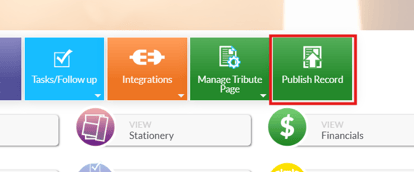
The "Publish Record" button is the last button in the case menu bar. This button will publish a case to appear on your connected website. If a case is already published, this button will say "Un-Publish Record" and can be used to unpublish the case from appearing on the website.
Case Summary Page Areas
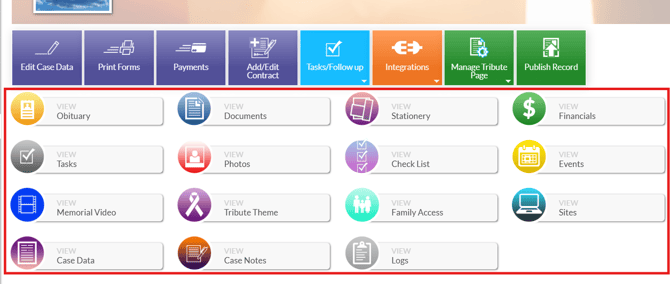
A variety of different areas are accessible on the case summary page of a case. These areas can be opened up and expanded by clicking on the icons. Specific areas on the case summary page are available for obituary, documents, stationery, financials, tasks, photos, check list, events, memorial videos, tribute theme, family access, sites, case data, case notes and logs.
Obituary Area
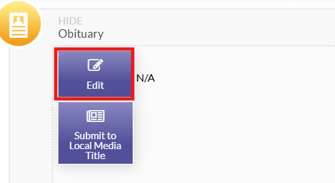
In the View Obituary area of the Case Summary Page, you are able to add an obituary to the case that will appear on the deceased’s tribute page once the case has been published to the website. An obituary can be manually typed or pasted in or generated through a template. To generate a template first click on the “Edit” button that appears when first clicking “View Obituary”.
A new interface will appear in the View Obituary area, located at the top of that interface will be a drop-down bar with the default selection titled “Select Obituary Template”.
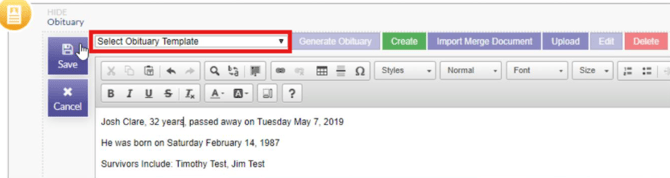
Clicking the drop-down bar will display the two default templates that your Family Arranger system comes loaded with. Any additional obituary templates, such as custom ones, will also appear in this drop-down list.
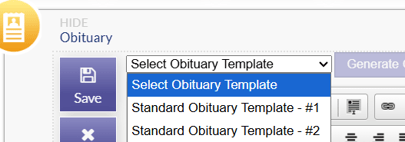
To choose the template, simply click onto the template you would like to generate and then click the “Generate Obituary” button located just to the right of the drop-down list.
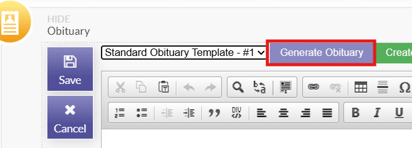
Once generated, the obit can be edited by clicking in the text box that the obituary was generated in and start typing the adjustments as needed.
Documents Area
In the View Documents area of the Case Summary Page, you are able to see any documents that have been generated for the case as well as add new documents that may be needed.
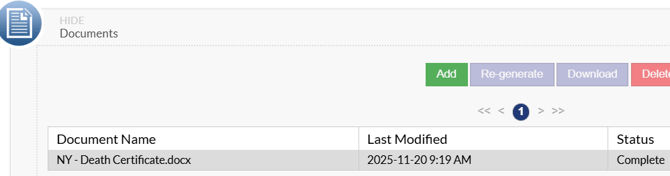
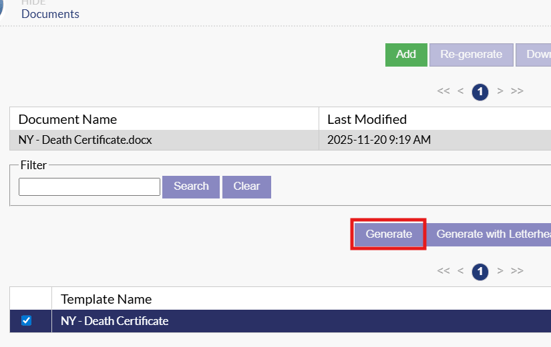
To add a document, simply click the green "Add" button and select the document template you want to generate from the list that appears at the bottom of the section. Click the "Generate" button to generate the document. If you want to generate the document with your system letterhead added to it, click the "Generate with Letterhead" button.
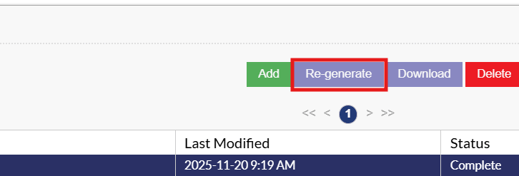
If you need to re-generate a document to use updated information on the case, highlight the document and click the "Re-Generate" button.
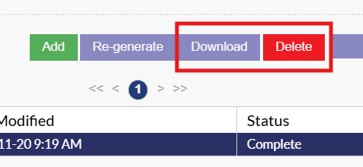
Documents can be downloaded by clicking the download button, or deleted by click the red delete button.
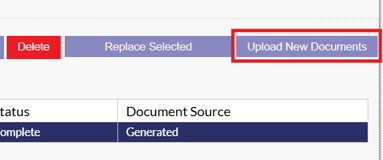
Images, scans or edited versions of documents can be uploaded to the cases documents area. This can be used to keep everything associated with the deceased in one area. To upload an external document simply click the “Upload New Documents” button on the right hand side of the screen, this will open your computers/laptops file explorer to upload the document file.
**Only non-financial documents can be generated from this area. Financial documents must be generated from the financials area.
Stationery Area
In the stationery area of the case summary page, stationery items can be generated such as acknowledgment cards, prayer cards, memorial folders, register books and more. To add a stationery item click the green "Add" button.
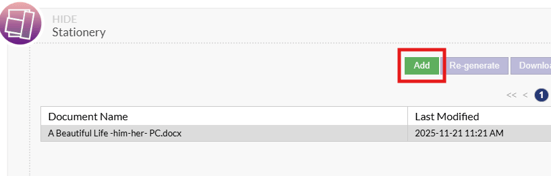
This will open the stationery stock library where stationery items can be selected form a variety of categories. Once you
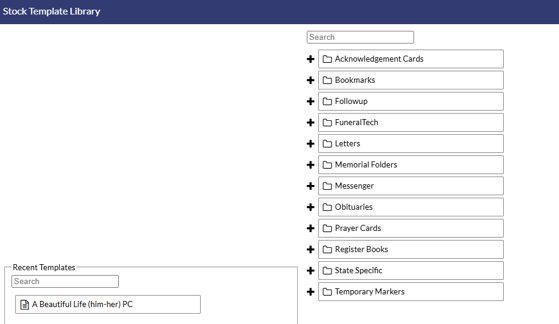
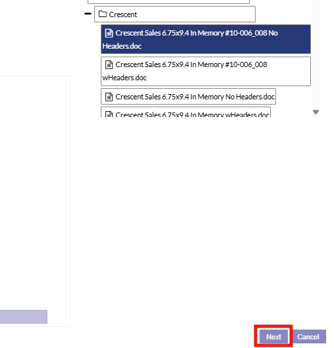
Once you have selected your stationery item, click the next button to continue and generate the item.
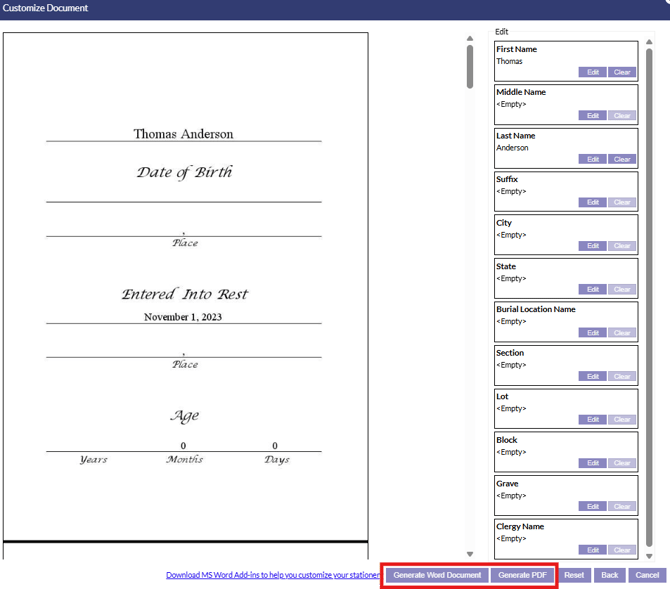
On the next page, a preview of the stationery will display. Edit options are available on the right side to make changes to any information displaying in the stationery. To generate the stationery, click either the "Generate Word Document" or "Generate PDF" buttons to create the stationery file.
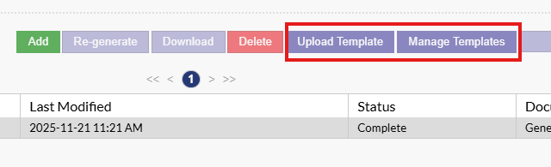
If you have any custom stationery templates you want to upload, the "Upload Template" button will let you upload your own custom templates. The "Manage Templates" button will take you to your custom template list where you can manage your custom templates.
Financials Area
The financials area of the case summary page is where contracts and financial documents can be created. For more information on the contract and financial functionality in this section, a detailed overview can be found in this article.
Tasks Area
The tasks area of the case summary page will display any tasks associated to the case. Tasks in the list will show who the task is assigned to, who created the task, the due date for the task and what the status of the task is.
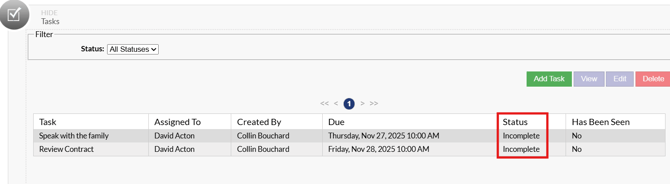
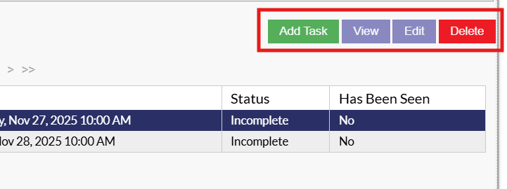
New tasks can be added via the green "Add Task" button. If you want to view details for a task, select the task from the list and click the "View" button. Tasks can also be edited or deleted via the "Edit" or "Delete" buttons.
Photos Area
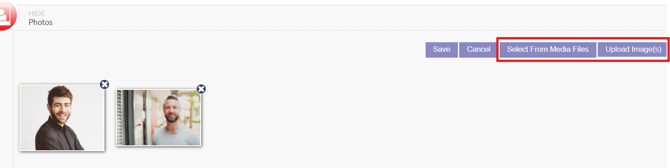
The photos area of the case summary page will allow you to access any photos that have been uploaded to the case. The first image in the photo area will display as the main obituary page photo. If the photo slider feature is enabled to allow for obituary photos to cycle, the first 6 photos in this section will be cycled through as the main obituary photos. Images can be uploaded via the "Upload Image" button or selected from the media files section via the "Select From Media Files" button. Make sure to click the "Save" button to save your changes.
Check List Area
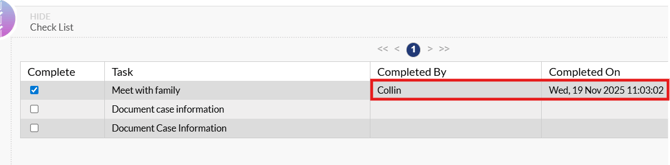
The check list area of the case summary page will display any check list items associated to the case. The toggle box beside a check list item can be used to toggle the item as complete. Once completed, the name of the user who completed the item will display along with the date completed on.
Events Area
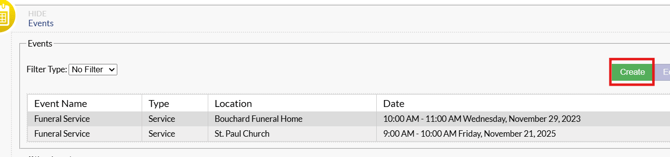
The events area of the case summary page will display any events associated to the case. Events can be added via the arrangement form, or by clicking the green create button in the events area.
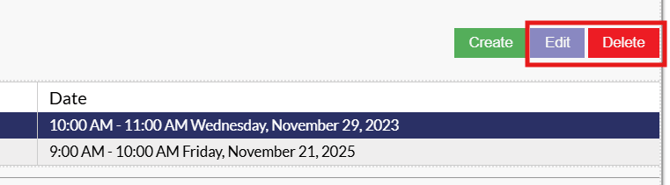
Events can be edited or deleted by selecting the event from the list and clicking the "Edit" button or "Delete" button.
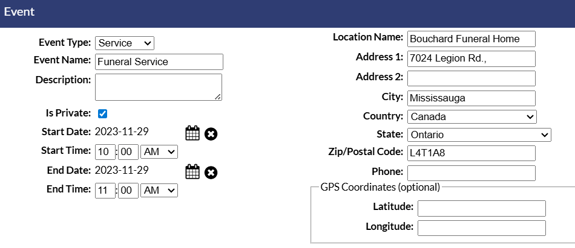
When adding or editing an event, various pieces of information can be added such as event type, event name, description, start date/time, end date/time and the location information.
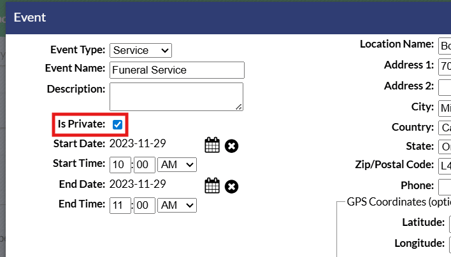
**If an event is private and you do not want it to display on the obituary page, the "Is Private" option can be toggled.
Memorial Video Area
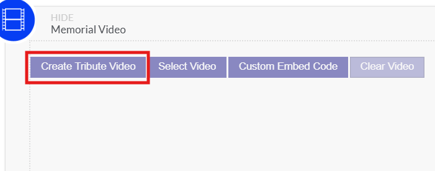
The memorial video area of the case summary page is where tribute videos can be added to the obituary page. If the Tribute Video integration is enabled, the "Create Tribute Video" button will take you to the Tribute Video editor where you can create a video for the case. Once the video is completed, it will automatically be added to display on the obituary page.
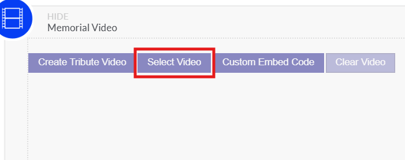
If you want to add a YouTube video from your media files section, the "Select Video" button will open your media files section to add a video.
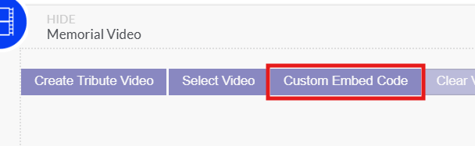
The custom embed code option allows for videos to be added to the obituary page via html embed codes. This is particularly useful if you want to embed a video that is hosted on a third party video hosting website.
Tribute Theme Area
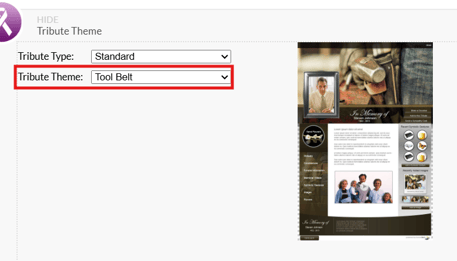
The tribute theme area of the case summary page allows for the theme of the obituary page to be configured. The "Tribute Type" drop down will allow you to select the layout format of the tribute page from the pre designed templates.
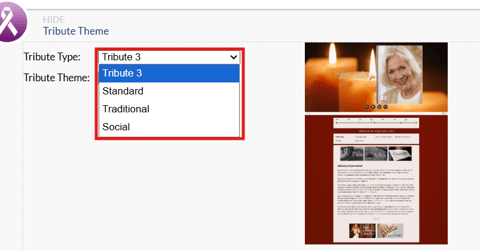
Underneath the tribute type selector, the "Tribute Theme" drop down will allow you to select from preset themes which will change the banner image and color of the obituary page. A large library of themes are available for a variety of different categories such as occupations, hobbies, religion, scenery and more.
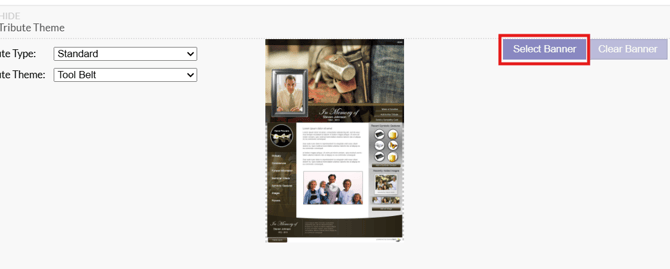
If you have the custom banners feature enabled on your system, a custom banner image can be uploaded via the "Select Banner" button on the right side of the section.
Family Access Area
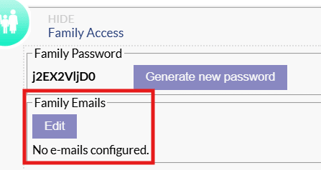
The family access area of the case summary page is where family access to the obituary page can be set up. Emails can be added under the family emails area, click "Edit" to add emails.
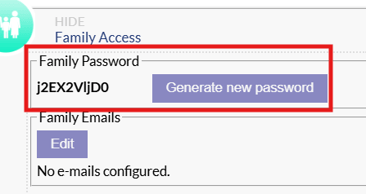
The access password can be viewed under the family password section, if you need to create a new password, click the "generate new password" button.
Once family access is set up, family members can use the sign in button on the obituary page to access the family area where they will have the ability to change the theme of the obituary page, view photos and manage condolences.
Sites Area
The sites area of the case summary page will show what sites the case is assigned to display on. If you have multiple sites, make sure that you have checked off the sites that you want this obituary to display on.

Case Data Area
The case data area of the case summary page will show all the case information in a view only format, with the option to print the information at the bottom of the section.
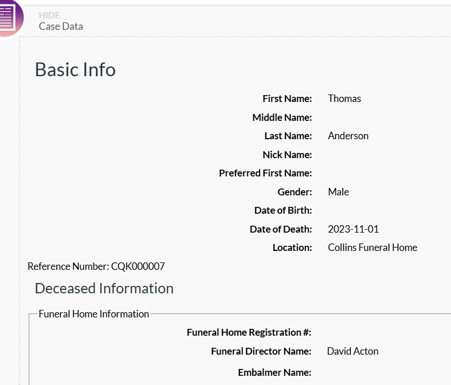
If you want to make changes to the case information, you will need to click the "Edit Case Data" button at the top of the case summary page to enter into the arrangement form.
Case Notes Area
The case notes area of the case summary page allows you to add notes to the case if needed. To add a note, click the green "Add Note" button. Notes can also be edited or deleted via the "Edit" or "Delete" button.

Logs Area
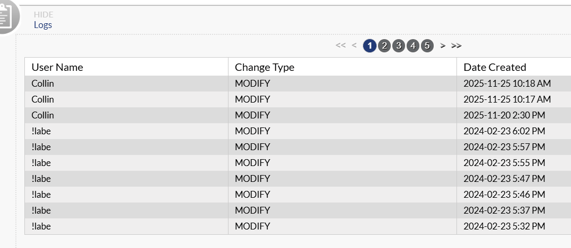
The logs area of the case summary page will show a list of all changes made on the case. For each logged changed, the username, change type and date of change will be displayed.